Campaign List
The Campaign List feature allows administrators to monitor, manage, and configure all campaigns deployed on the Mini Gift platform. Here, users can view the list, create new, edit, delete, and get QR Codes for each campaign.
1. Accessing the Campaign List
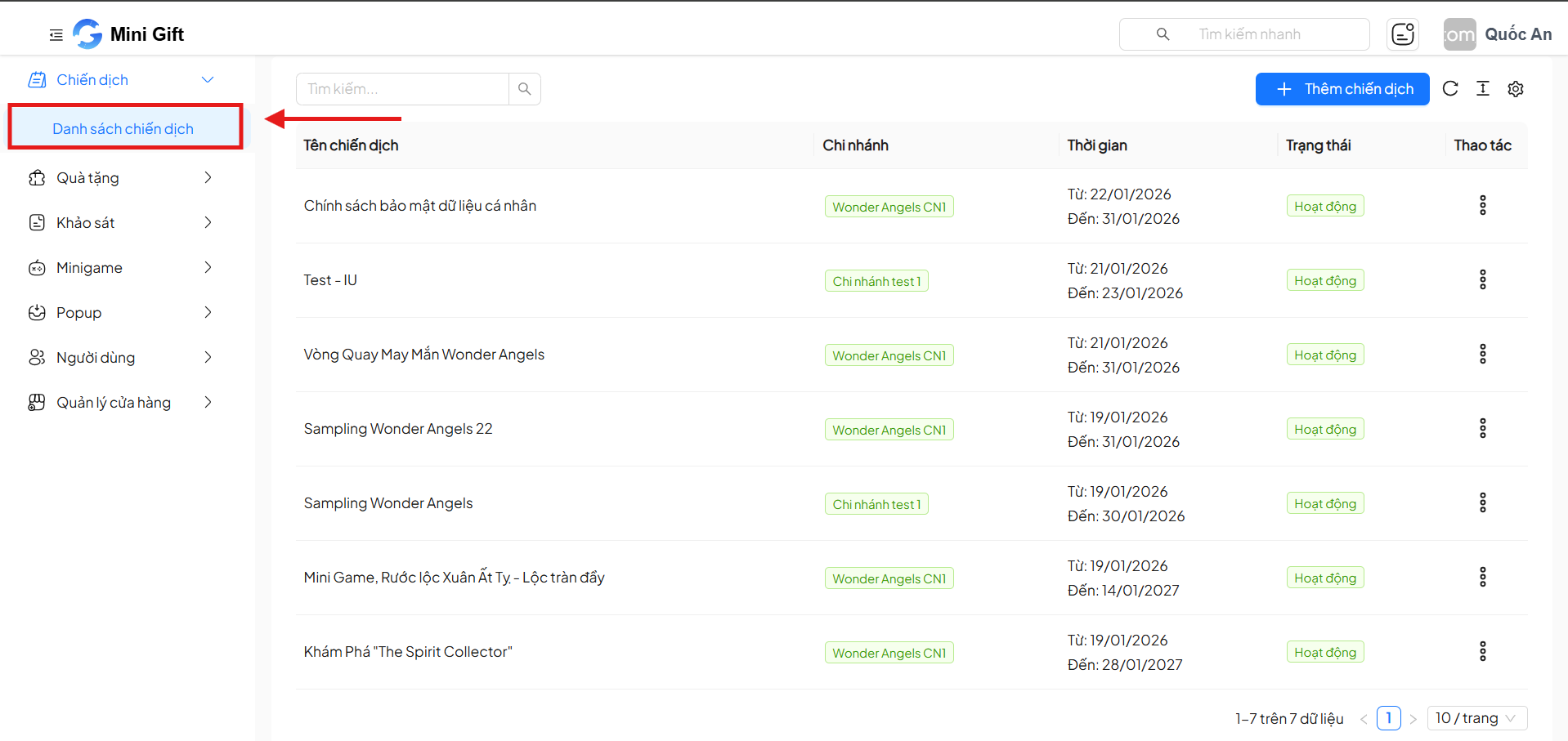
From the left menu bar, select:
Campaigns → Campaign List
The screen displays a list of all campaigns created in the system.
2. Campaign List
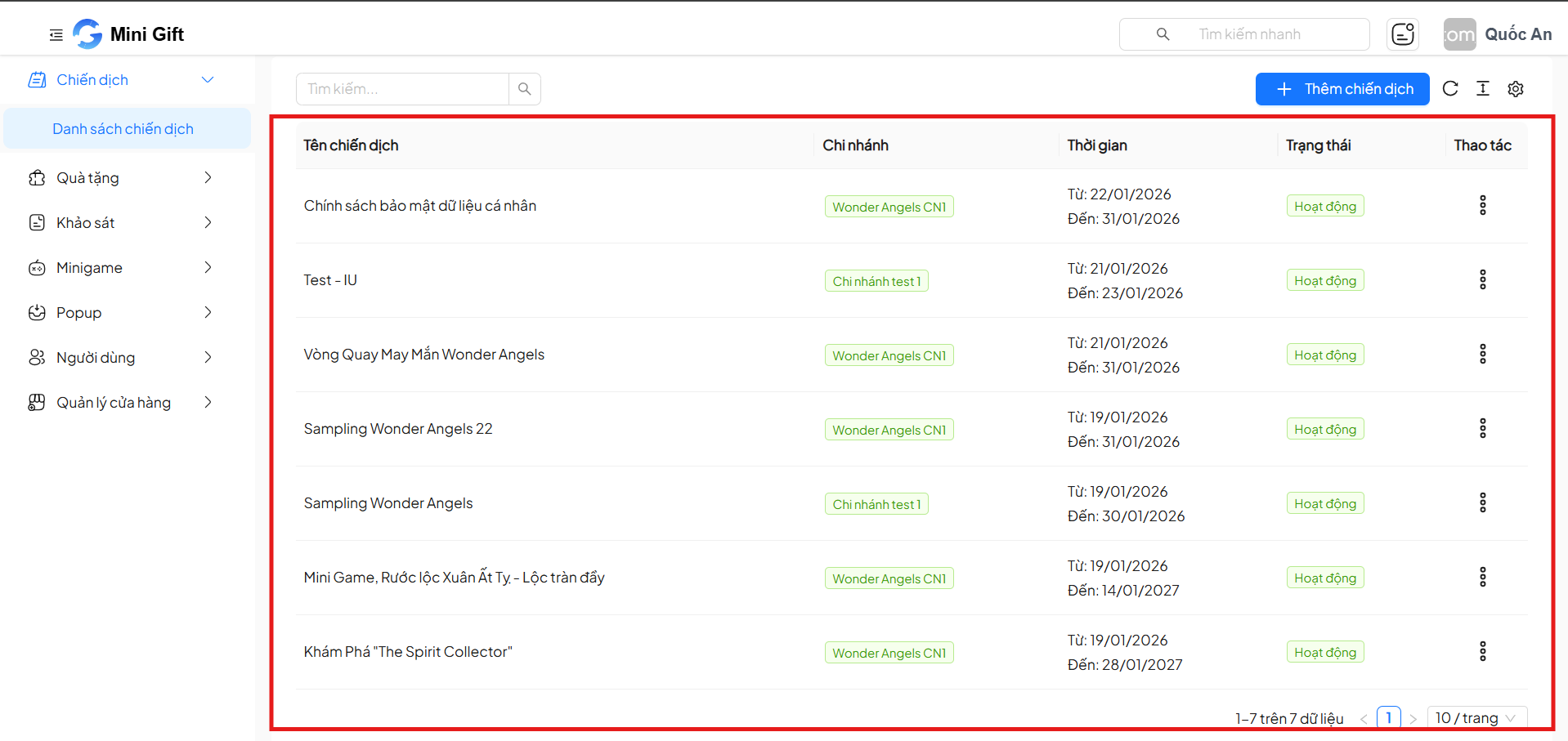
2.1. Campaign List Interface
The campaign list is displayed as a table with the following key information:
| Column | Description |
|---|---|
| Campaign Name | The identifying name of the campaign |
| Branch | The branch where the campaign is applied |
| Duration | Campaign start and end time |
| Status | Campaign activity status |
| Actions | Campaign management actions |
2.2. Search Campaigns
The search bar above the list allows:
- Quick search for campaigns by name
- Filter data when the number of campaigns is large
Enter a keyword in the search box for the system to automatically filter results.
2.3. Campaign Status
Each campaign has a clearly displayed status:
| Status | Meaning |
|---|---|
| Active | The campaign is currently applied and displayed on the app |
| Inactive | The campaign is paused or not yet activated |
2.4. Campaign Actions
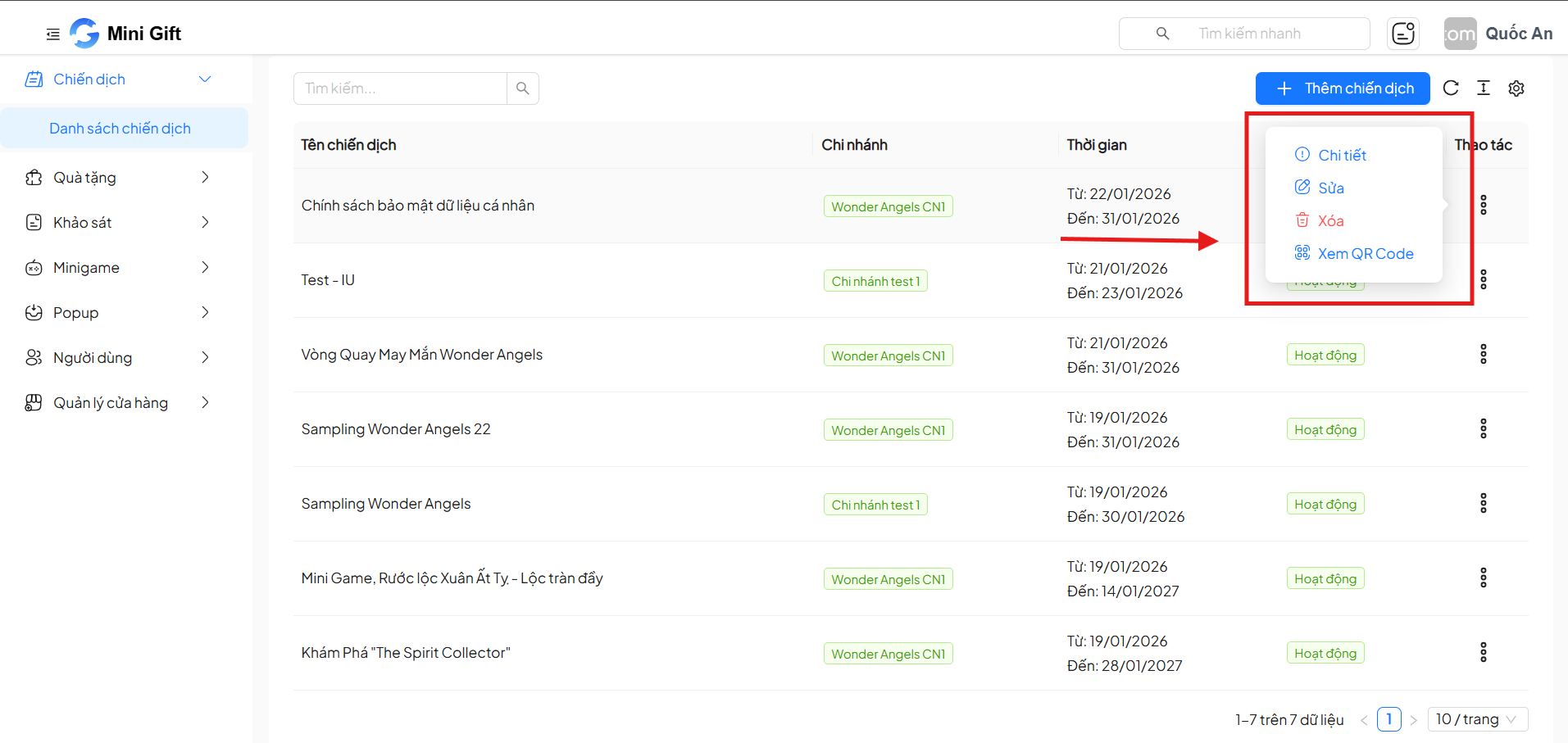
In the Actions column, click the ⋮ icon to open the action menu:
| Action | Description |
|---|---|
| Details | View full campaign information |
| Edit | Edit campaign content and configuration |
| Delete | Delete the campaign from the system |
| View QR Code | Get the QR code for users to access the campaign |
- A campaign can only be deleted when it is no longer active.
- When deleting a campaign, the system may request confirmation to avoid accidental actions.
6. Create a New Campaign
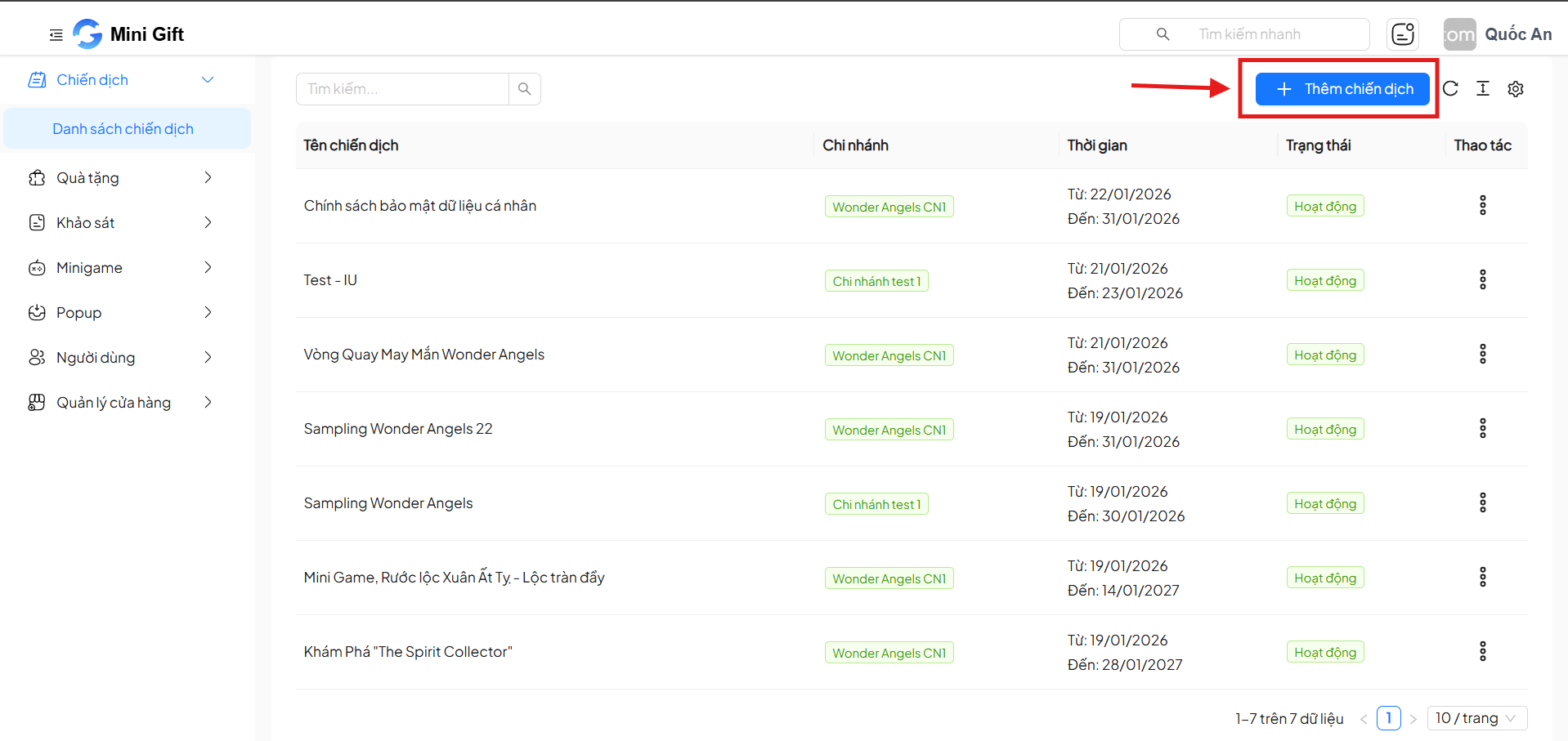
Click the "+ Add Campaign" button in the upper right corner of the screen to create a new campaign.
6.1. Basic Information
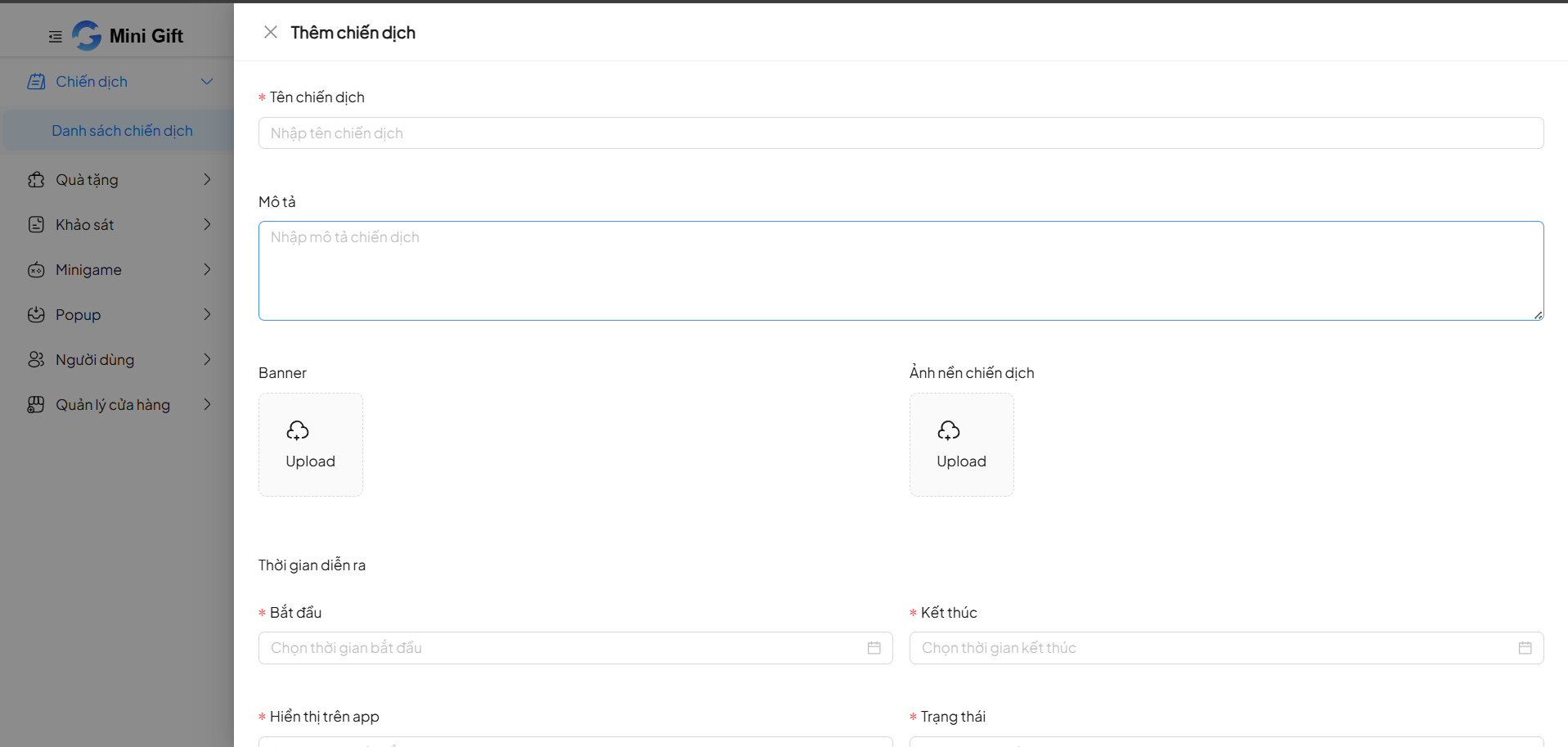
| Field | Required | Description |
|---|---|---|
| Campaign Name | Yes | Display name of the campaign |
| Description | No | Brief description of the campaign |
| Banner | No | Representative banner image |
| Campaign Background Image | No | Background image displayed in the mini app |
6.2. Campaign Duration
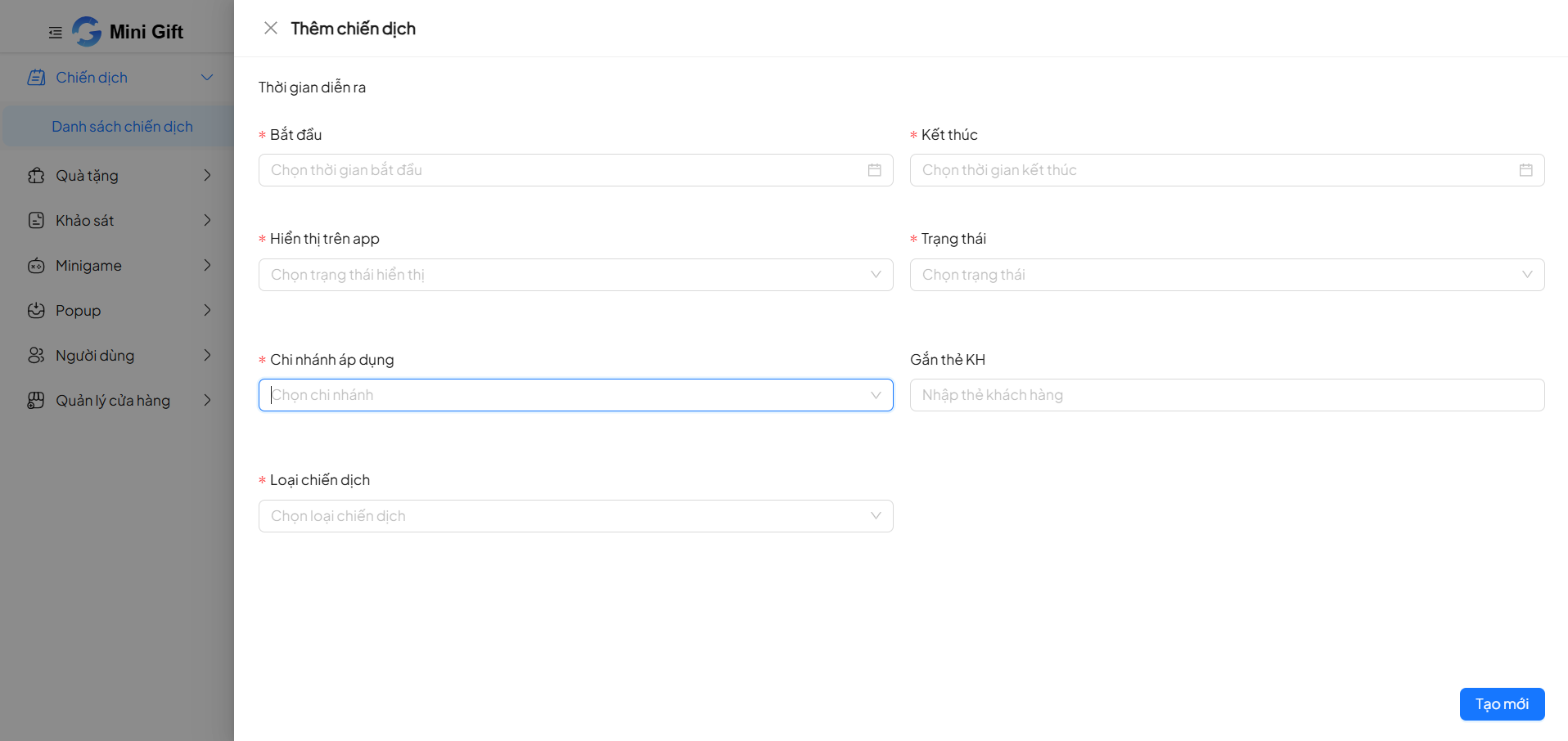
| Field | Required | Description |
|---|---|---|
| Start | Yes | Campaign start time |
| End | Yes | Campaign end time |
The campaign only operates within the configured time period.
6.3. Display & Status Configuration
| Field | Required | Description |
|---|---|---|
| Display on App | Yes | Allow campaign to be displayed on Mini App |
| Status | Yes | Active / Inactive |
6.4. Application Scope
| Field | Required | Description |
|---|---|---|
| Applied Branch | Yes | Select branch to deploy the campaign |
| Assign Customer Tag | No | Assign specific customer groups |
| Campaign Type | Yes | Campaign classification (Survey, Spin Wheel, Landing page, Points Reward, Sales, Invoice Statement,...) |
6.5. Save Campaign
After completing the information, click Create to save the campaign.
- The system will validate required data
- Valid campaigns will be displayed immediately in the list
8. Usage Notes
- Set clear, distinguishable campaign names
- Check the campaign duration to avoid overlap or expiration
- Only Active status campaigns are displayed on the Mini App
- QR Code can be used for printing, sharing, and communications
9. Conclusion
The Campaign List feature is the central hub for managing all marketing activities on Mini Gift, helping businesses:
- Manage campaigns centrally
- Control status and timing
- Quickly connect with users via QR Code
Use this feature to optimize campaign deployment effectiveness on Mini App.