Store List (Branches)
The Store List feature allows administrators to manage all branches/stores in the Mini Gift system, including:
- View branch list
- Search branches
- Add new branches
- Edit, delete branches
- View QR Code for each branch
1. Accessing the Feature
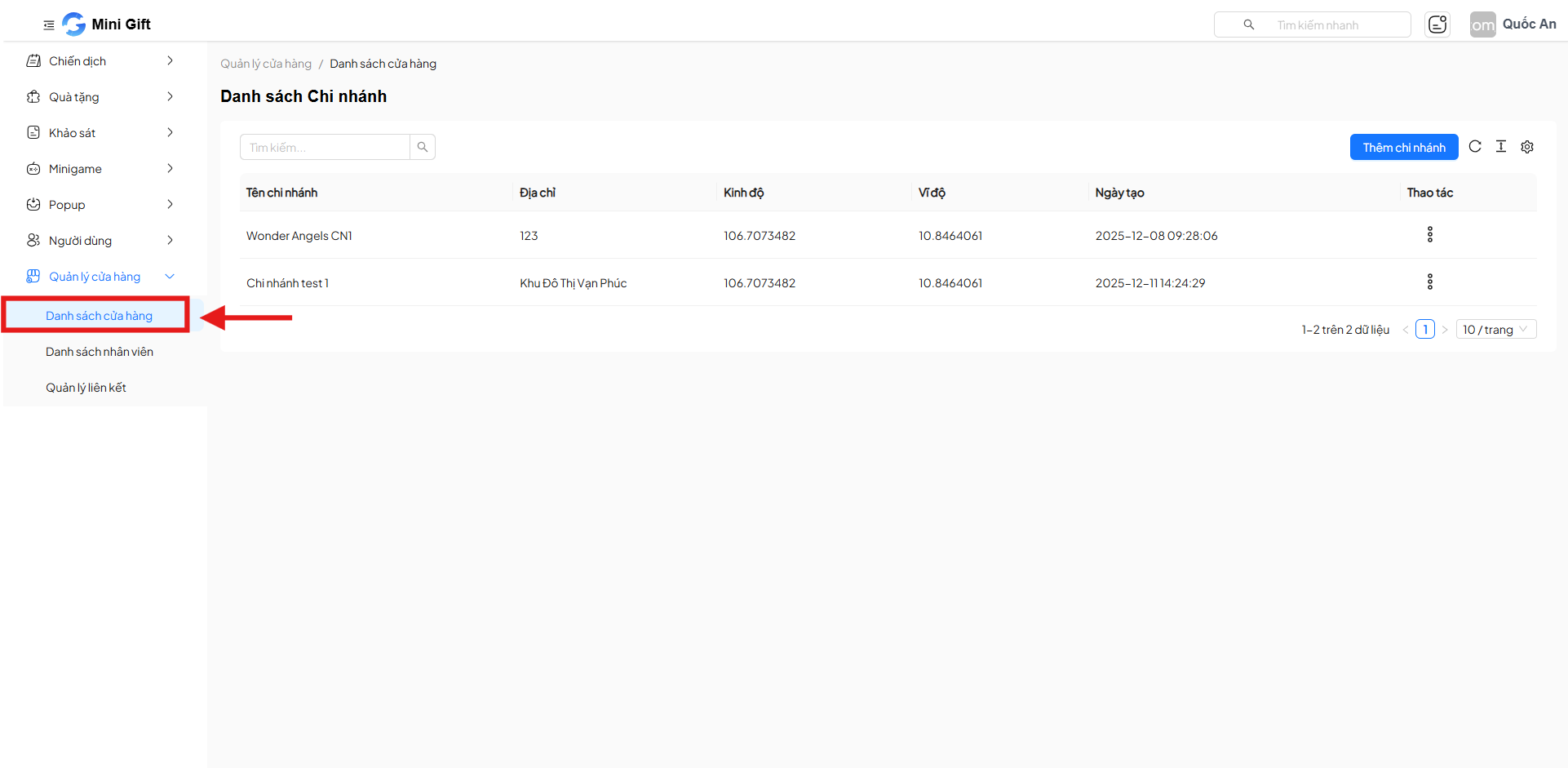
From the left menu bar, navigate to:
Store Management → Store List
2. Branch List Interface
2.1. Branch List
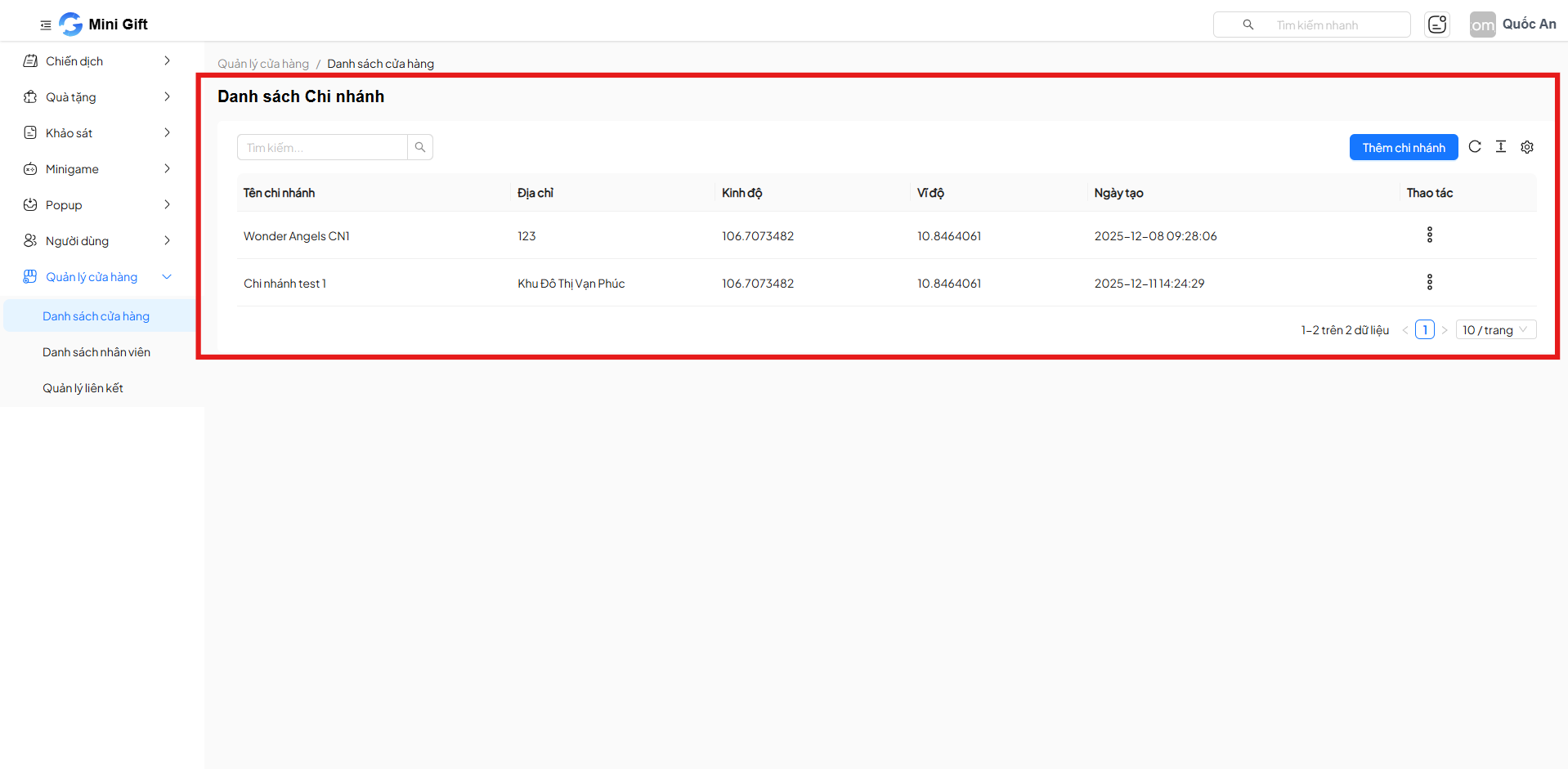
The Branch List screen displays a table with the following columns:
| Column Name | Description |
|---|---|
| Branch Name | Store/branch name |
| Address | Detailed branch address |
| Longitude | Longitude coordinate |
| Latitude | Latitude coordinate |
| Created Date | Branch creation timestamp |
| Actions | Management actions |
2.2. Search Branches
Users can quickly find branches by entering keywords in the search box:
- Search by branch name
- Results are filtered directly on the list
3. Add New Branch
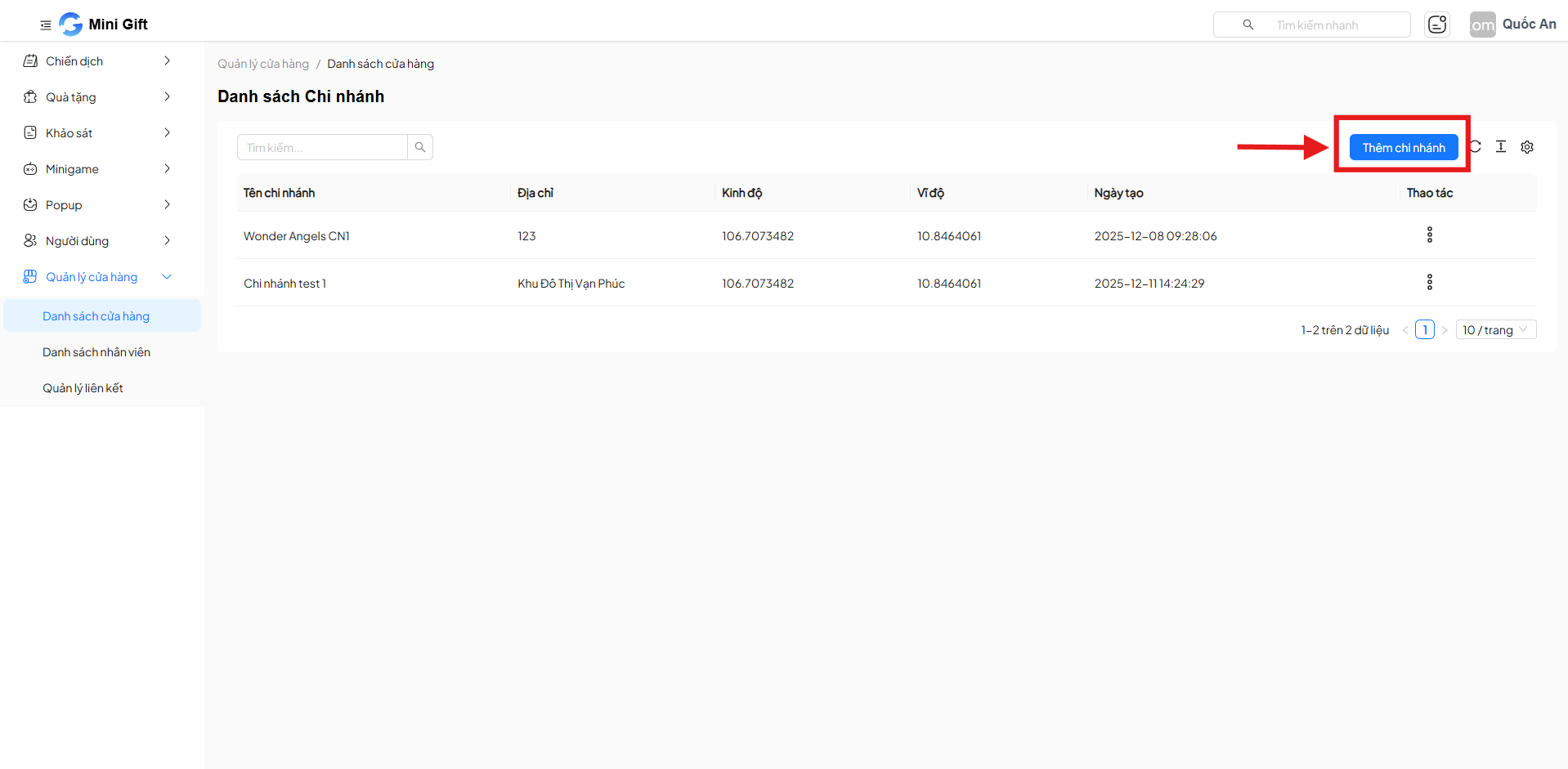
Click the Add Branch button to create a new branch in the system.
Information to Enter
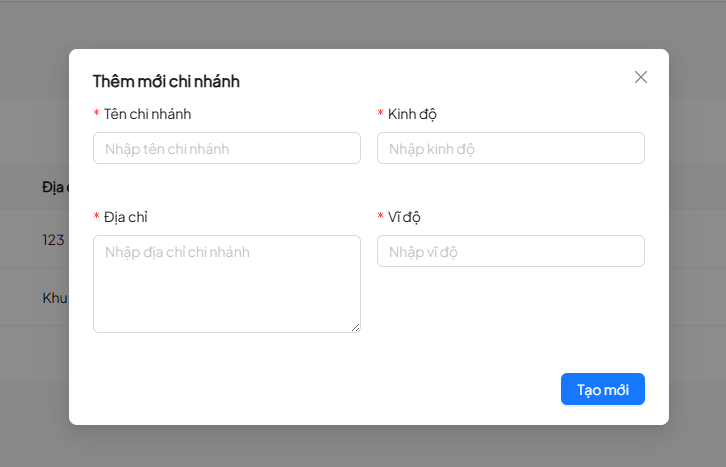
| Field | Required | Description |
|---|---|---|
| Branch Name | Yes | Store name |
| Address | Yes | Detailed address |
| Longitude | Yes | Location longitude |
| Latitude | Yes | Location latitude |
After entering all information, click Create to save the branch.
4. Branch Actions
At each branch row, click the ⋮ icon to open the action menu.
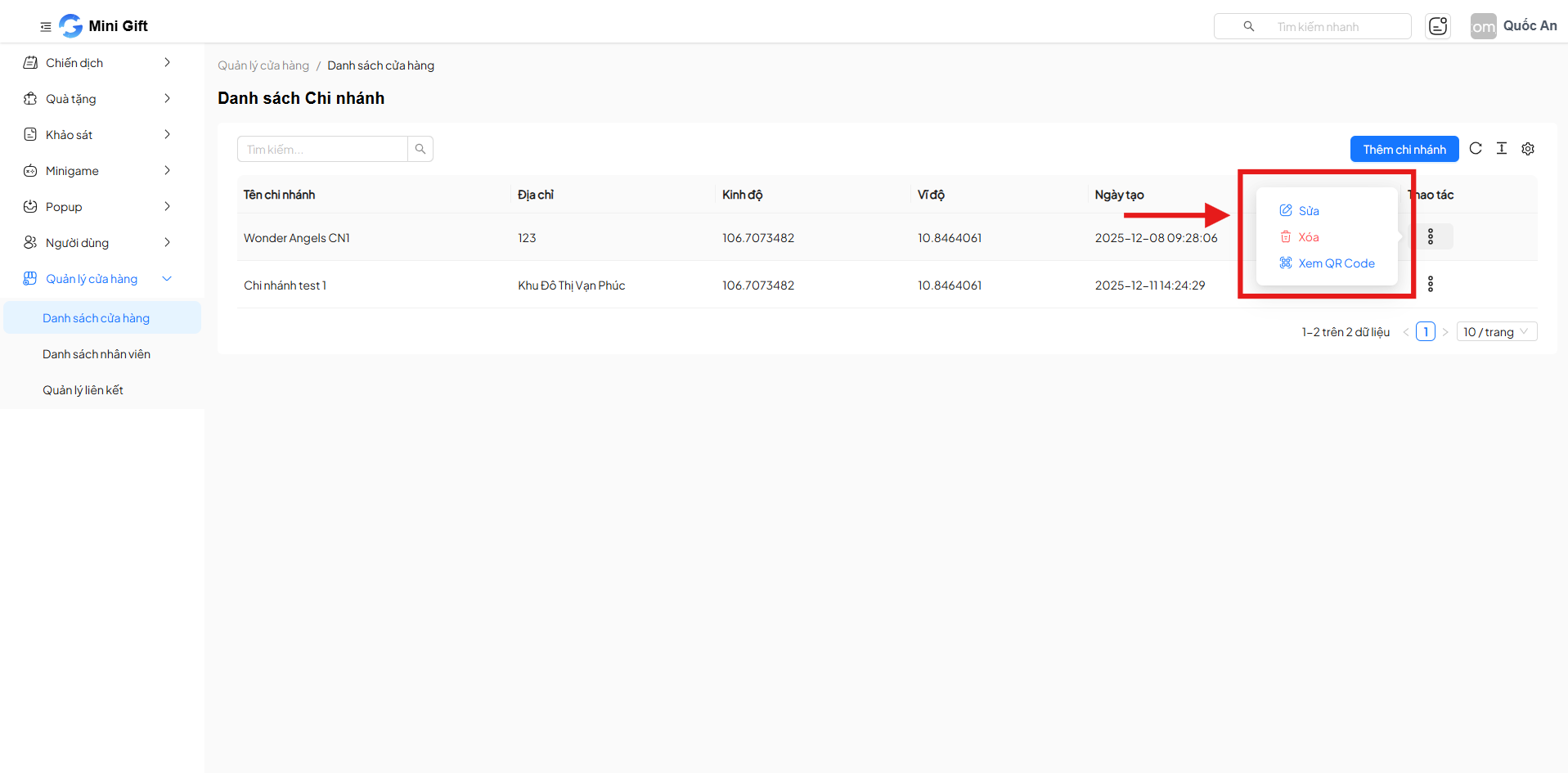
4.1 Edit Branch
- Allows updating branch information
- Opens an edit popup similar to the creation form
4.2 Delete Branch
- Deletes the branch from the system
- A confirmation dialog appears before deletion
4.3 View QR Code
- Displays the branch QR Code
- Used for check-in, scanning at the store
5. List Pagination
- Supports data pagination
- Allows selecting the number of records displayed per page
- Shows the total number of existing branches
6. Usage Notes
Usage Tips
- Use the search feature to quickly locate the branch you need to manage
- Regularly update branch information to ensure data accuracy
- Use QR Codes to support marketing activities and customer experiences at the store
- Enter accurate coordinates to ensure map-related features work correctly
- Branch names should be easy to identify and avoid duplicates
Warning
- Branch deletion is irreversible, make sure before proceeding
- Ensure appropriate access permissions to avoid accidental editing or deletion of branches
- Carefully check information before saving to avoid errors
7. Summary
The Store List feature is an important tool for businesses to:
- Manage the branch system centrally
- Support marketing activities, QR Codes, and vouchers
- Ensure store data is always accurate and synchronized