Survey List
The Survey List feature on the Mini Gift platform helps administrators and operations teams easily manage, monitor, and edit surveys used in campaigns, minigames, or customer information collection.
1. Access Path
- From the Mini Gift admin page, select the menu Surveys → Survey List
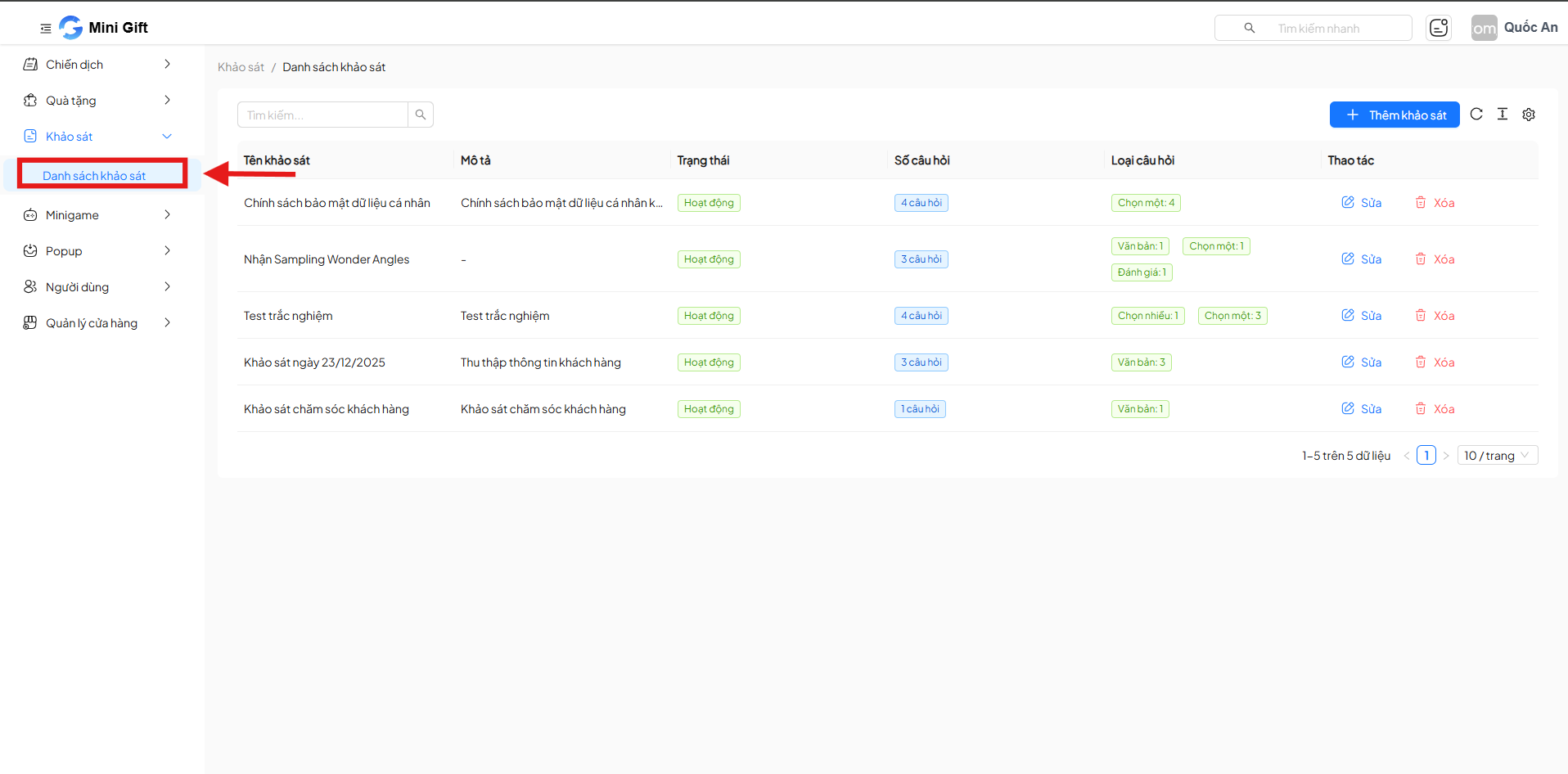
2. Survey List
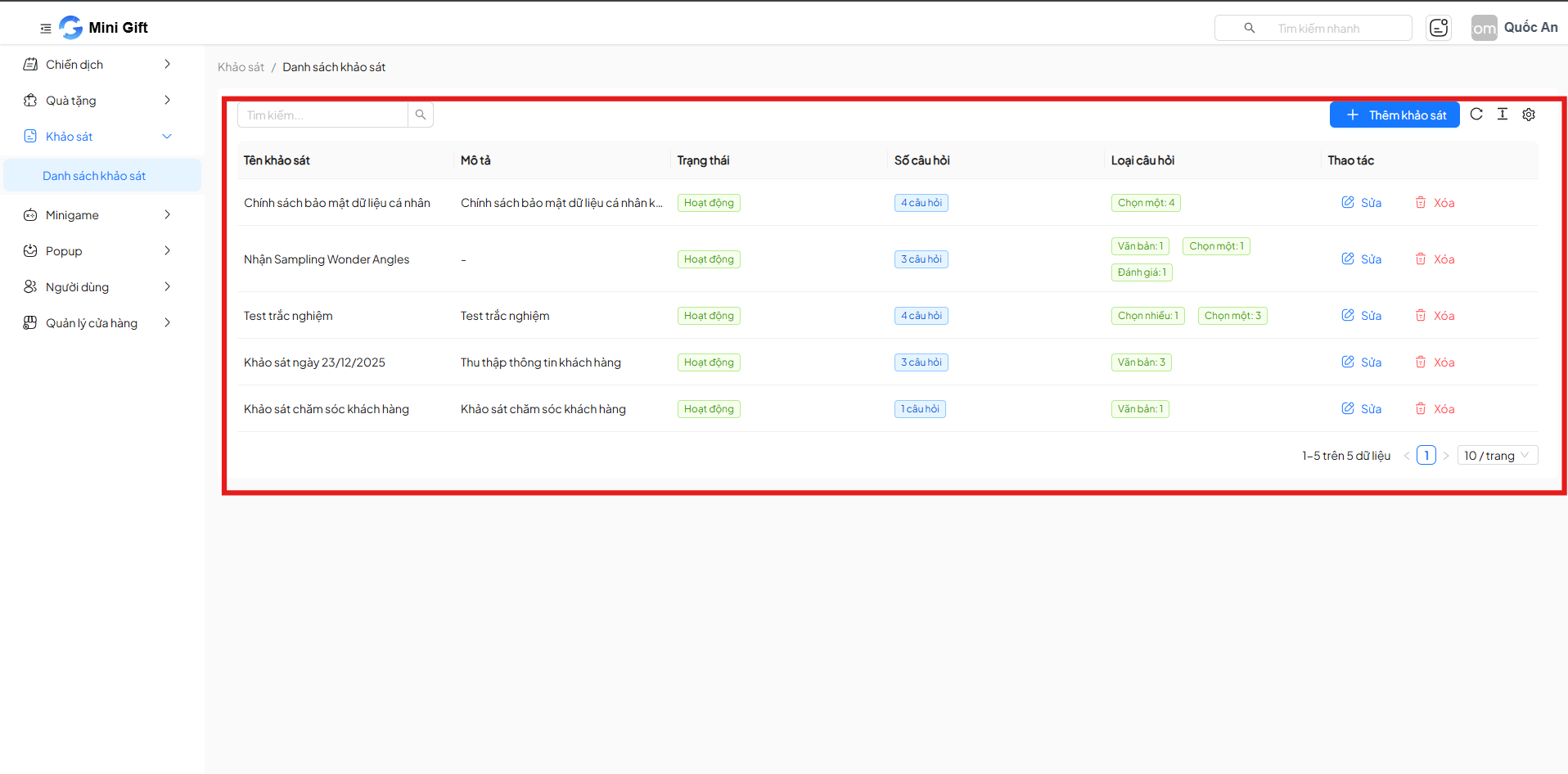
The survey list screen provides an overview of all surveys in the system, including:
| Column | Description | Example |
|---|---|---|
| Survey Name | Display name of the survey, helping administrators easily identify and distinguish surveys in the system | Customer Care Survey |
| Description | Brief description of the purpose, content, or target audience of the survey | Collect customer feedback after completing an order |
| Status | Activity status of the survey, determining whether it is currently in use | Active |
| Number of Questions | Total number of questions configured in a survey | 4 questions |
| Question Types | Types of questions used in the survey, helping administrators quickly understand the survey structure | Text, Single Choice |
| Actions | Survey management actions that can be performed directly on the list | Edit / Delete |
3. Survey Management Actions
Each survey has the following actions:
- Edit: Update survey information
- Delete: Remove the survey from the system
Note: Deleting a survey may affect campaigns or already collected data.
4. Add New Survey
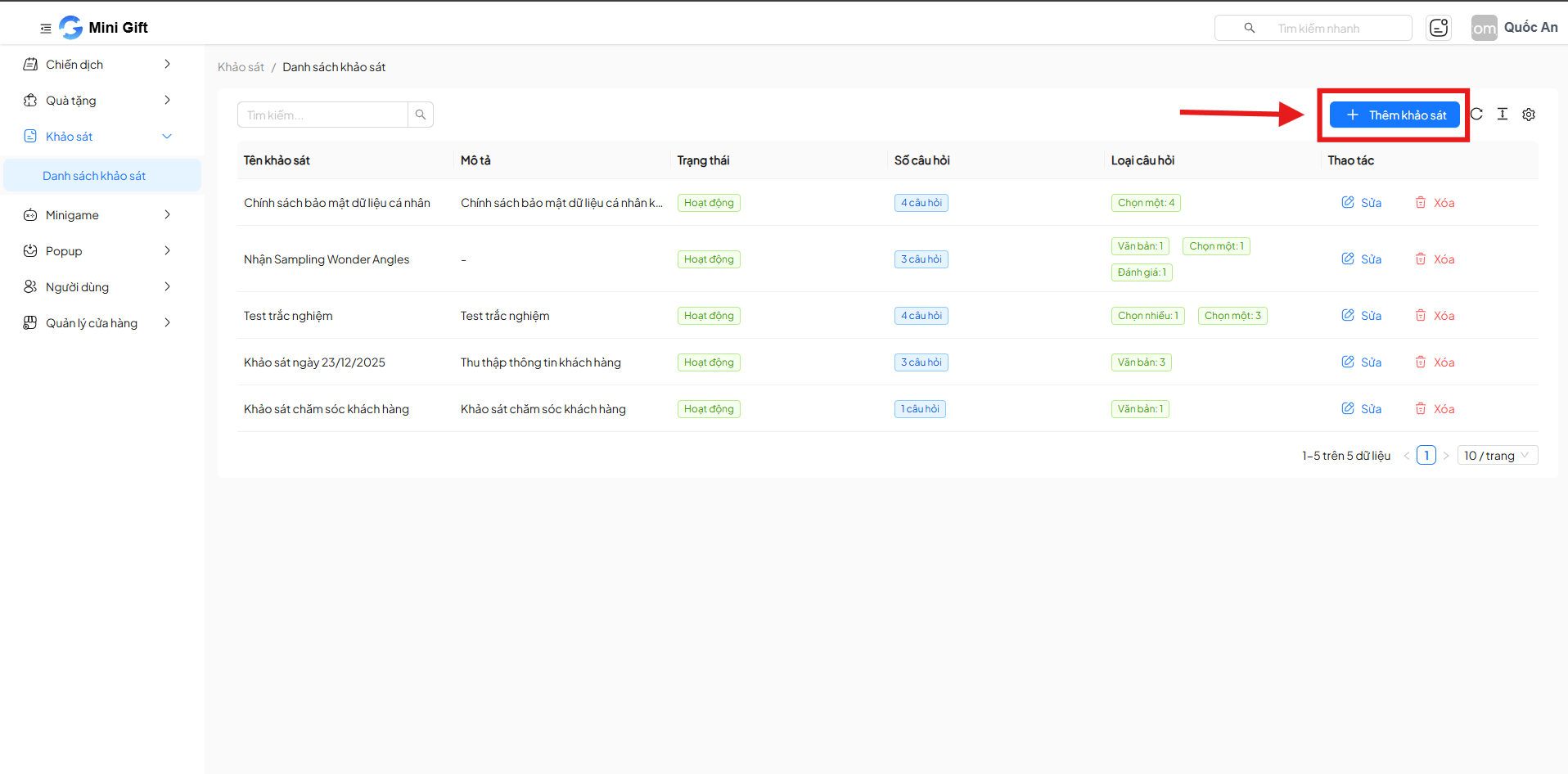
Step 1: Click the + Add Survey button
- The button is located in the upper right corner of the list screen
Step 2: Enter Survey Information
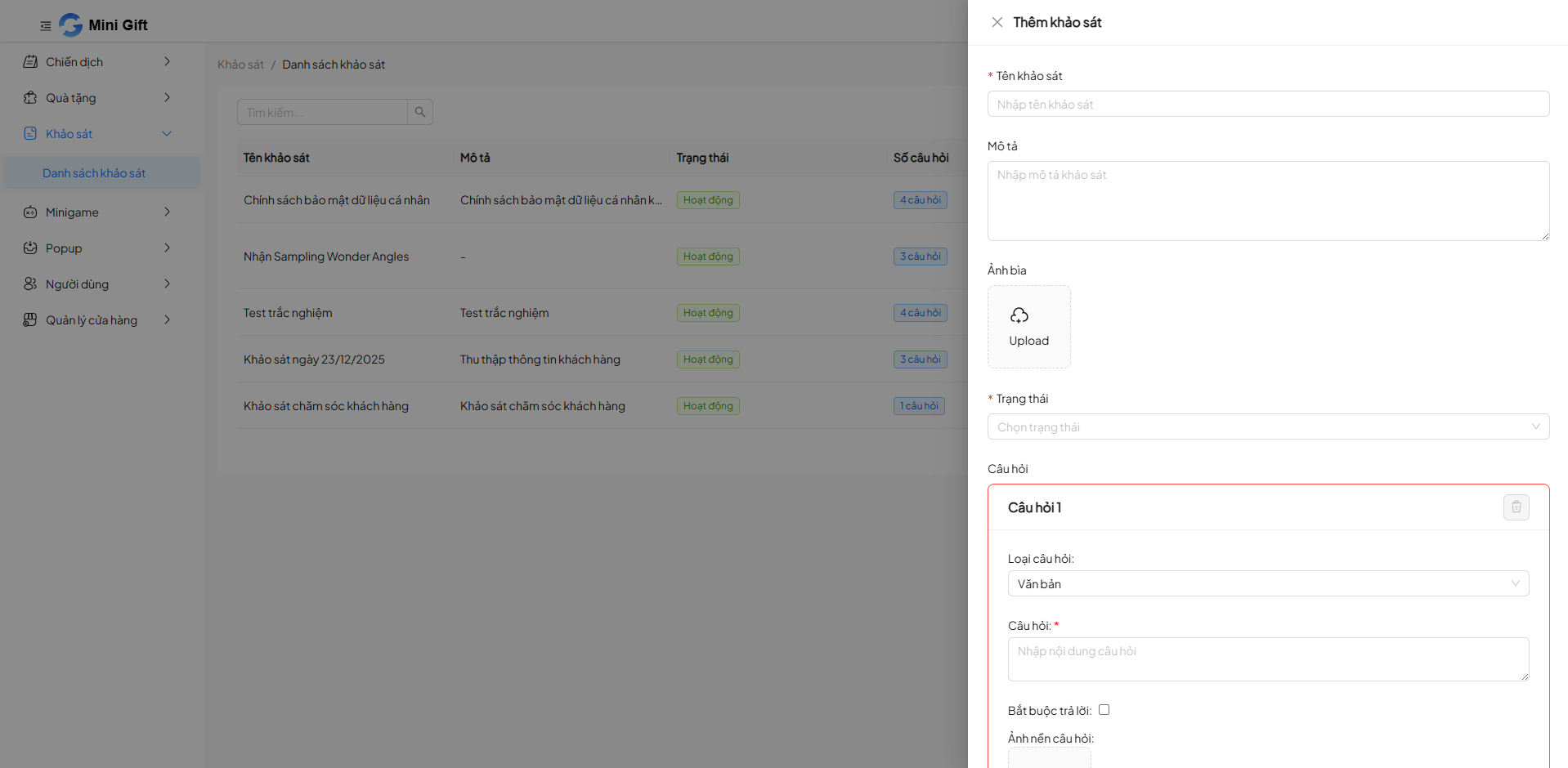
The information fields include:
| Field | Description | Example |
|---|---|---|
| Survey Name (required) | Display name of the survey, used for identification and distinguishing surveys in the system | Customer Satisfaction Survey |
| Description | Brief description of the purpose, scope, or target audience of the survey | Collect customer feedback after using the service |
| Cover Image | Representative image for the survey, making it easier to identify and more visual | banner_survey.png |
| Survey Status | Determines whether the survey is active or paused | Active |
| Question List | List of questions configured in the survey | 5 questions (Text, Single Choice) |
Step 3: Configure Survey Questions
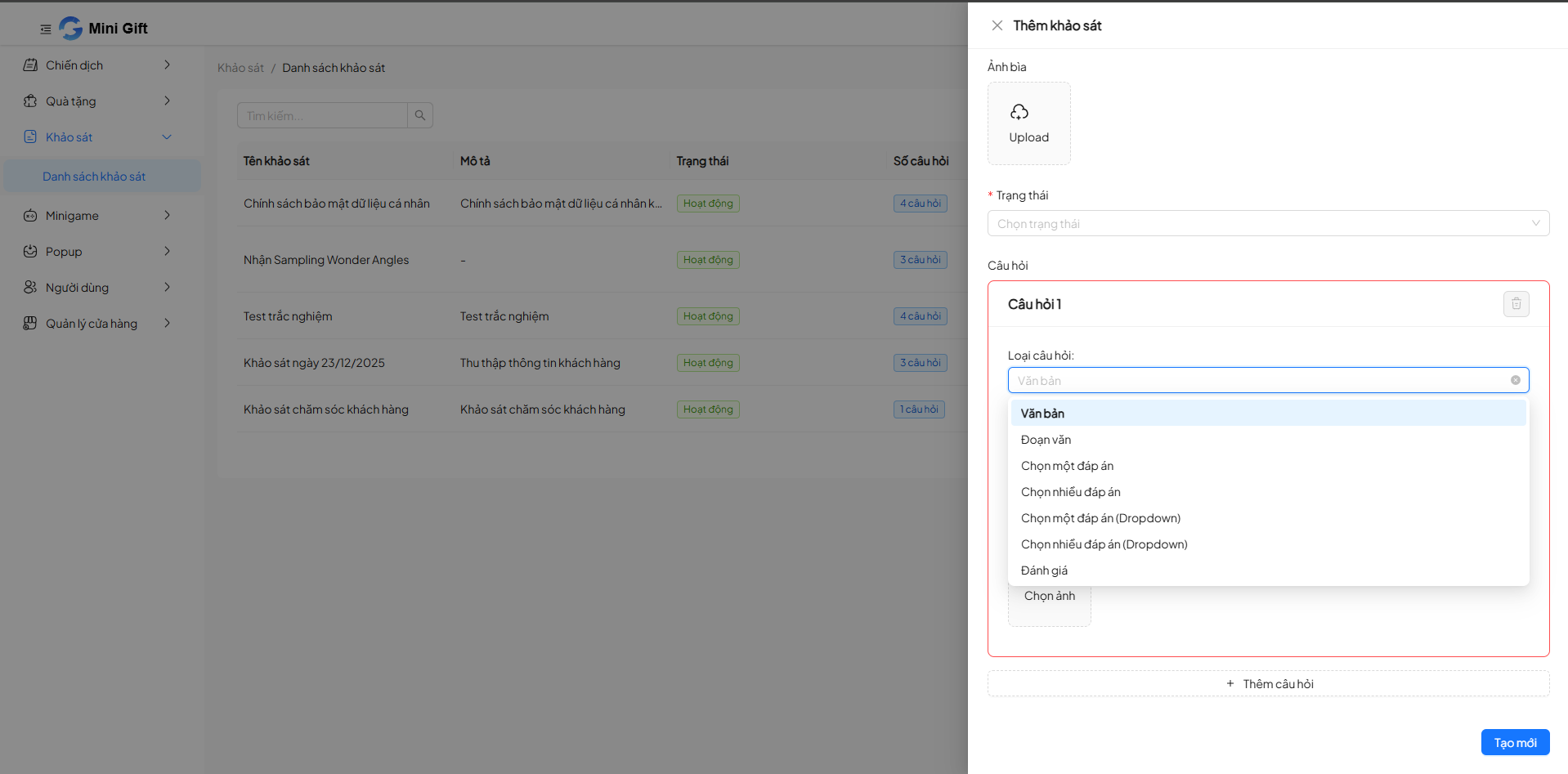
The system supports multiple question types:
| Question Type | Description | Example |
|---|---|---|
| Text | Allows users to enter a short answer as a single line of text | What is your name? |
| Paragraph | Allows users to enter a long, multi-line answer | Please share your experience using the service |
| Single Choice | Users can select only one answer from the list | Are you satisfied with the service? (Yes / No) |
| Multiple Choice | Allows users to select multiple answers at once | Which services have you used? (Delivery, Warranty, Support) |
| Dropdown (single or multiple) | Displays a dropdown list to select one or more values | Select the branch you visited |
| Rating | Users rate satisfaction on a scale | Rate service quality from 1 to 5 stars |
| Image Selection | Allows users to select or upload an image as an answer | Upload a purchase receipt photo |
Additionally, supplementary settings can be customized for each question:
| Option | Description | Example |
|---|---|---|
| Required Answer | Requires users to answer the question before submitting the survey | Cannot skip the rating question |
| Question Illustration Image | Add an image to clarify the question content | Product illustration for evaluation |
| Add Multiple Questions | Allows adding multiple questions within the same survey | Survey with 5 different questions |
Step 4: Save Survey
- Click Create to complete
- The survey will appear immediately in the list
5. Benefits of the Survey List Feature
- Centralized, clear survey management
- Quick, intuitive operations
- Flexible creation & editing of content
- Suitable for customer surveys, needs research, minigames, and marketing campaigns
Conclusion
The Survey List feature is an important tool helping Mini Gift collect and manage user data effectively, supporting optimization of marketing activities and customer care.