Pop-up Management
The Pop-up Management feature in Mini Gift allows administrators to create and manage pop-ups displayed in Mini Games, serving purposes such as:
- Confirming player actions
- Collecting user information (OA, phone number, etc.)
- Displaying success notifications or gift status
- Directing and controlling user experience
All pop-ups are centrally managed on the Pop-up List screen, making it easy to track status and edit content when needed.
1. Accessing the Feature
From the left menu of the system, navigate to:
Popup → Popup List
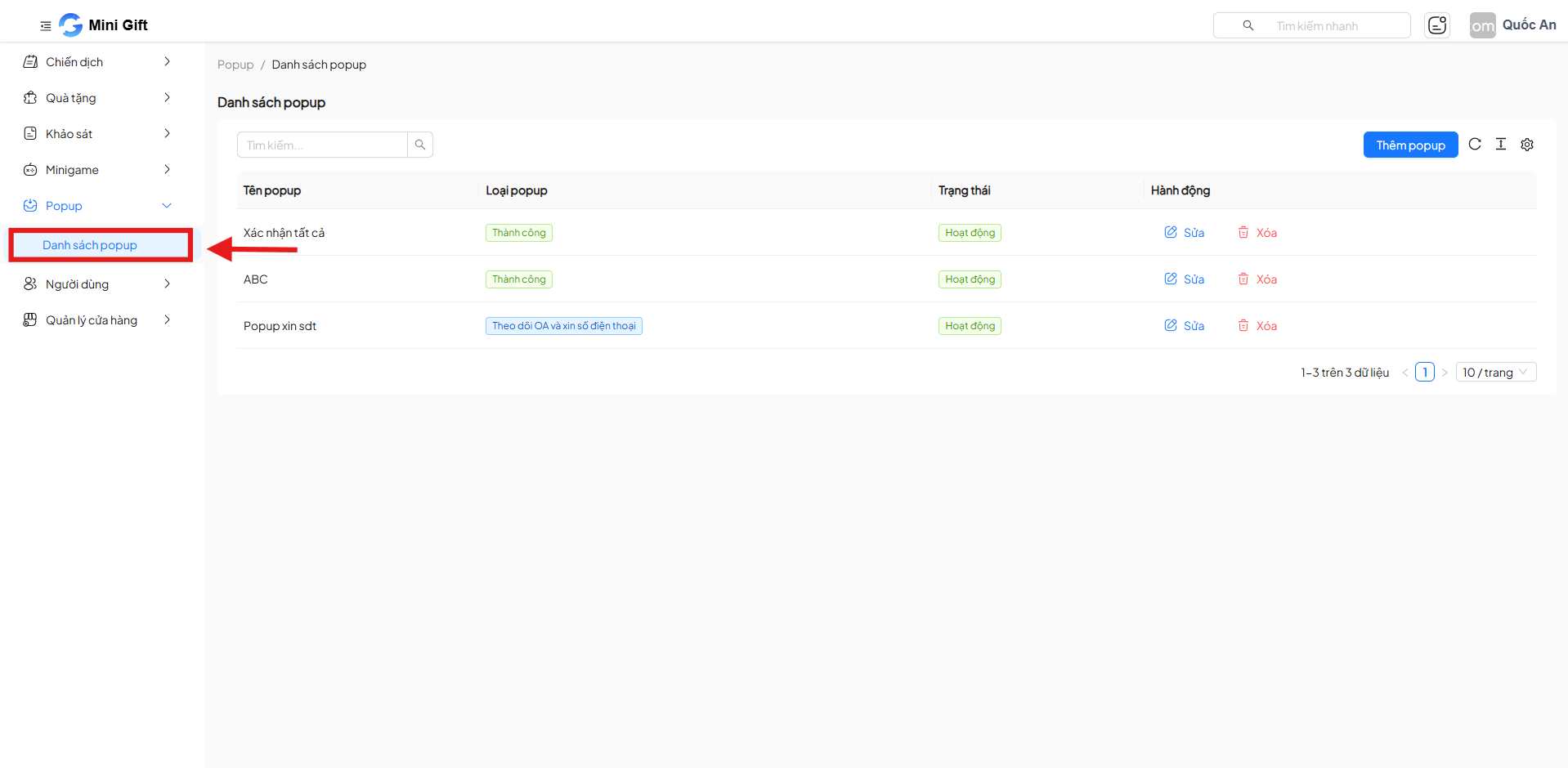
2. Pop-up List Interface
The Pop-up List screen displays all pop-ups created in the system.
2.1. Information Columns
| Column | Description | Example |
|---|---|---|
| Popup Name | Name used to identify the pop-up | Confirm All |
| Popup Type | Functional type of the pop-up | Follow OA and request phone number |
| Status | Activity status of the pop-up | Active |
| Actions | Edit or delete the pop-up | Edit / Delete |
2.2. Search Pop-ups
The search bar allows users to:
- Quickly find pop-ups by popup name
- Filter the list when the number of pop-ups is large
3. Add New Pop-up
To create a new pop-up, follow these steps:
3.1. Add Pop-up
- Click the Add Popup button at the top
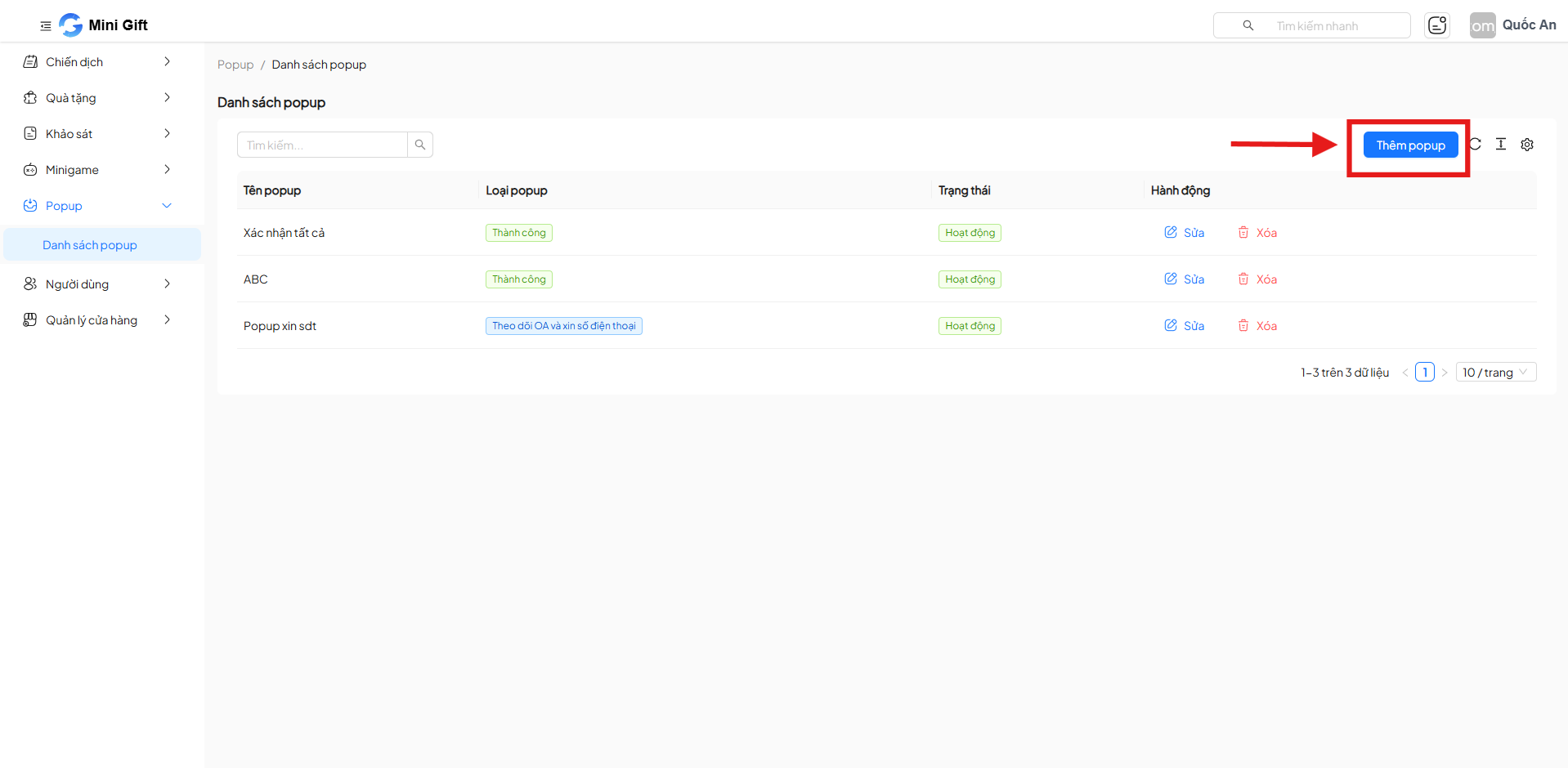
- The system displays the Add Popup form
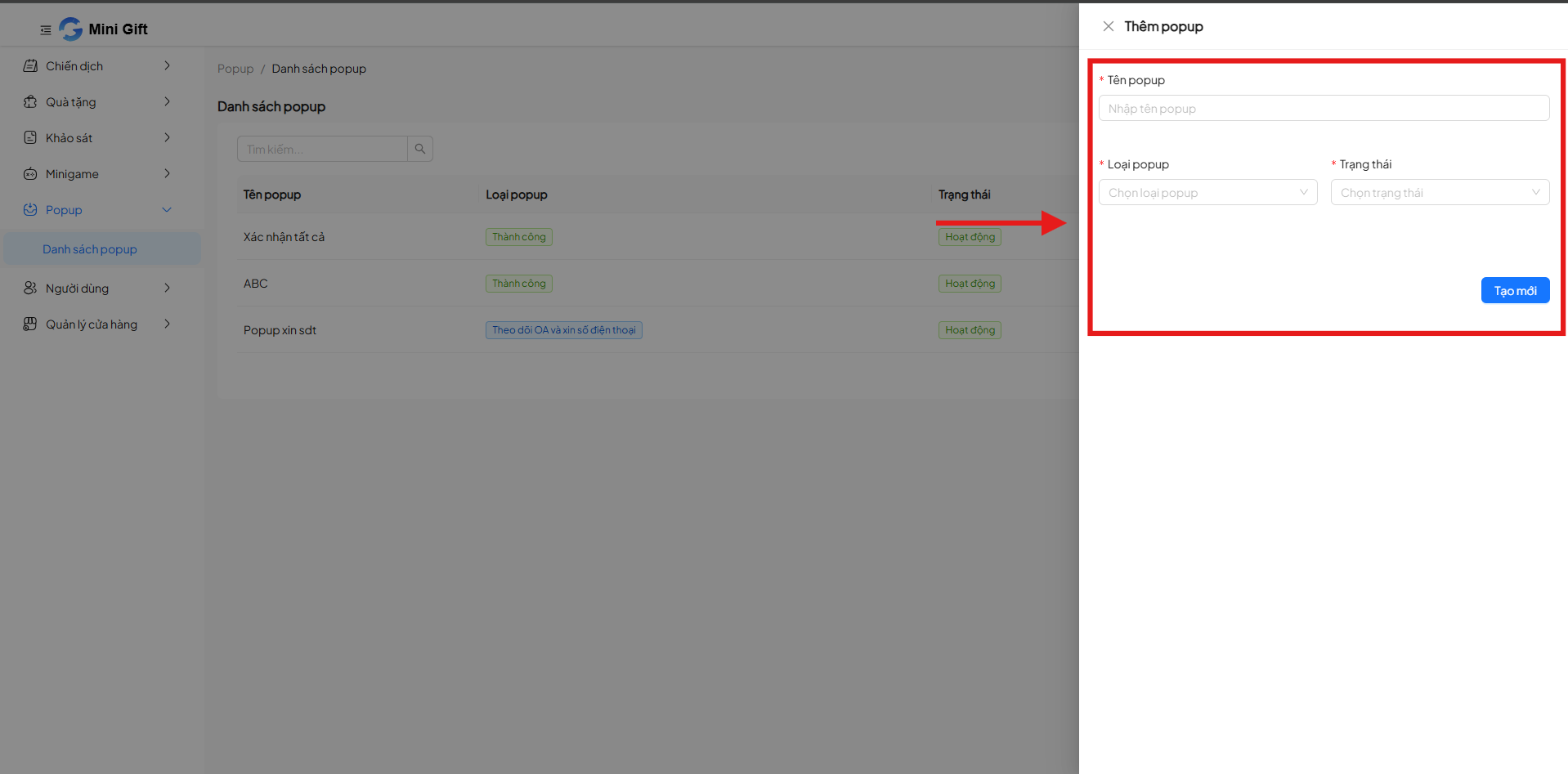
- Fill in all required information
- Click Create to save the pop-up
3.2. Information to Enter When Creating a Pop-up
| Field | Description | Required | Example |
|---|---|---|---|
| Popup Name | Display name for managing the pop-up | Yes | Phone Number Request Popup |
| Popup Type | Determines the purpose of the pop-up | Yes | Success |
| Status | Activity status of the pop-up | Yes | Active |
3.3. Supported Pop-up Types
| Pop-up Type | Description | Use Case Example |
|---|---|---|
| Follow OA and Request Phone Number | Pop-up requiring users to follow the Official Account and provide a phone number before continuing the Mini Game | Collect player information |
| Success | Pop-up displayed when a user successfully completes an action in the Mini Game | Gift received successfully |
| Out of Gifts | Pop-up notification when the campaign or Mini Game has run out of gifts | Out of gifts notification |
3.4. Pop-up Status
Each pop-up can be configured with one of two statuses:
| Status | Meaning |
|---|---|
| Active | The pop-up is allowed to display in the Mini Game |
| Inactive | The pop-up is no longer displayed |
4. Pop-up Actions
4.1. Edit Pop-up
To edit an existing pop-up:
- Click Edit in the Actions column
- Update the desired information
- Save to apply changes
Note: Changing the status or type of a pop-up may directly affect the Mini Game flow.
4.2. Delete Pop-up
To delete a pop-up:
- Click Delete in the Actions column
- Confirm the delete action
Deleted pop-ups cannot be recovered.
5. Usage Notes
- Set clear popup names that reflect their function
- Only activate pop-ups that are truly necessary to avoid disrupting the player experience
- Carefully check the popup type before applying to a running Mini Game
6. Conclusion
The Pop-up Management feature helps centrally, flexibly, and effectively control all pop-ups in Mini Gift, contributing to optimizing user experience in Mini Games.
Using the right pop-up at the right time helps increase interaction and conversion rates for campaigns.