Gift Management
The Gifts feature in the Mini Gift platform allows administrators to manage all gifts used in campaigns, minigames, and other marketing activities.
Here, you can:
- View the gift list
- Search for gifts quickly
- Add new gifts
- Edit or delete existing gifts
1. Accessing the Gift List
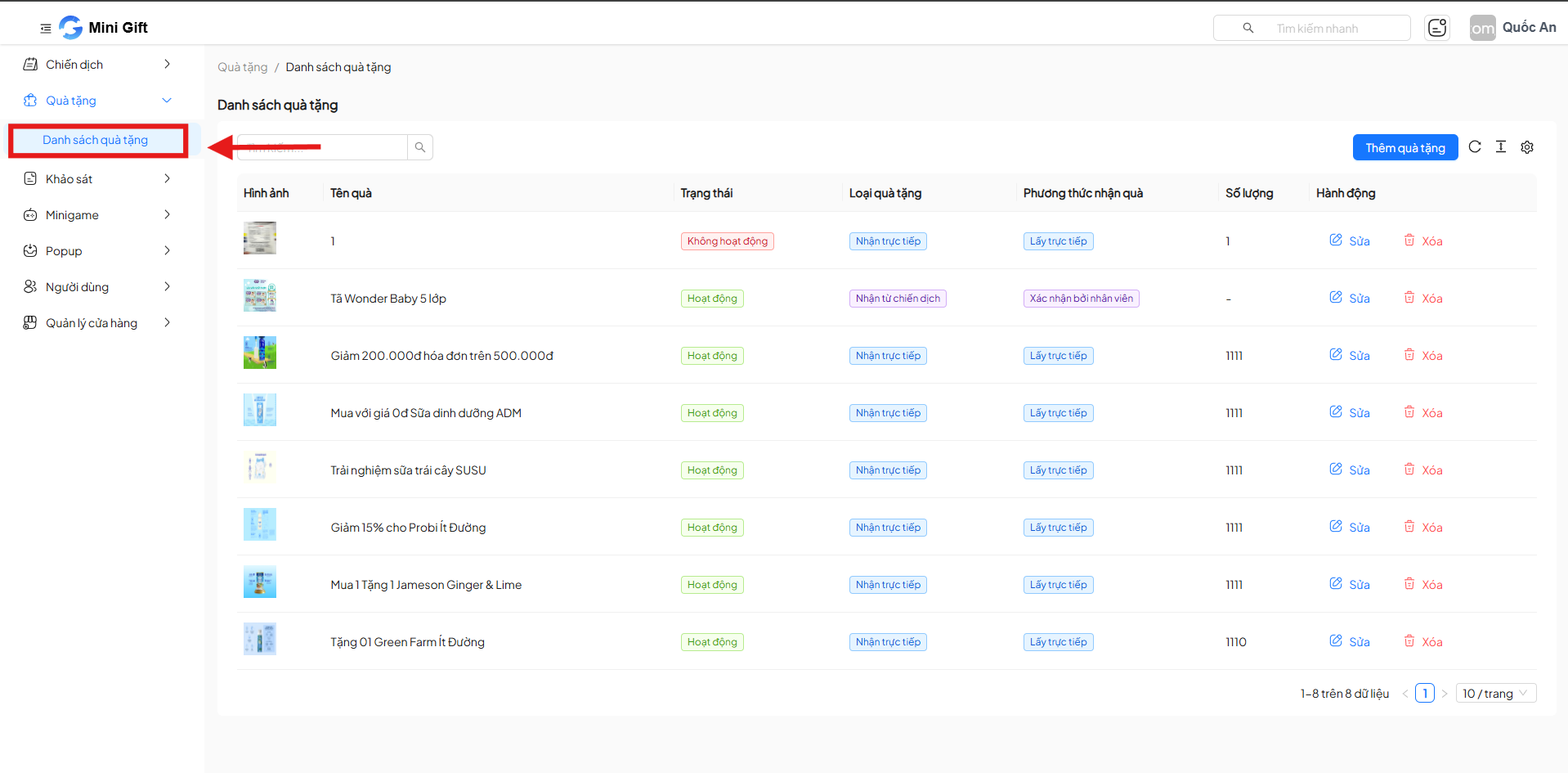
From the left menu bar:
- Select Gifts
- Click Gift List
The Gift List screen will display all gifts currently in the system.
2. Gift List Interface
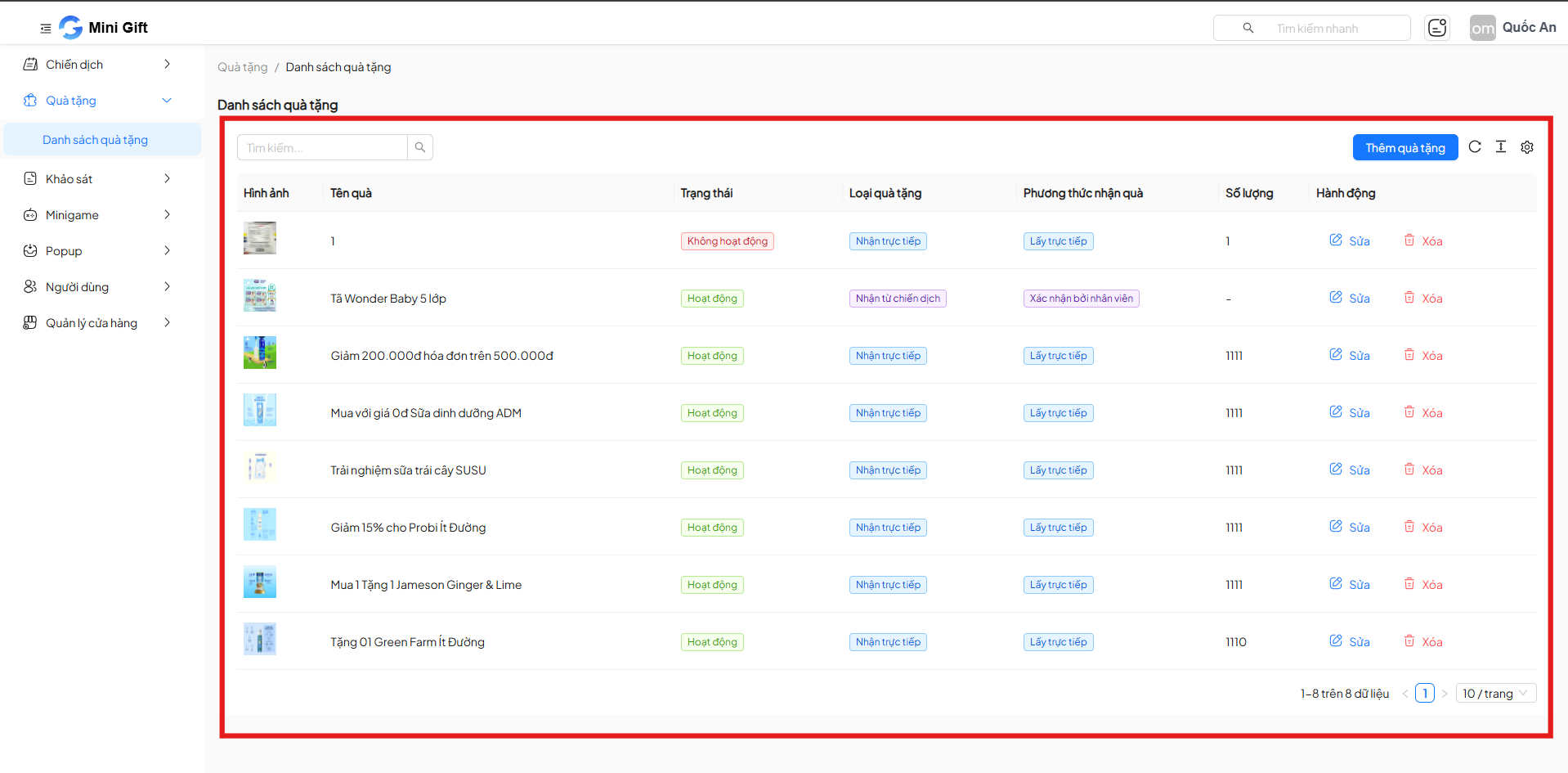
The gift list is displayed as a table with the following key information:
| Column | Description |
|---|---|
| Image | Gift thumbnail image |
| Gift Name | Display name of the gift |
| Status | Gift activity status (Active / Inactive) |
| Gift Type | Gift receiving format |
| Receiving Method | How users receive the gift |
| Quantity | Remaining gift quantity |
| Actions | Edit or delete actions |
2.1 Gift Status
Each gift has one of two statuses:
| Status | Meaning |
|---|---|
| Active | The gift is currently in use in the system |
| Inactive | The gift is temporarily not in use |
The status helps quickly identify which gifts are available for users.
2.2. Gift Type
Mini Gift supports various gift types:
- Direct Claim
- Claim from Campaign
- Claim from External Source
- Claim from MiniApp
The classification helps the system process the correct gift claiming flow for each case.
2.3. Receiving Method
Depending on the gift, the system will display the corresponding receiving method, for example:
- Direct Pickup
- Confirmed by Staff
This information helps administrators and users understand the gift claiming process.
2.4. Search Gifts
At the top of the list, there is a Search box.
You can:
- Enter a gift name
- The system will filter and display matching gifts immediately
3. Add New Gift
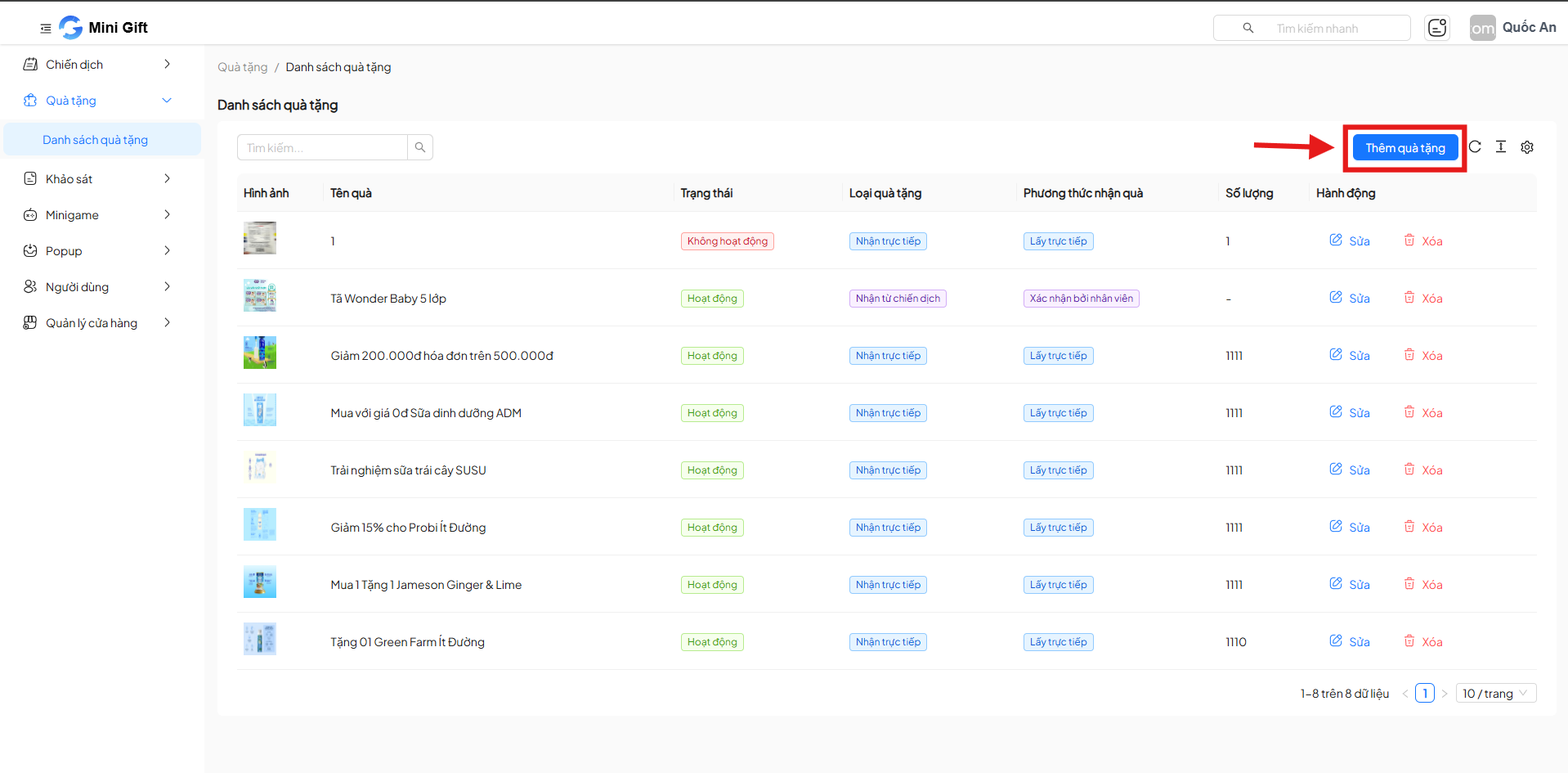
To create a new gift:
- Click the Add Gift button in the upper right corner
- A creation panel will appear on the right side of the screen
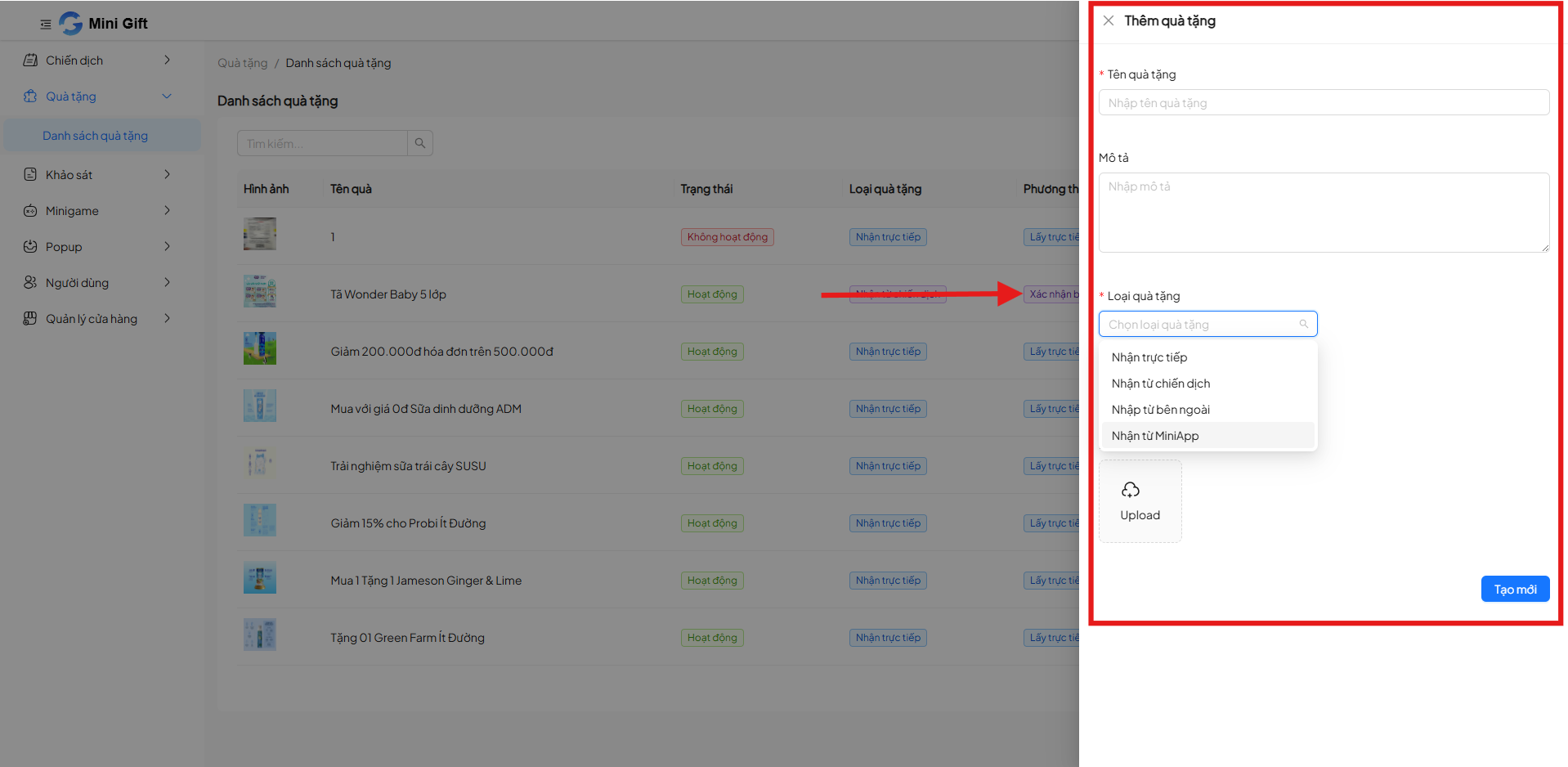
Information to Enter
| Field | Required | Description |
|---|---|---|
| Gift Name | Yes | Display name of the gift |
| Description | No | Detailed information about the gift |
| Gift Type | Yes | Select the appropriate gift type |
| Image | No | Illustrative image for the gift |
After entering all information, click Create to save the gift
4. Gift Management Actions
4.1. Edit Gift
To edit gift information:
- In the Actions column, click Edit
- Update the information that needs to be changed
- Save to apply changes
4.2. Delete Gift
To delete a gift from the system:
- Click Delete in the Actions column
- Confirm the action when prompted by the system
Note: Deleted gifts cannot be recovered. Please consider carefully before proceeding.
5. Gift Management Tips
- Set clear, easily recognizable gift names
- Verify the correct gift type and receiving method
- Pause unused gifts by switching to Inactive status
6. Summary
The Gift Management feature is an important component for operating campaigns and minigames in Mini Gift flexibly and effectively.
Proper and complete gift information management helps:
- Avoid errors during the gift distribution process
- Enhance user experience
- Support smooth campaign operations