Product Category Management Guide
Product Category Management Introduction
Product Categories help stores classify products systematically, making it easier for users to search and enabling stores to manage products more efficiently.
The Product Category Management feature allows:
- Creating new categories
- Setting up parent-child categories
- Enabling / disabling category display
- Arranging display order
- Bulk managing multiple categories
Accessing the Category Feature
From the left menu, select:
Products → Categories
The Category List screen will be displayed.
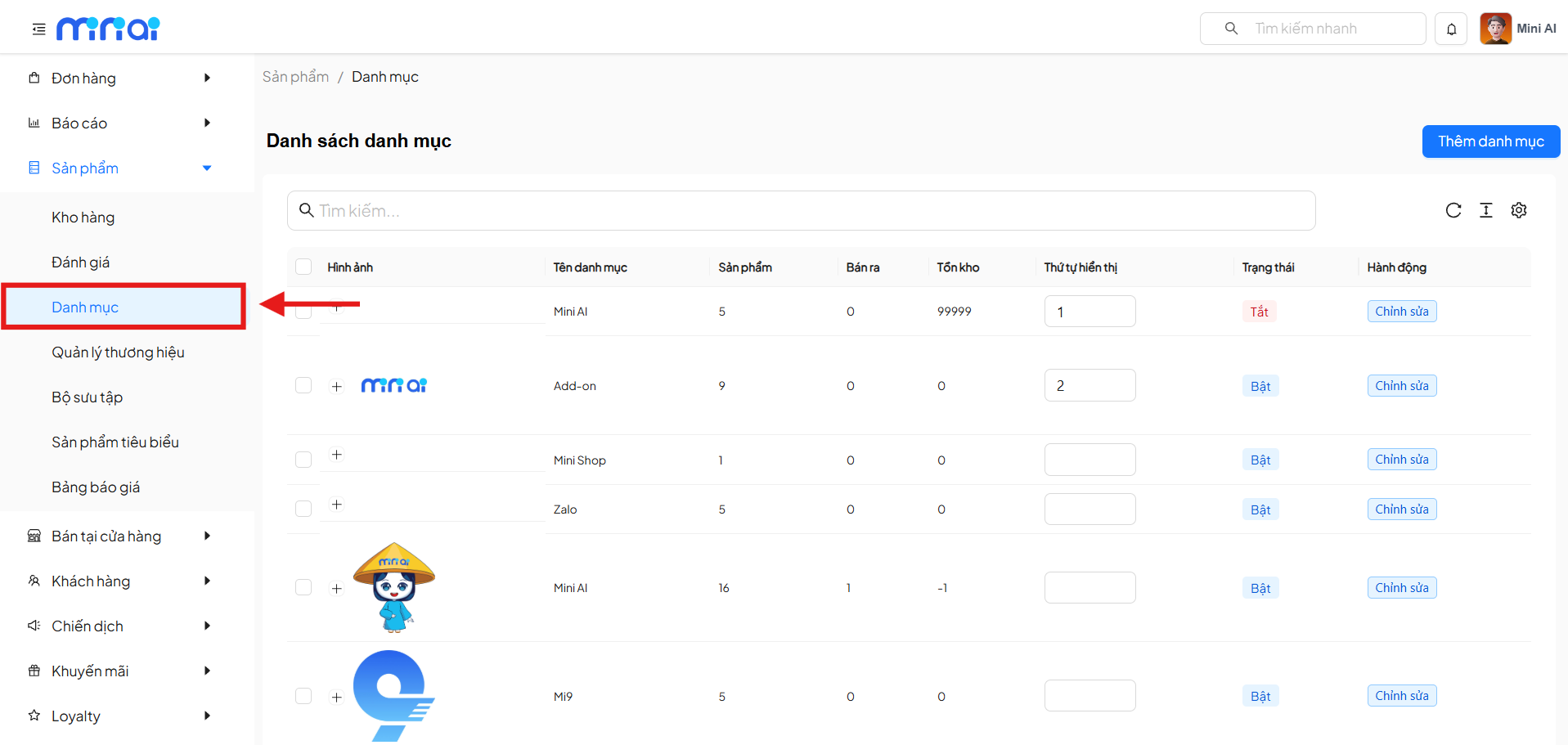
1. Category List
1.1 Main Screen Components
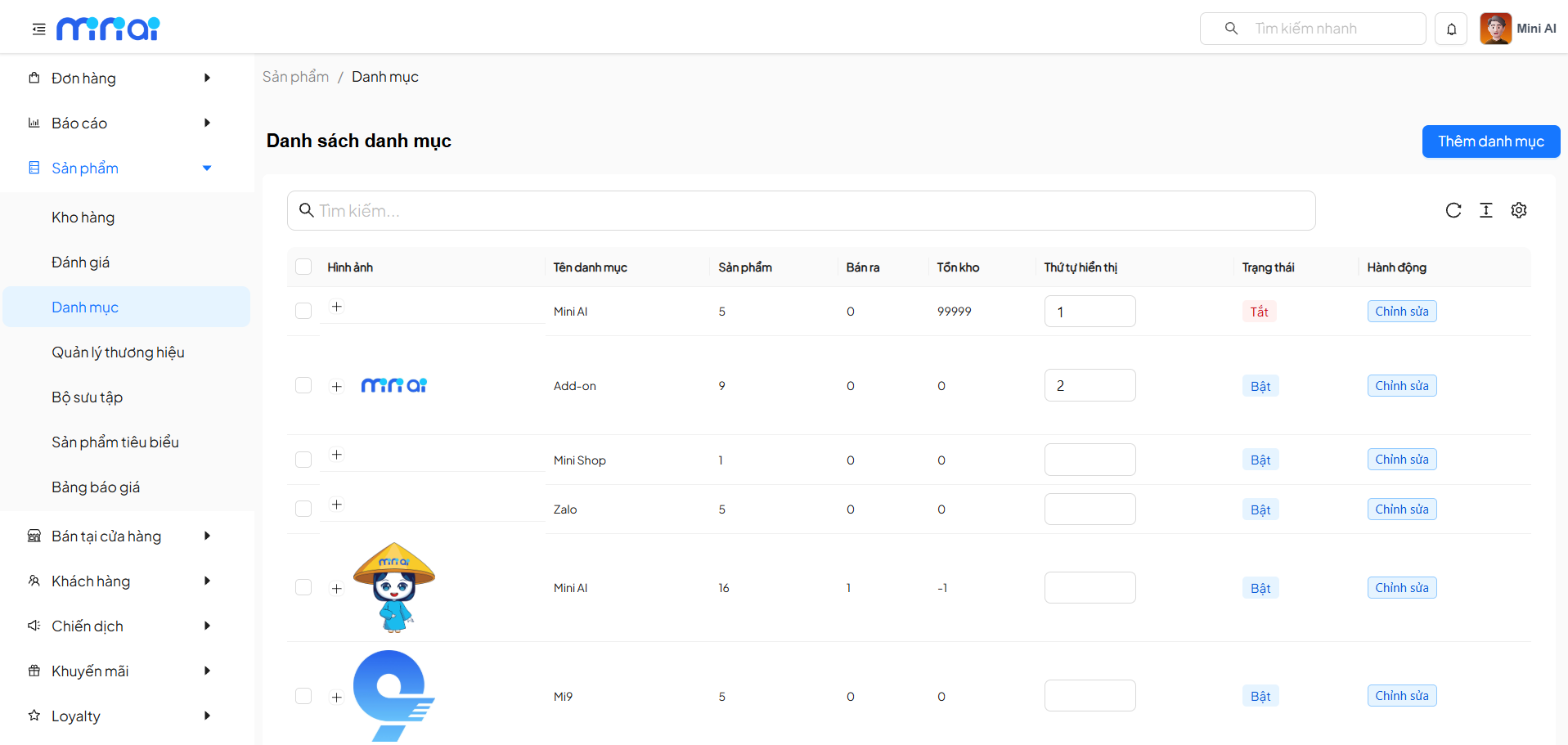
The category list table includes the following columns:
| Column | Description |
|---|---|
| Image | Category representative image |
| Category Name | Product category name |
| Products | Number of products in the category |
| Sold | Quantity sold |
| Inventory | Total inventory |
| Display Order | Category sorting order |
| Status | On / Off |
| Action | Edit category |
1.2 Search Categories
Use the Search box to:
- Quickly find categories by name
- Filter the category list when there are many entries
2. Add New Category
2.1 Adding a Category
Click the Add Category button in the upper right corner of the screen.
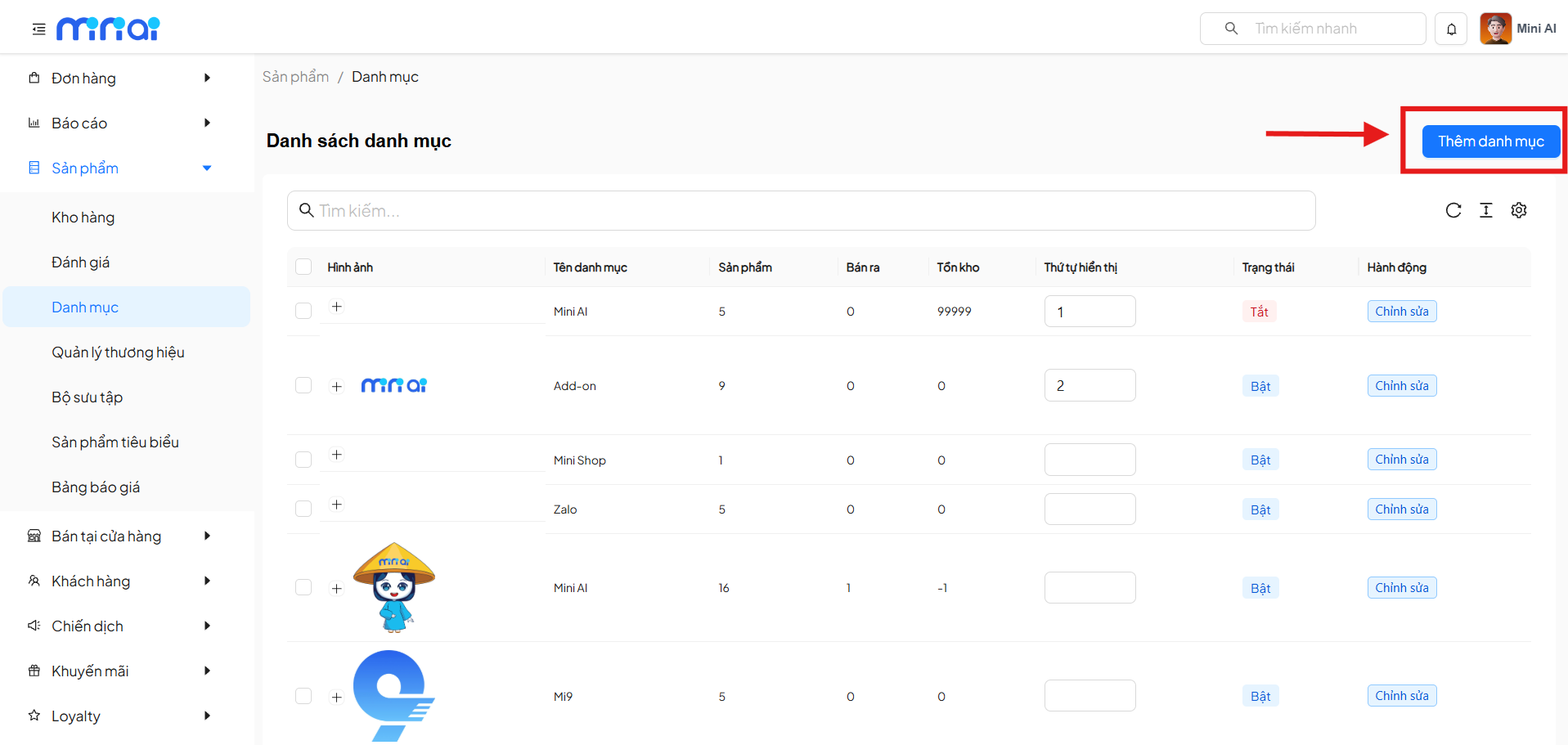
2.2 Category Information
On the Add Category screen, enter the following information:
| Information Group | Field | Description |
|---|---|---|
| Required | Category Name | Display name of the category |
| Optional | Parent Category | Used to create multi-level category structures. If not selected, the category will be level 1 |
| Optional | Status | On: Category is visible Off: Category is hidden |
| Optional | Media | Upload images or videos for the category |
After entering all information, click Create Category to save.
3. Edit Category
In the category list, click the Edit button to:
- Update the category name
- Change the parent category
- Update status
- Change the representative image
4. Bulk Category Status Management
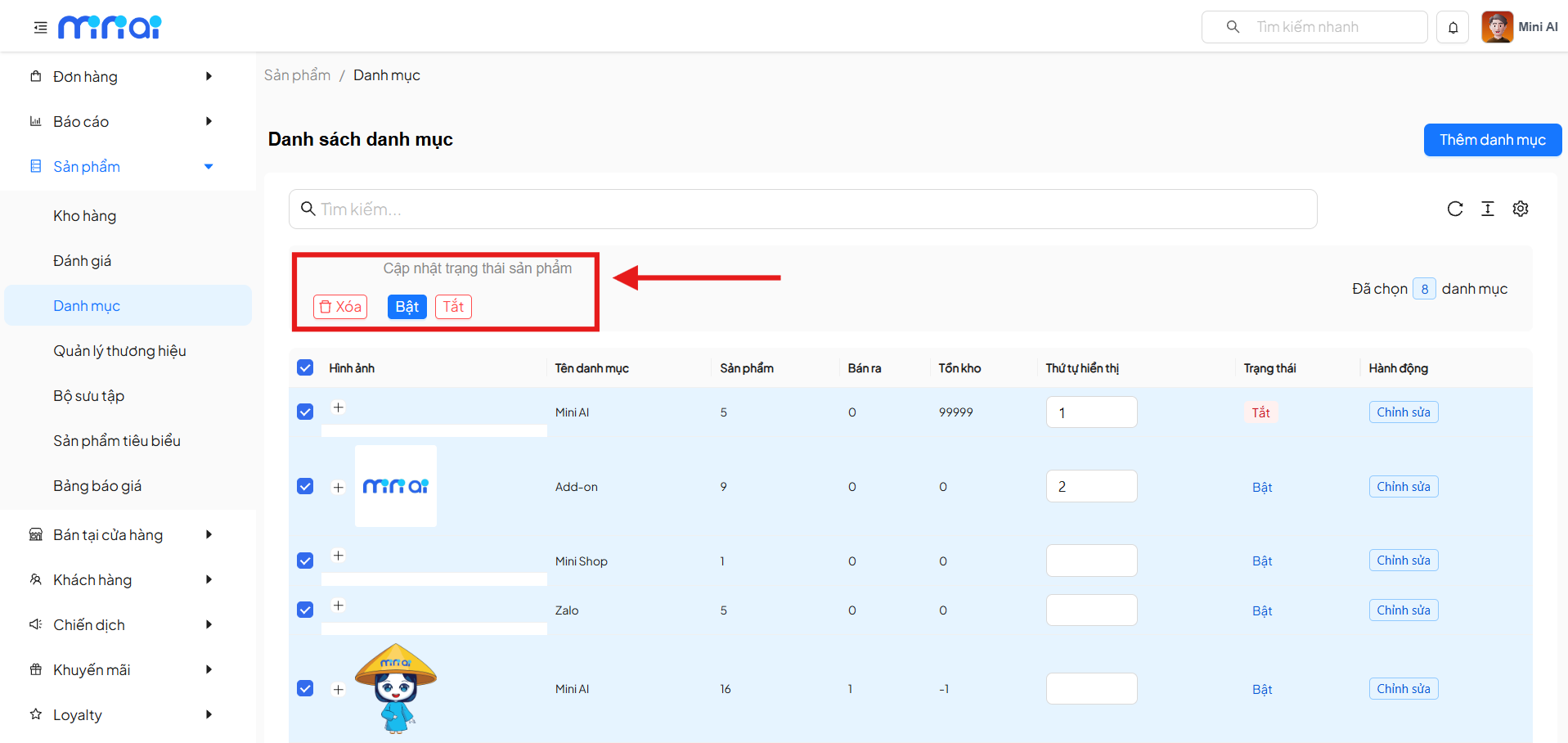
4.1 Select Multiple Categories
- Use checkboxes to select one or more categories
- The system displays the number of selected categories
4.2 Bulk Status Update
The Update Product Status toolbar allows:
| Action | Description |
|---|---|
| Delete | Delete selected categories |
| Enable | Enable category display |
| Disable | Disable category display |
- This operation helps manage multiple categories at once quickly.
- The delete action cannot be undone. Consider carefully before deleting categories.
- When a category is deleted, products belonging to that category will not be deleted but will no longer be linked to the deleted category.
5. Category Status
| Status | Meaning |
|---|---|
| On | Category is displayed on the system |
| Off | Category is hidden, not displayed |
Categories with Off status will not be visible to users.
6. Display Order Arrangement
- The Display Order column allows entering a sequence number
- Smaller numbers will be displayed first
- Helps control category order on the user interface
Benefits of Effective Category Management
- Clear product classification
- Enhanced user experience
- Easy product expansion
- Optimized search and SEO
- Inventory management by category
Conclusion
The Product Category Management feature is an important foundation for stores to organize products systematically and professionally. Proper category setup and reasonable status management will help optimize operations and improve business efficiency.