Staff Management Setup
Staff Management Feature Overview
The Staff Management feature allows store owners to create and manage separate staff accounts while providing detailed permissions for each role in the MiniAI system.
Using separate staff accounts helps businesses:
- No need to share the store owner's account
- Precisely control each staff member's access
- Secure customer and order data
- Easily track and manage operations
Accessing Staff Management
From the main screen, navigate to:
Settings → Staff Management
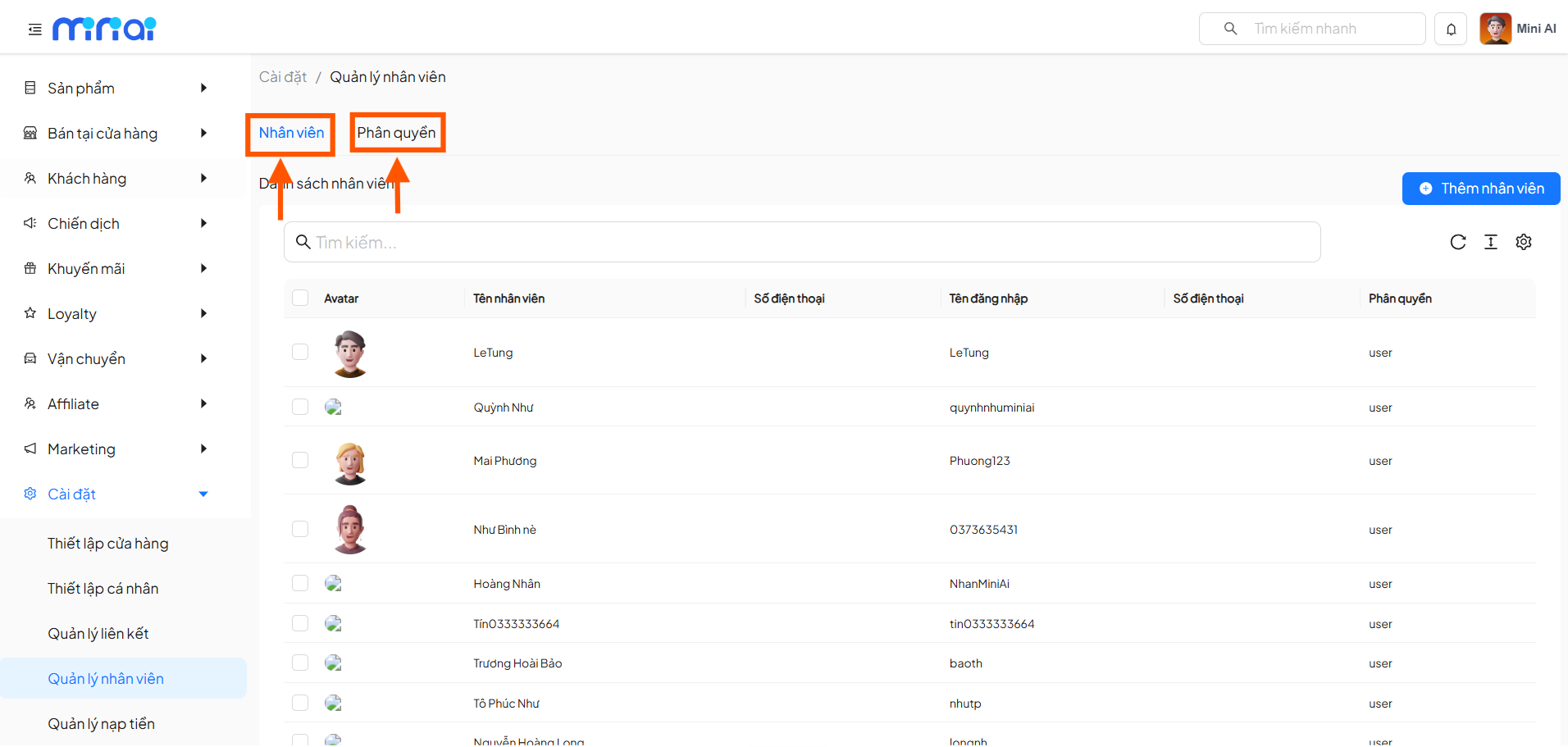
Here the system provides 2 main tabs:
- Staff: Manage the list of staff accounts
- Permissions: Create and manage permission groups
Managing the Staff List
Search & View List
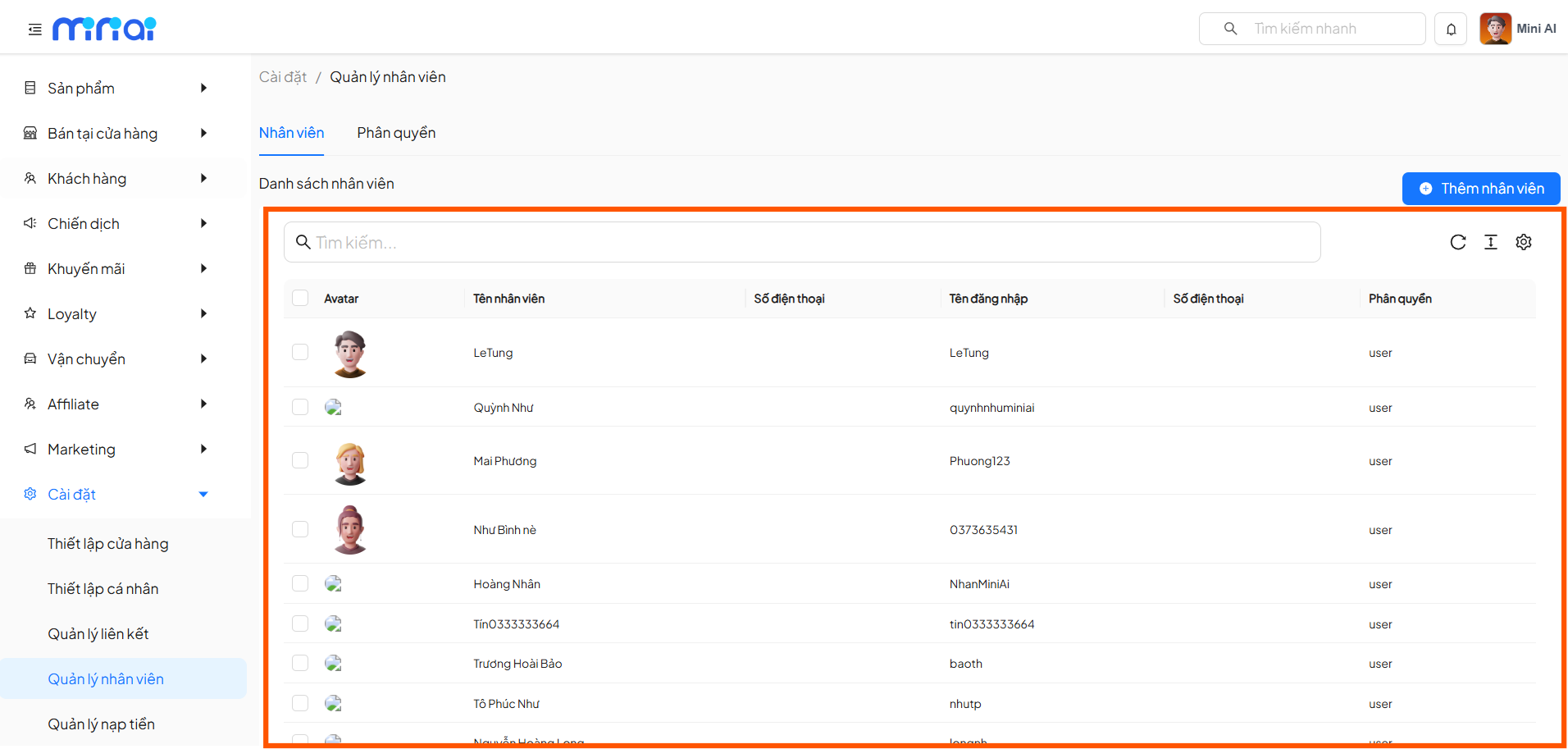
On the Staff tab, the system displays the complete staff list with the following information:
- Profile picture
- Staff name
- Phone number
- Username
- Assigned permissions
Users can use the Search box to quickly look up staff by name or phone number.
Adding New Staff
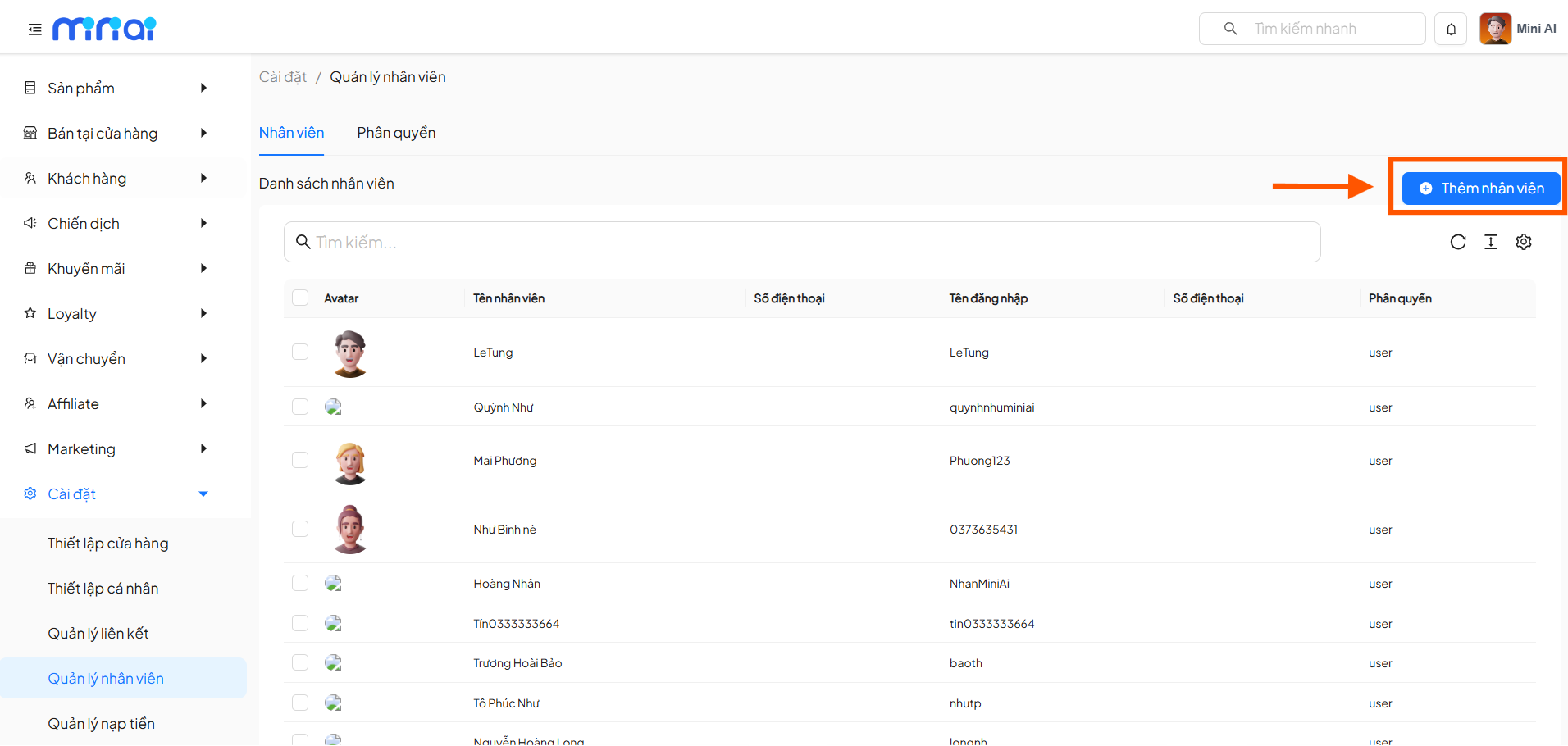
To create a new staff account, click the "Add Staff" button in the upper right corner of the screen.
Enter Staff Information
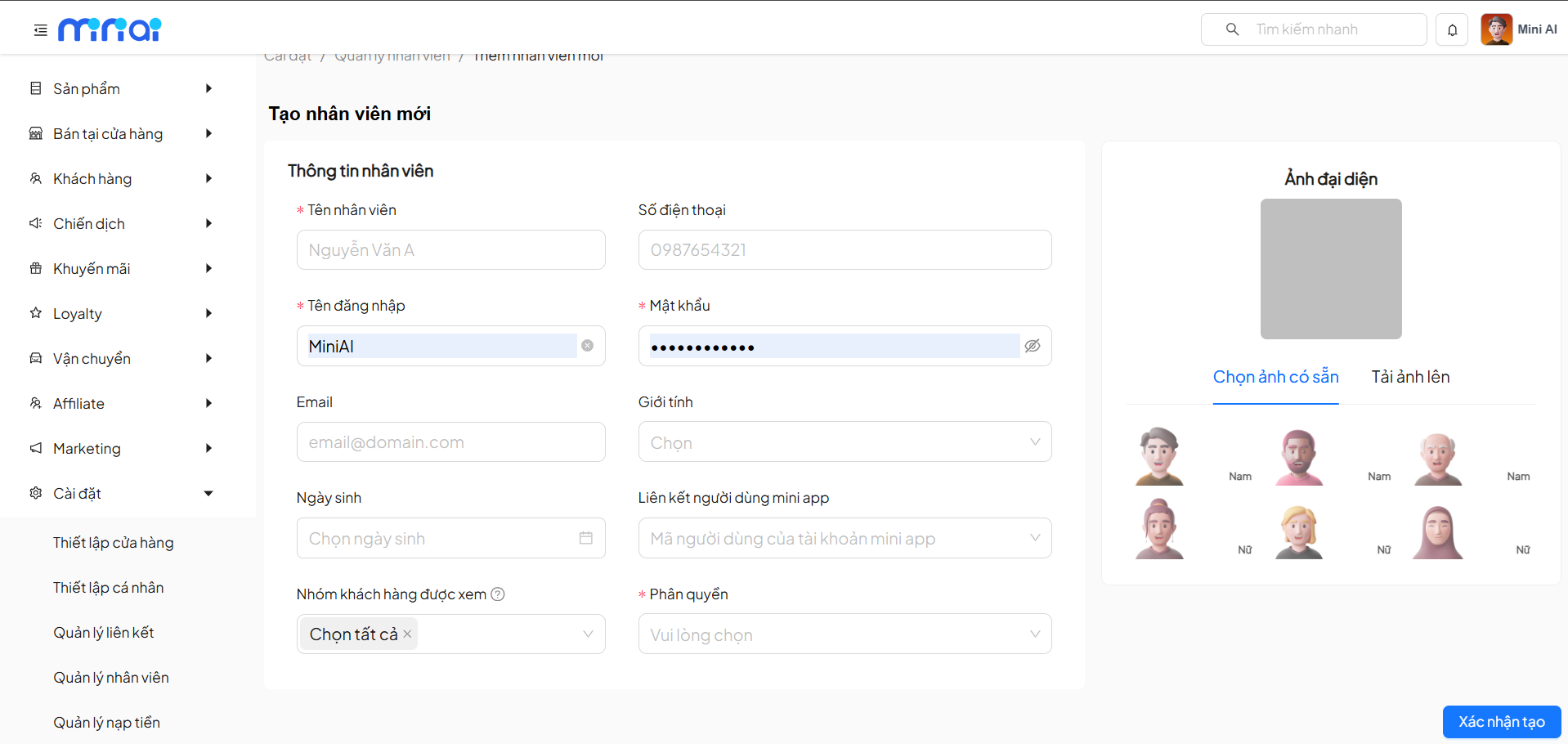
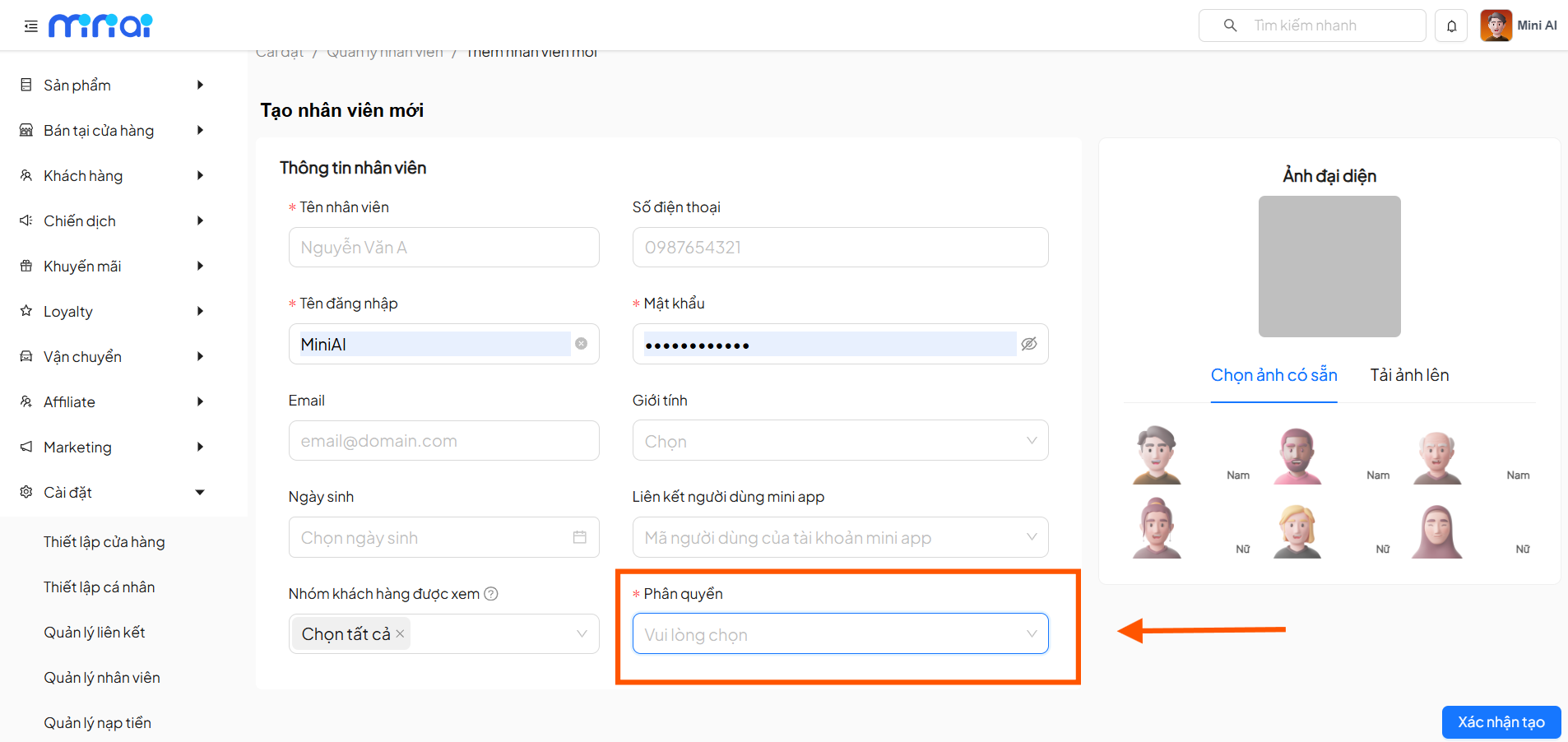
On the Create New Staff screen, users need to fill in the following information:
- Staff Name (required)
- Username (required)
- Password (required)
- Phone number
- Gender
- Date of birth
- Customer groups allowed to view
- Permissions (required)
Additionally, the system allows:
- Selecting a preset profile picture
- Or uploading an image to personalize the account
After completing, click "Confirm Create" to save the staff member.
Deleting Staff
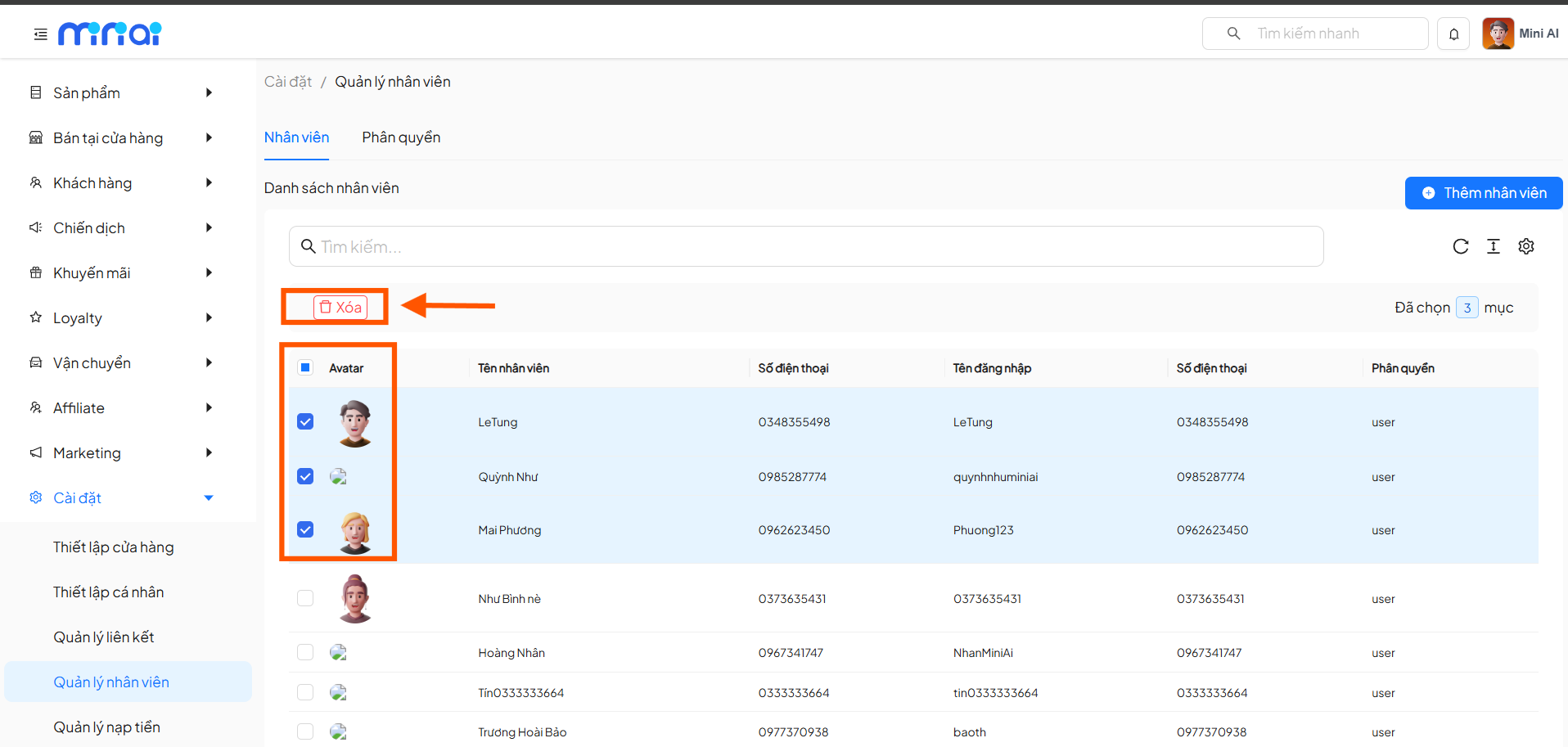
The system allows deleting one or multiple staff members at once:
Step 1: Select Staff to Delete
Use the checkbox on the left to select one or more staff members from the list.
Step 2: Click Delete Button
Click the "Delete" button that appears in the upper right corner after selecting staff.
Step 3: Confirm Deletion
The system displays a confirmation dialog. Click "Confirm" to complete the staff deletion.
- Deletion is permanent and cannot be undone
- Deletion will revoke all access rights of the staff member from the system.
- Make sure to only delete staff who no longer work or no longer need system access.
Managing Staff Permissions
Accessing the Permissions Tab
Switch to the Permissions tab to manage permission groups in the system.
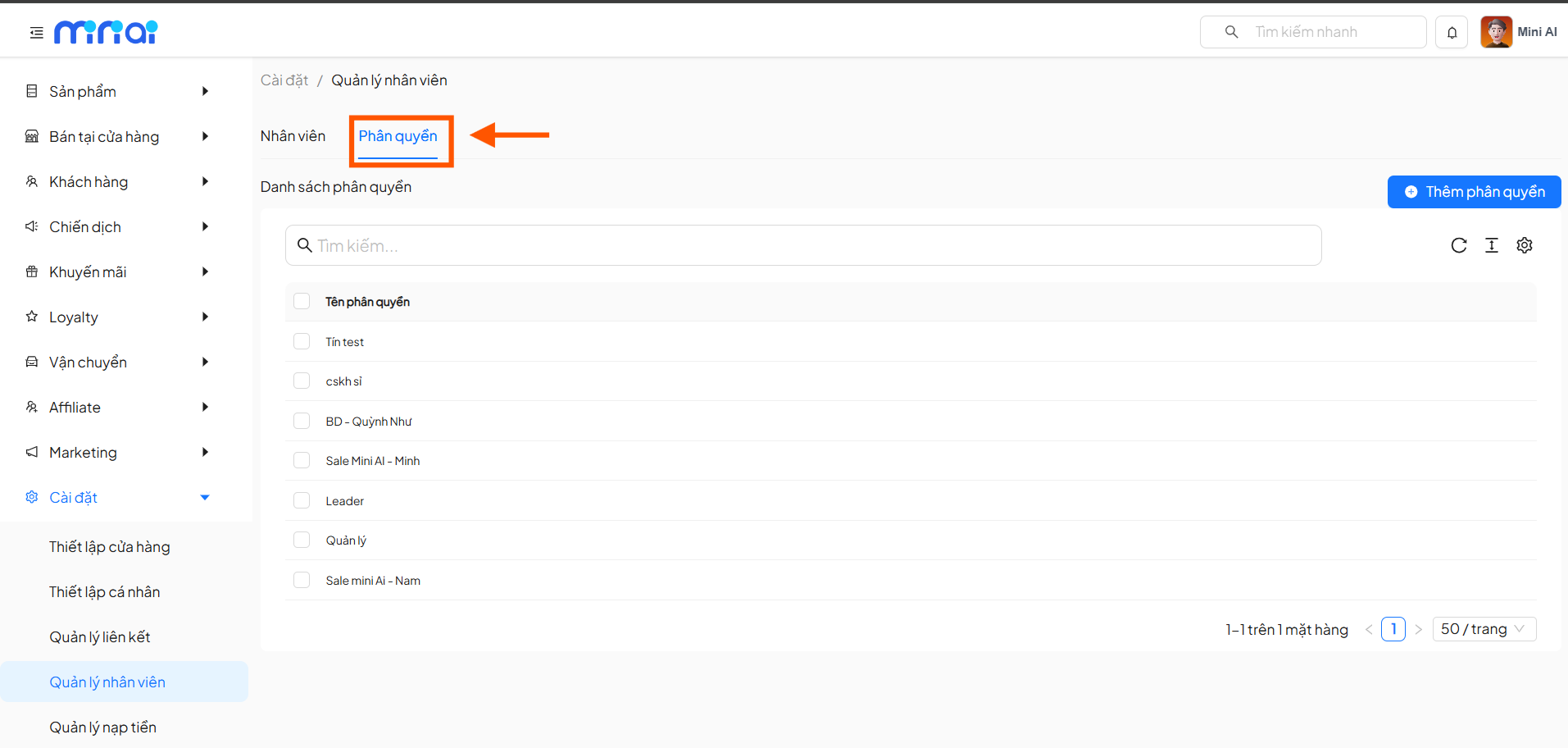
Permission List
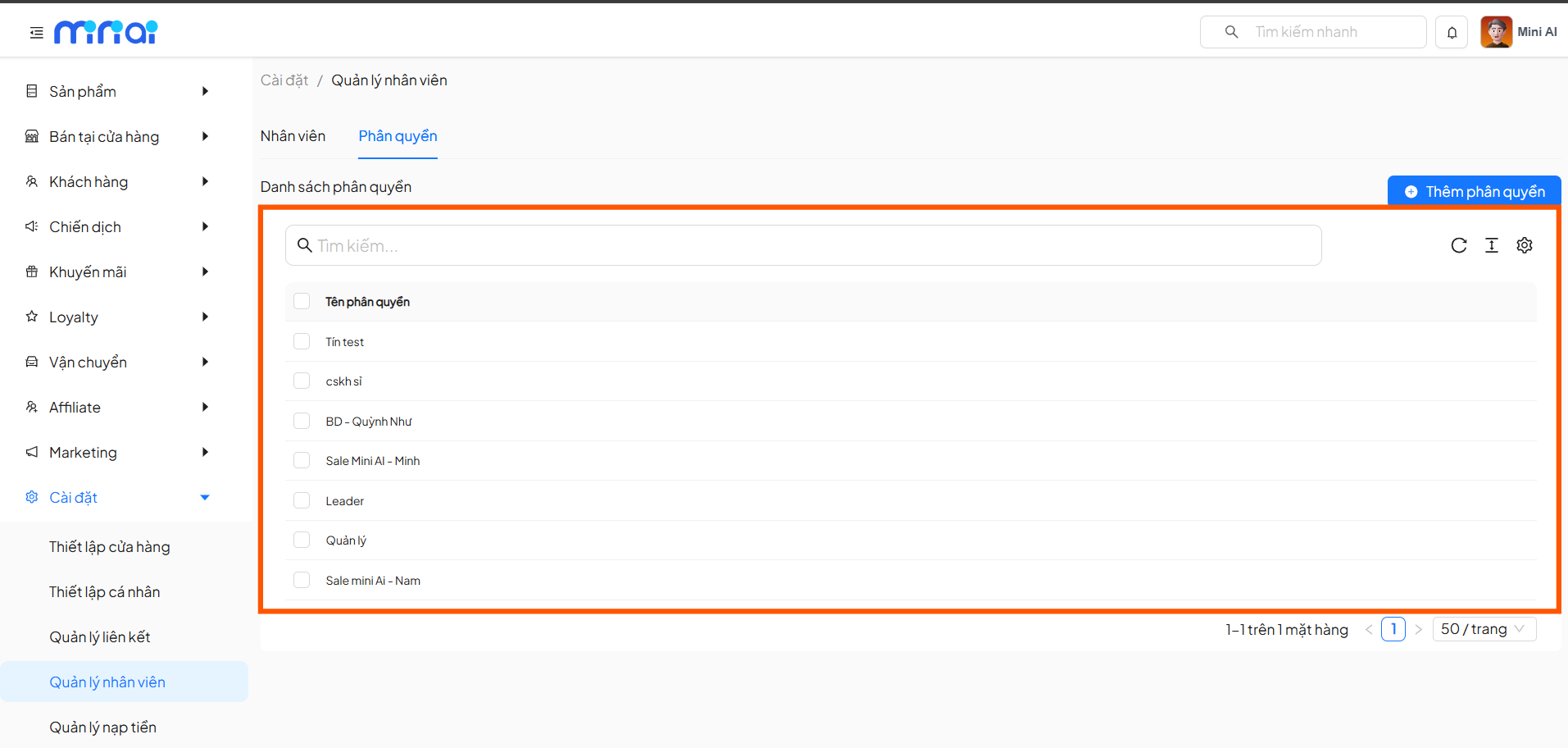
The screen displays the list of existing permission groups such as:
- Sale
- Customer Service
- Leader
- Manager
- Other custom permission groups
Users can search, select multiple permission groups, and bulk delete when needed.
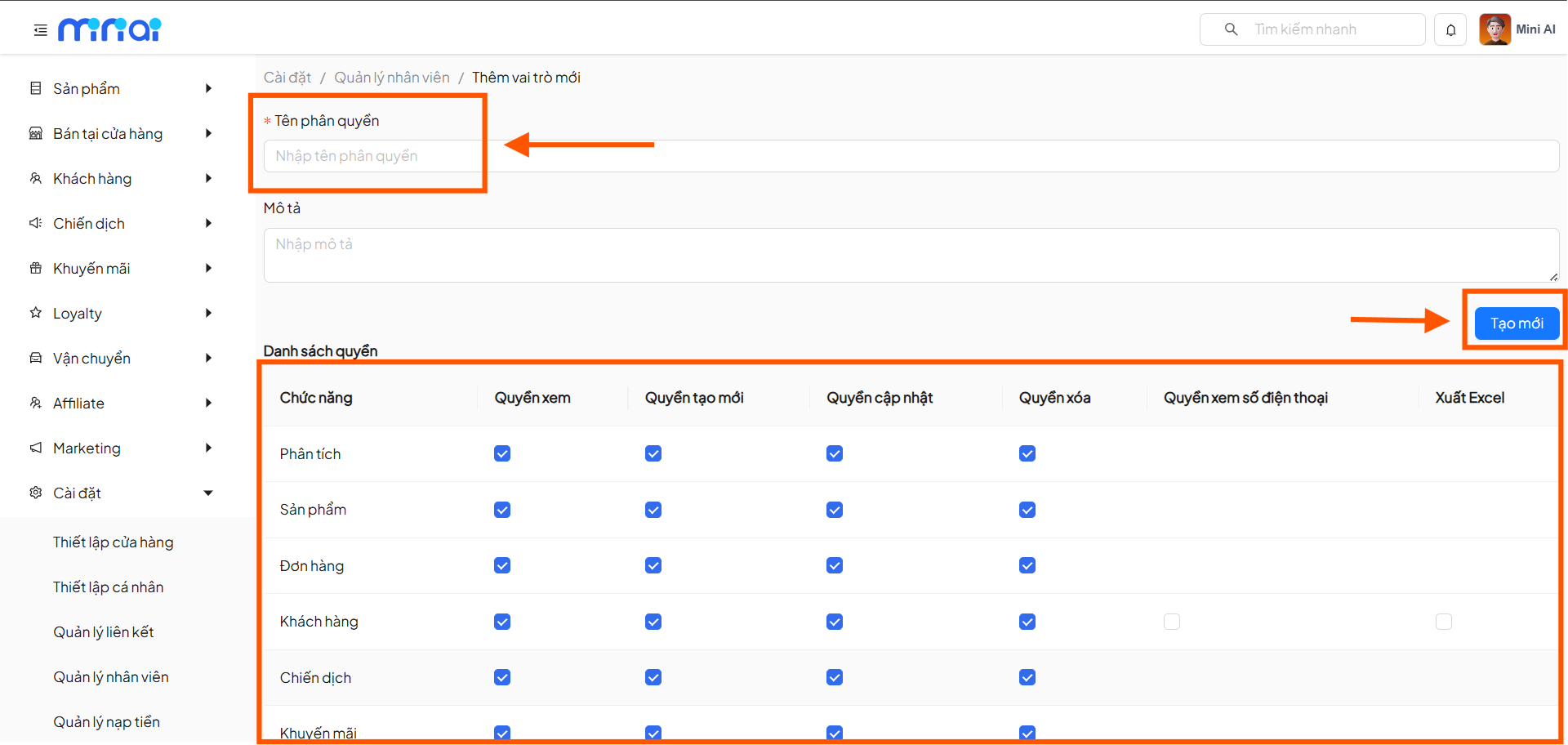
Click "Add Permission" to create a new permission group.
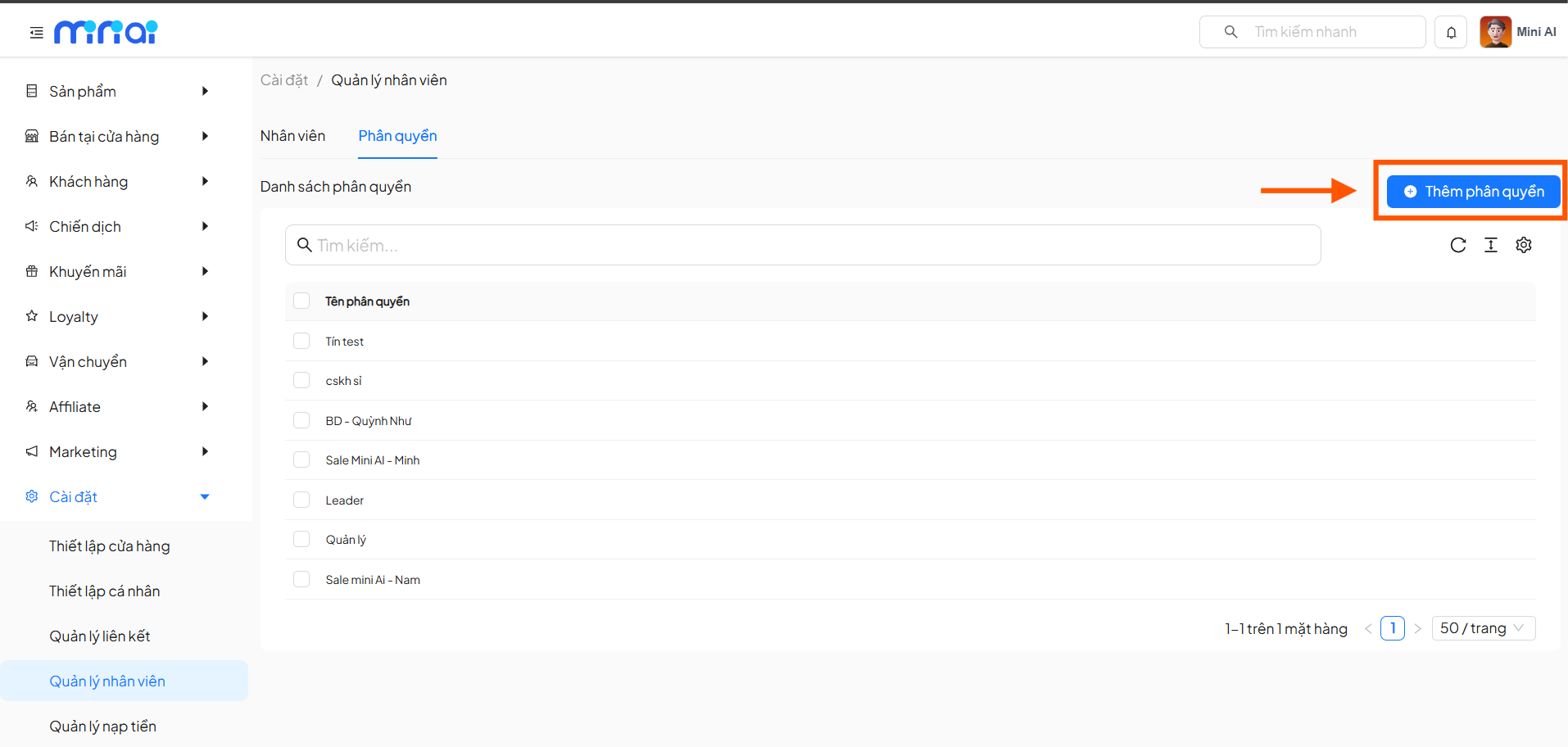
Permission Information Setup
Users need to configure:
- Permission Name (required) Example: Online Sales, Customer Care, Warehouse Management
- Description: Explain the role and scope of permissions
Detailed Feature-based Permissions
The system provides a permission table by module with the following permission levels:
- View permission
- Create permission
- Update permission
- Delete permission
- View phone number permission
- Export to Excel
Features include:
- Analytics
- Products
- Orders
- Customers
- Campaigns
- Promotions
- Delivery
- Affiliate
- Settings
After configuration, click "Create" to save the permission group.
Assigning Permissions to Staff
When creating or editing staff, users simply need to:
- Open the Permissions dropdown
- Select the appropriate permission group
- Save the information
Each staff member can only be assigned one permission group at a time, making access control clear and easy to manage.
Benefits of Using Staff Management on MiniAI
- Clear permissions aligned with roles
- Reduced risk of data leaks
- Easy to expand the team
- Suitable for businesses with multiple branches
- Optimized operations and internal control
Businesses should create multiple permission groups for each specific role instead of using a single permission for all staff, to ensure safety and operational efficiency.