Personal Settings
Personal Settings is the area that allows store owners to manage and update personal account information in the E-commerce system. Here, users can edit basic information such as full name, profile picture, contact information, and change passwords to ensure account security.
Updating accurate personal information helps enhance security, supports efficient store management, and ensures the communication system operates stably during operations.
How to Access
To access the Personal Settings feature, follow these steps:
- Log in to the E-commerce admin dashboard
- On the Sidebar on the left, select Settings
- In the settings list, click on Personal Settings
- The system displays the personal information management interface with two main tabs:
- Account Information
- Password
Main Features
Account Information
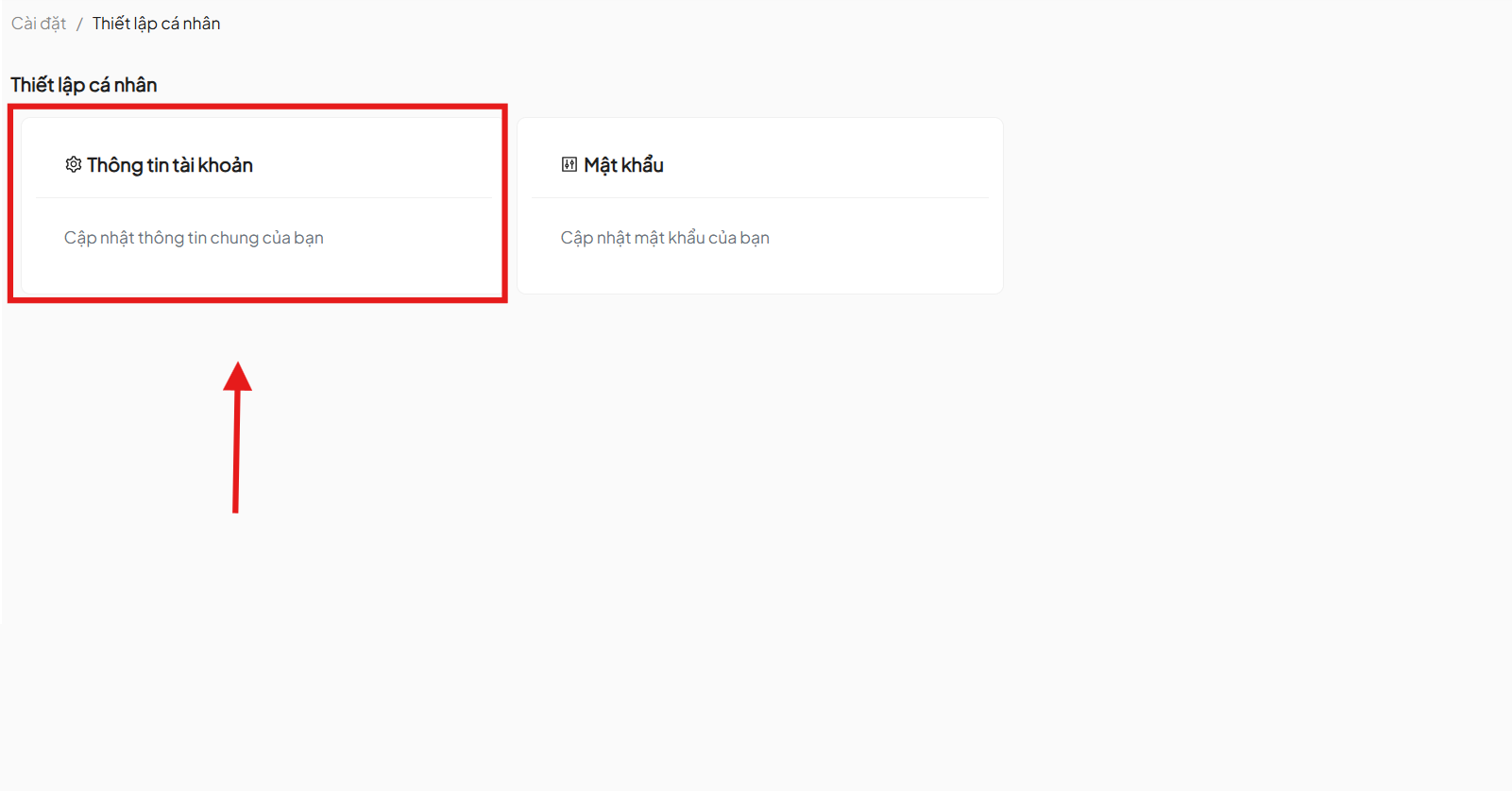
Access and Edit Information
On the Account Information tab, users can view and edit basic personal information. This data is essential for the system to identify the account, support communication, and serve store operations when needed.
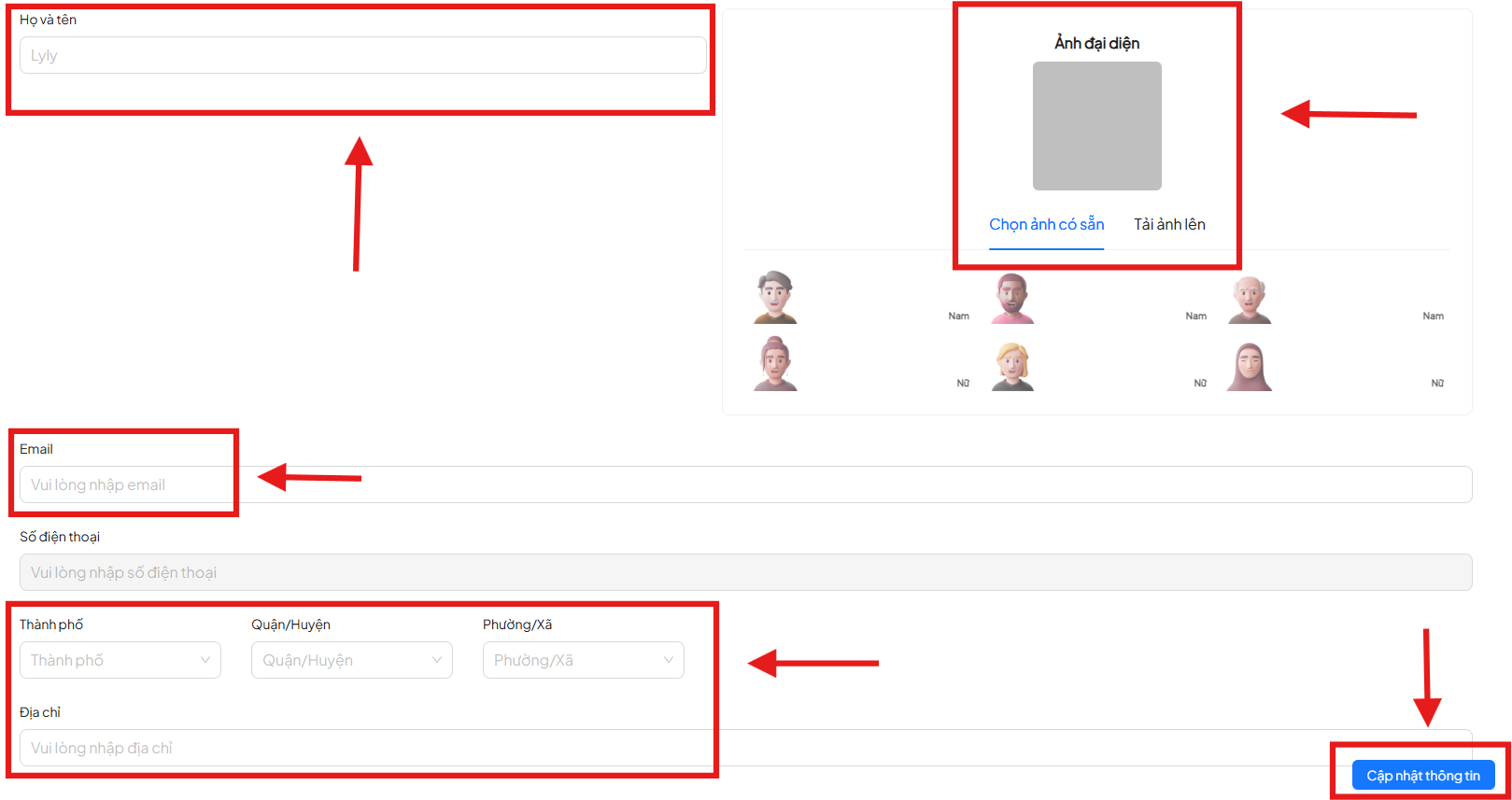
Editable Fields
-
Full Name Enter your full official name. This information will be displayed in notification emails, invoices, and documents related to the store.
-
Profile Picture Allows selecting an appropriate profile picture (e.g., by gender or personal photo), helping to enhance account recognition.
-
Email Email address used to receive important notifications from the system. Please ensure the email is active and checked regularly.
-
Address Official contact address of the store owner, used for legal documents and transaction information. Please enter the complete address from house number to province/city.
Save Changes
After completing the edits, review all entered information to ensure accuracy. Click the Update Information button at the bottom of the page to save the changes.
Password
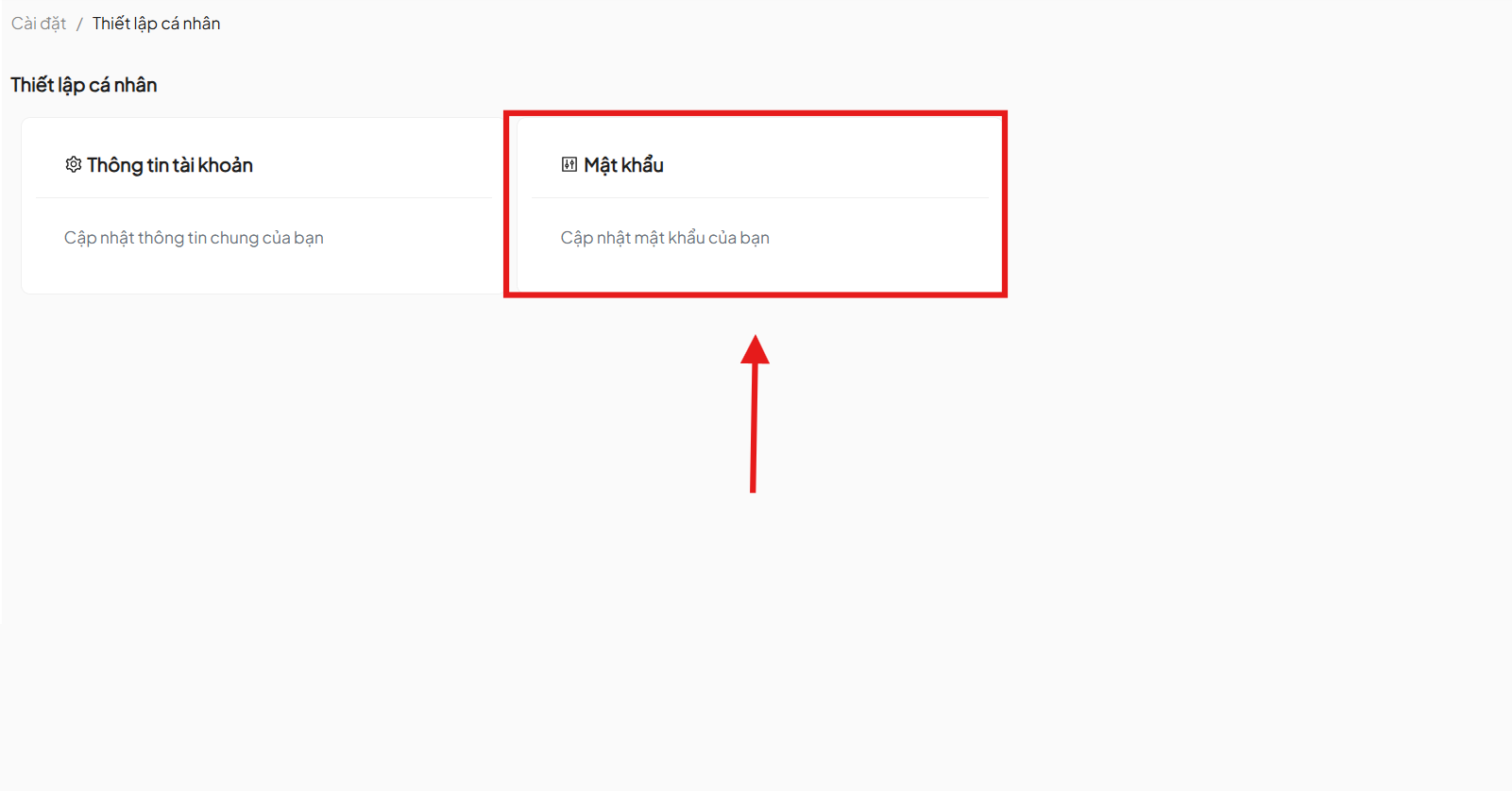
Change Password
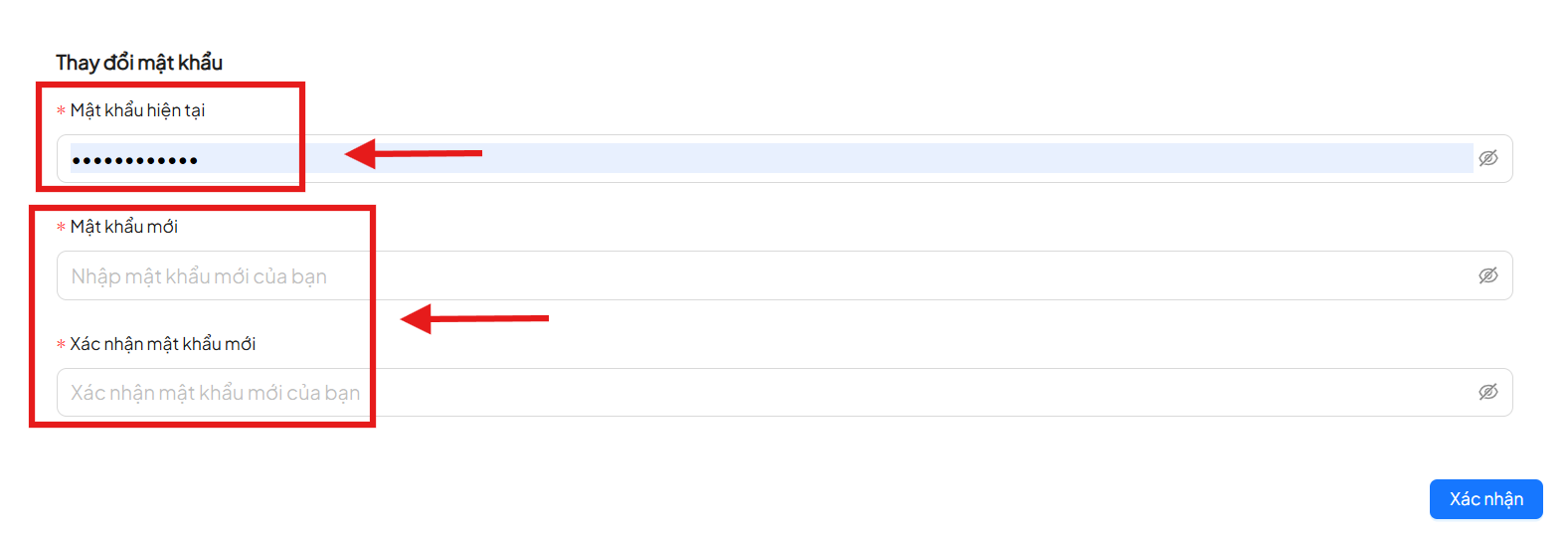
To update the login password, users need to enter the following information accurately:
-
Current Password Enter the current password for the system to verify identity. Characters entered will be hidden to ensure information security.
-
New Password Create a new password with at least 8 characters, including uppercase, lowercase, numbers, and special characters. Do not use easily guessable personal information such as name, date of birth, or phone number.
-
Confirm New Password Re-enter the new password to confirm. The content in both password fields must match exactly.
Confirm Changes
After filling in all the information, click the Confirm button to change the password. The system will:
- Verify the accuracy of the current password
- Evaluate the strength and validity of the new password
If all conditions are met, the new password will be updated successfully.
To ensure account security, you should change your password regularly and not share it with others.