Store Setup
The Store Settings screen is where you configure all platform information for business operations on the Mini App. Here, administrators can set up and customize:
- General information & brand identity
- Mini App & Zalo OA configuration
- Bank account for receiving payments
- Wholesale settings
- Order notifications for staff
- Electronic invoices
- Inventory settings
1. General Information
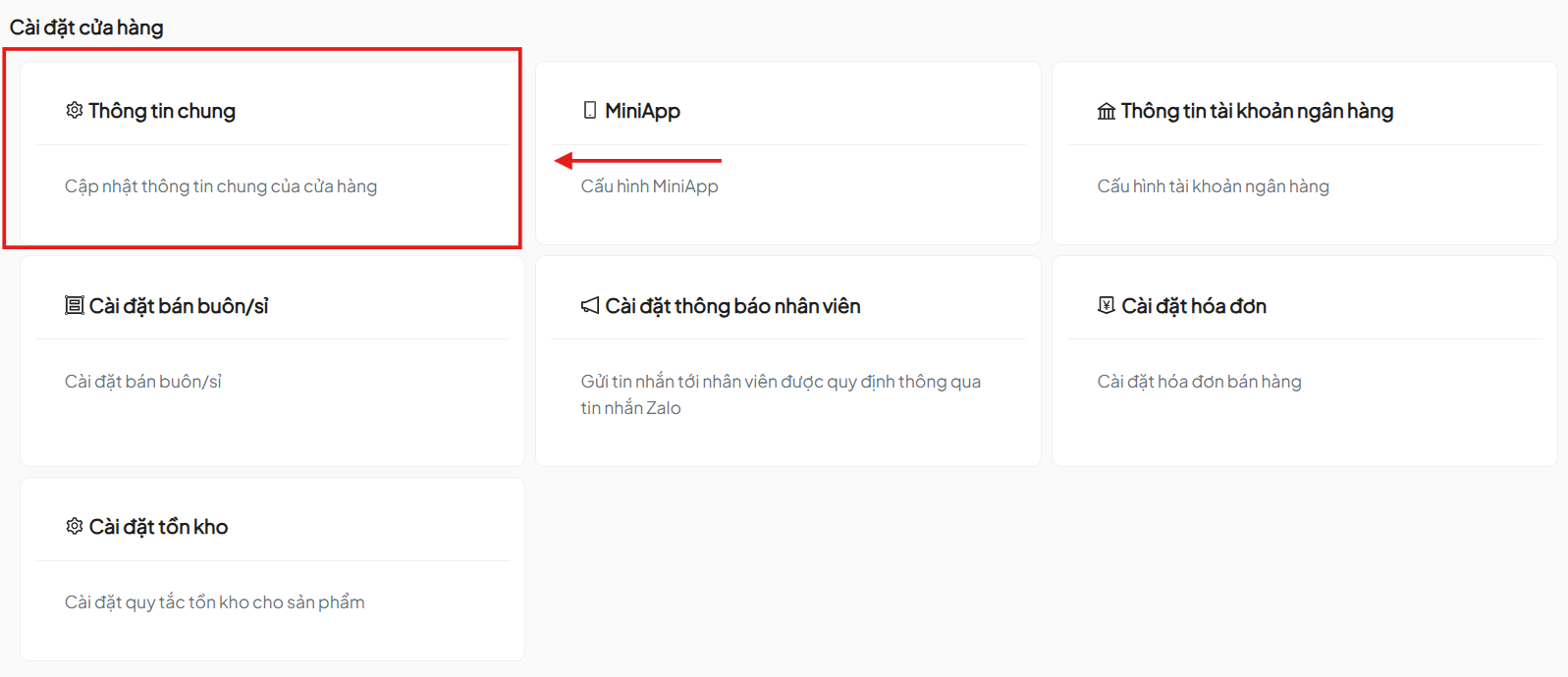
The General Settings screen is used to update the main display information of the store on the Mini App, helping customers easily identify the brand and increase trustworthiness.
1.1. Store Information
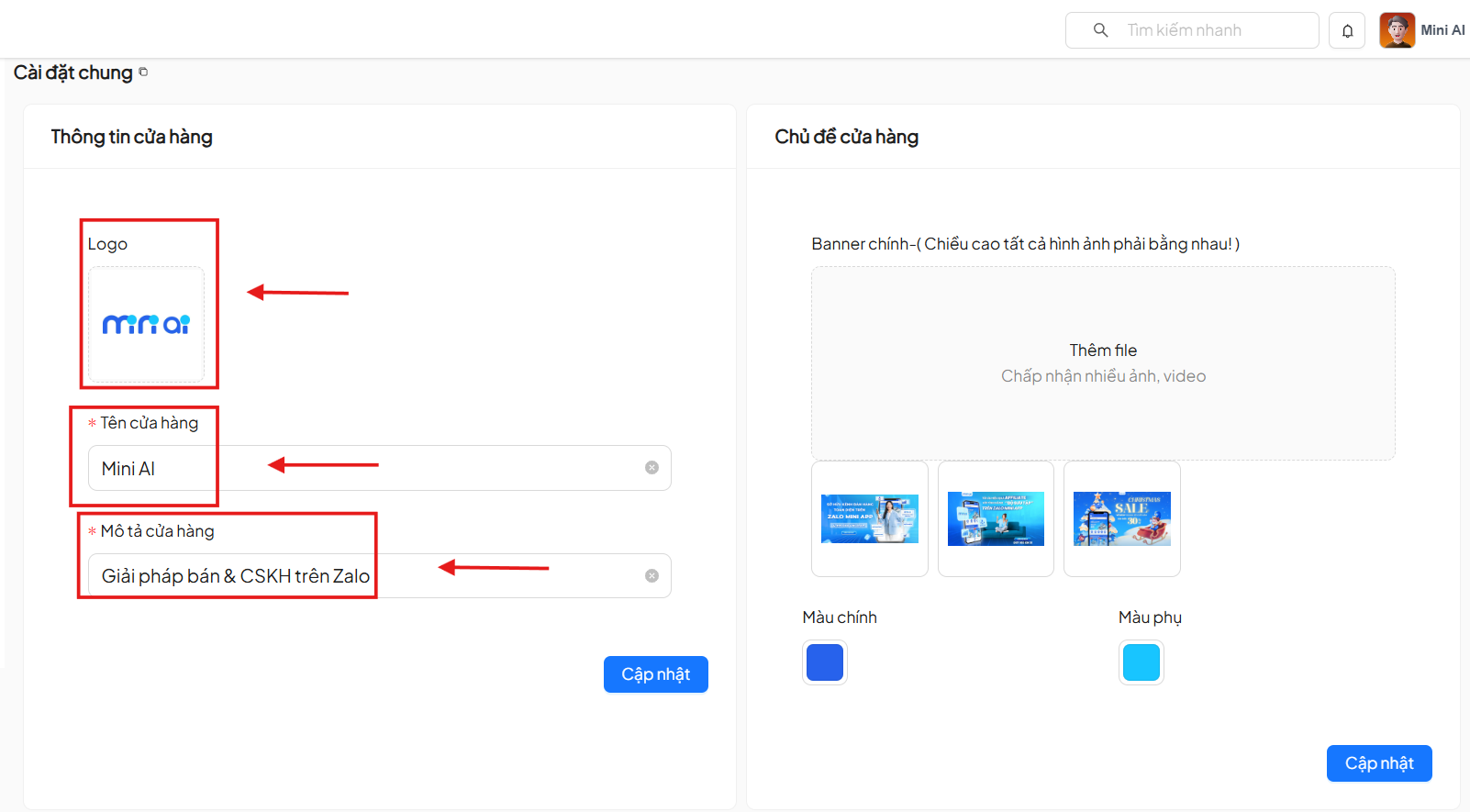
Set up basic identity elements:
-
Logo
- Minimum size:
512x512px(1:1 ratio) - Clear, not containing too much text
- Click on the area under Logo to upload an image from your device
- Minimum size:
-
Store Name
- Official display name on Mini App
- Should be concise, avoid using ALL CAPS
-
Store Description
- Brief introduction about products and services
- Maximum 500 characters
After editing, click Update to save the information.
- Information in this section is only displayed on the Mini App.
- To change the logo, banner, or app name for search and Zalo links, please contact the Mini App provider.
1.2. Store Theme
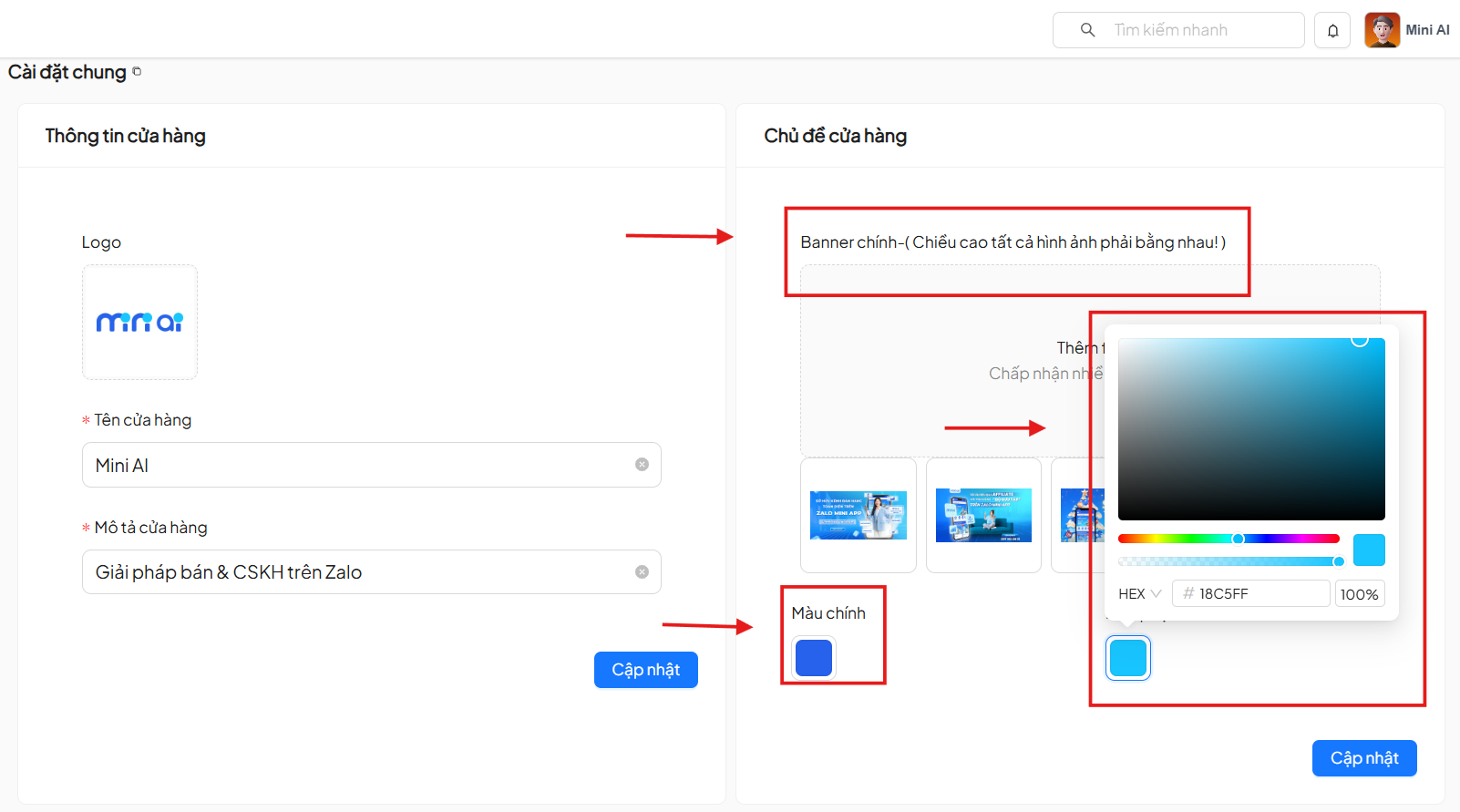
Set up the visual interface for the Mini App – the first element customers see.
- Main Banner
- Minimum size:
320x180px(16:9 ratio) - Multiple banners can be added, the system rotates them automatically
- Click Add File to upload images
- Minimum size:
- Banner order cannot be changed in the admin panel
- Banner sizes should be consistent to avoid interface issues
- Primary Color: main color of the Mini App
- Secondary Color: accent color for buttons and display frames
The system supports 3 color systems:
- HEX
- RGB
- HSB
After editing, click Update.
1.3. Customer QR / Bar Code
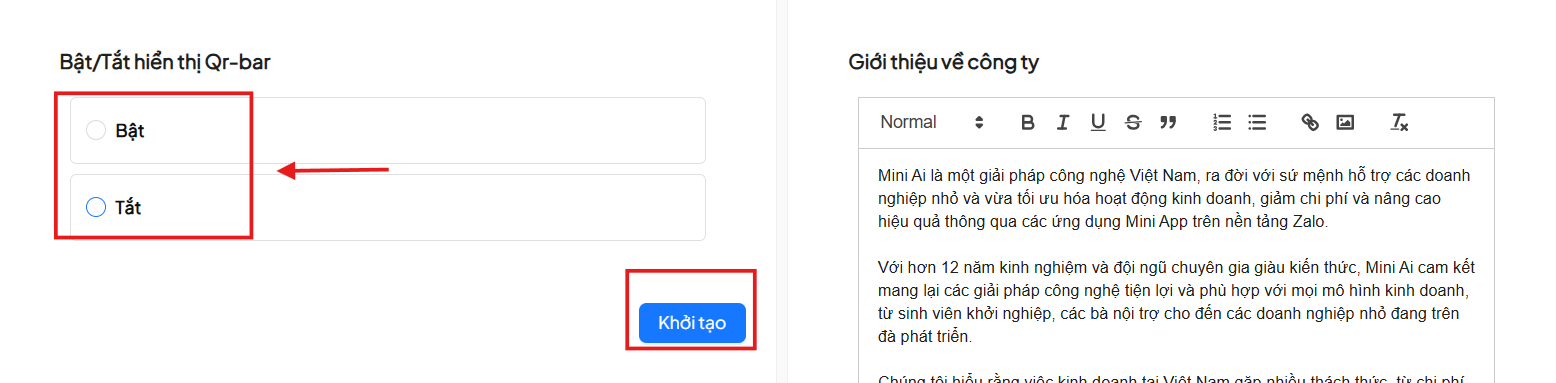
Allows displaying customer identification codes for:
- Point accumulation
- Membership scanning
- Account verification
Options:
- On: Display on Mini App
- Off: Hide on Mini App
Click Update to save.
1.4. About Us
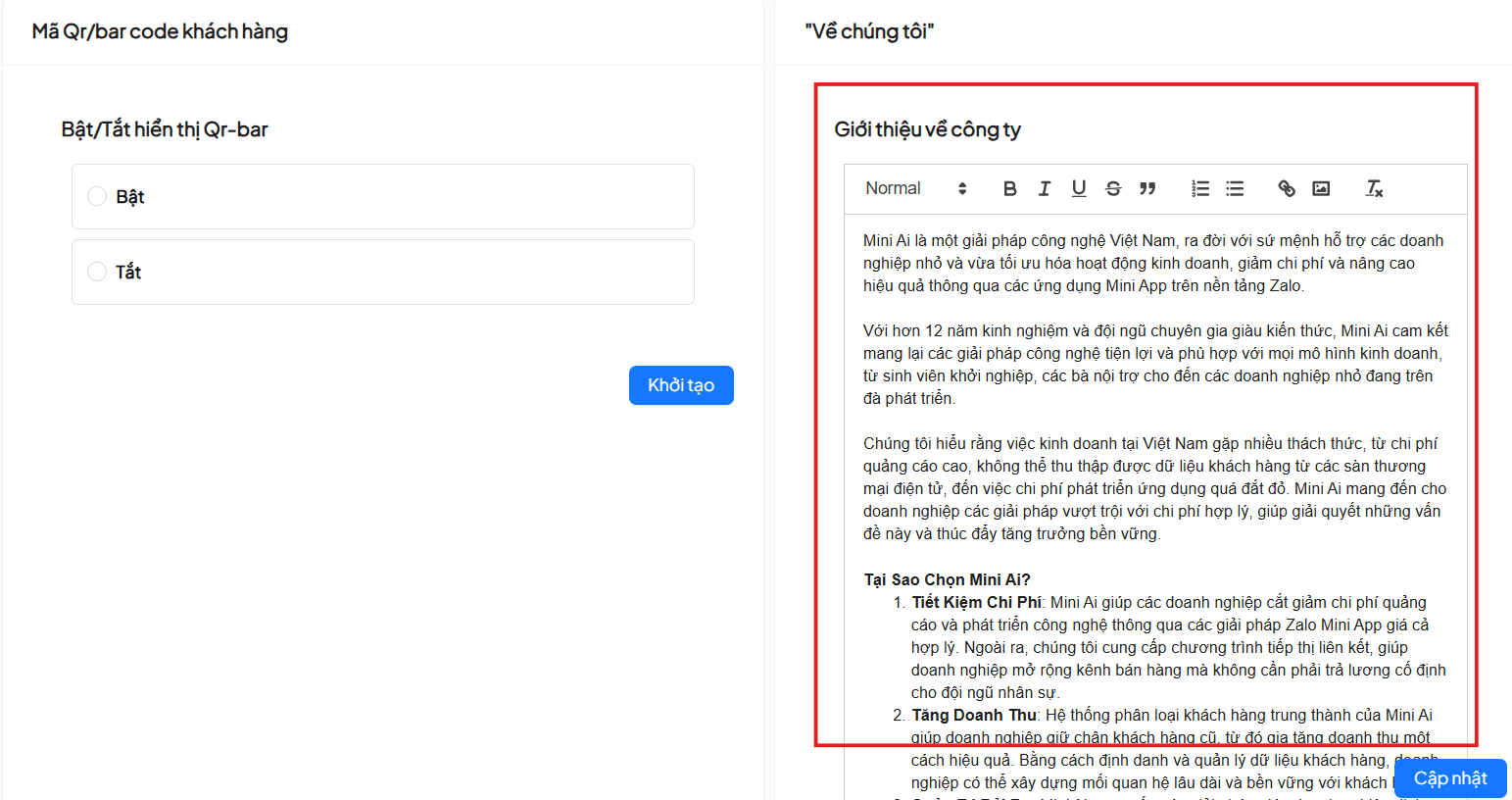
An area to build trust and emotional connection with customers.
- No character limit
- Supports text formatting
- Insert images & links
After completing, click Update.
2. Mini App
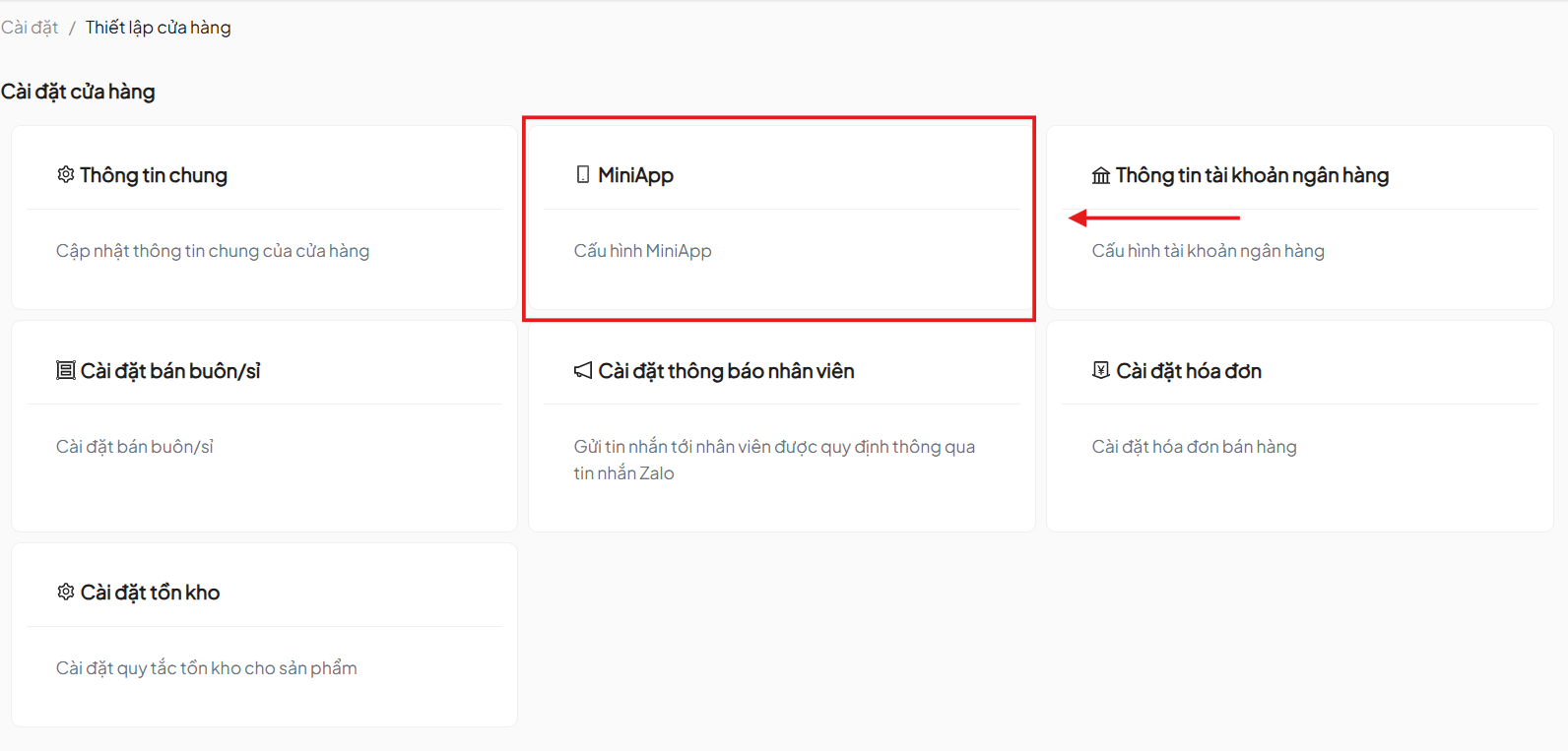
The Mini App Settings screen stores security information, contact details, and Zalo OA connection configuration.
2.1. Mini App Configuration
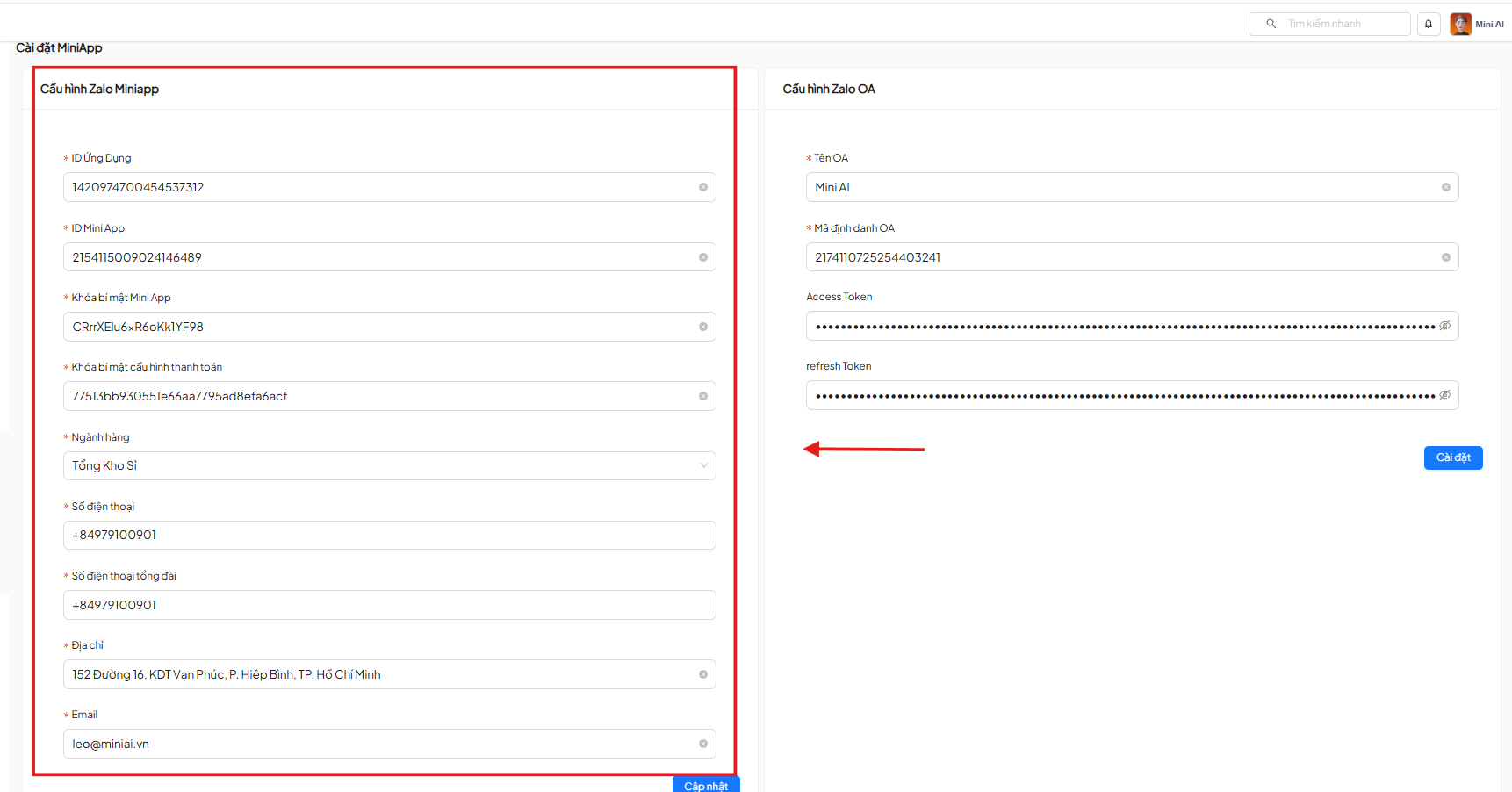
Includes:
- Application ID
- Mini App ID
- Mini App Secret Key
- Payment Secret Key
- Security information cannot be edited.
- If there is an issue, please contact the Mini App provider.
Editable fields:
- Industry
- Address
- Phone number
- Hotline
Click Update to save.
2.2. Zalo OA Configuration
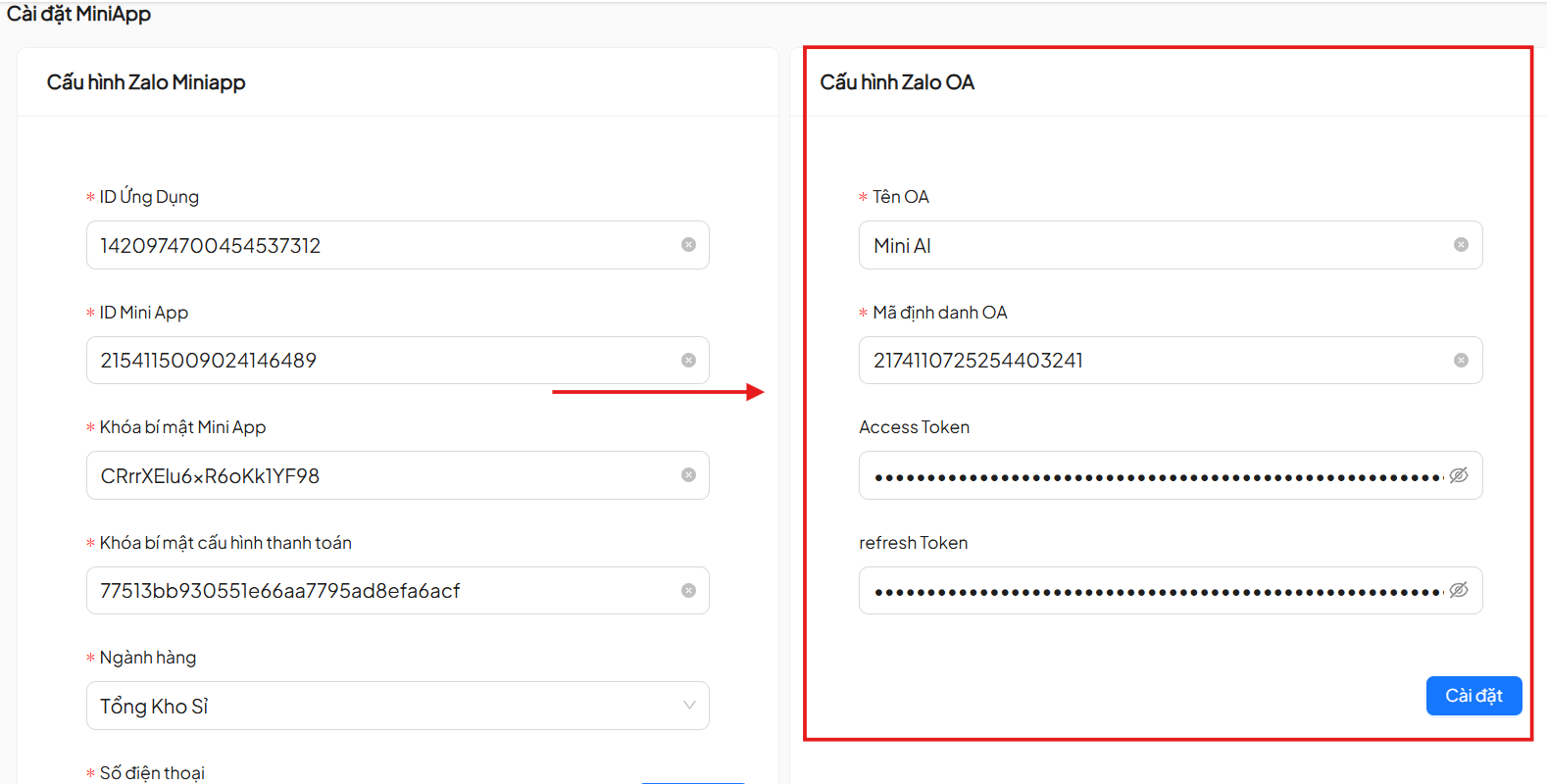
Set up connection with the business Zalo OA:
- Zalo OA Name
- Zalo OA ID
- Access Token
- Refresh Token
Click Update after editing.
- If the Mini App is not syncing data to Zalo OA, check the Zalo OA ID.
- To obtain Access Token and Refresh Token information, please refer to the Zalo OA documentation.
- If there are connection issues, please contact the Mini App provider for assistance.
- Get Zalo OA information at: https://oa.zalo.me/home
3. Bank Account Information
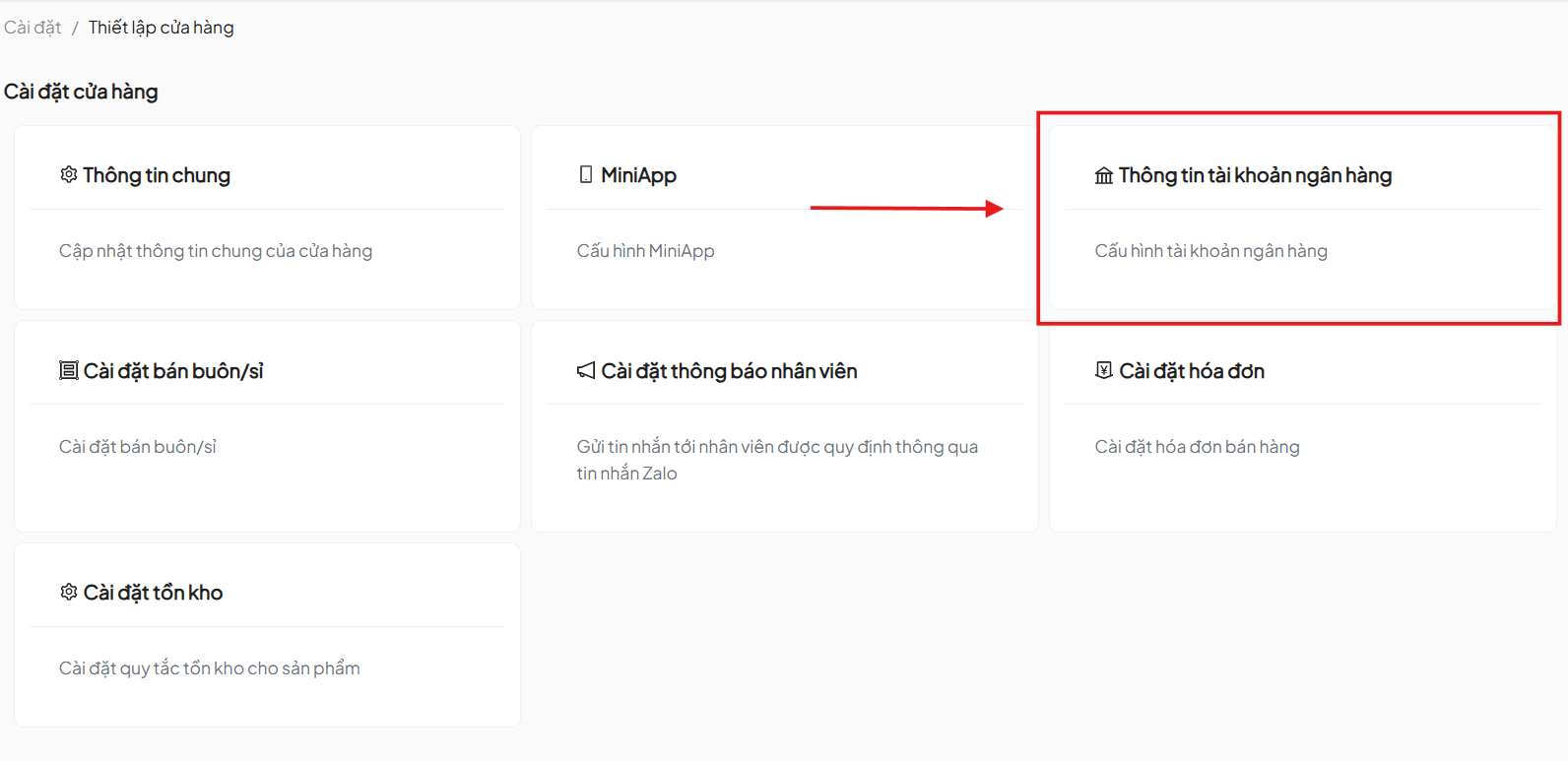
Set up a bank account to receive payments from customers.
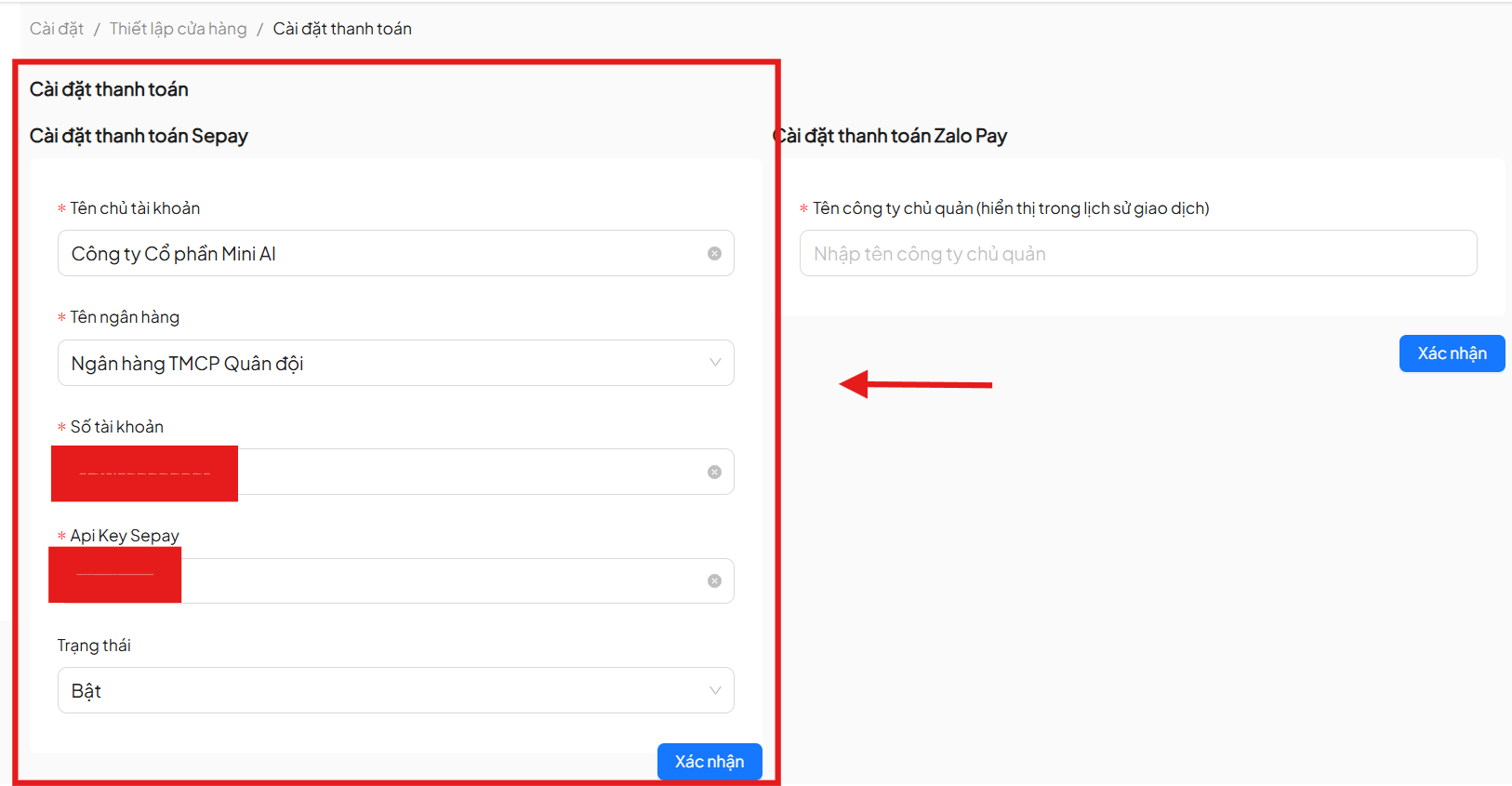
Information includes:
- Account Holder Name (required)
- Bank Name (select from supported list)
- Account Number (required)
- Sepay API Key
- Status
- On: activate payment
- Off: disconnect and hide bank payment
Click Update to save the configuration.
4. Wholesale Settings
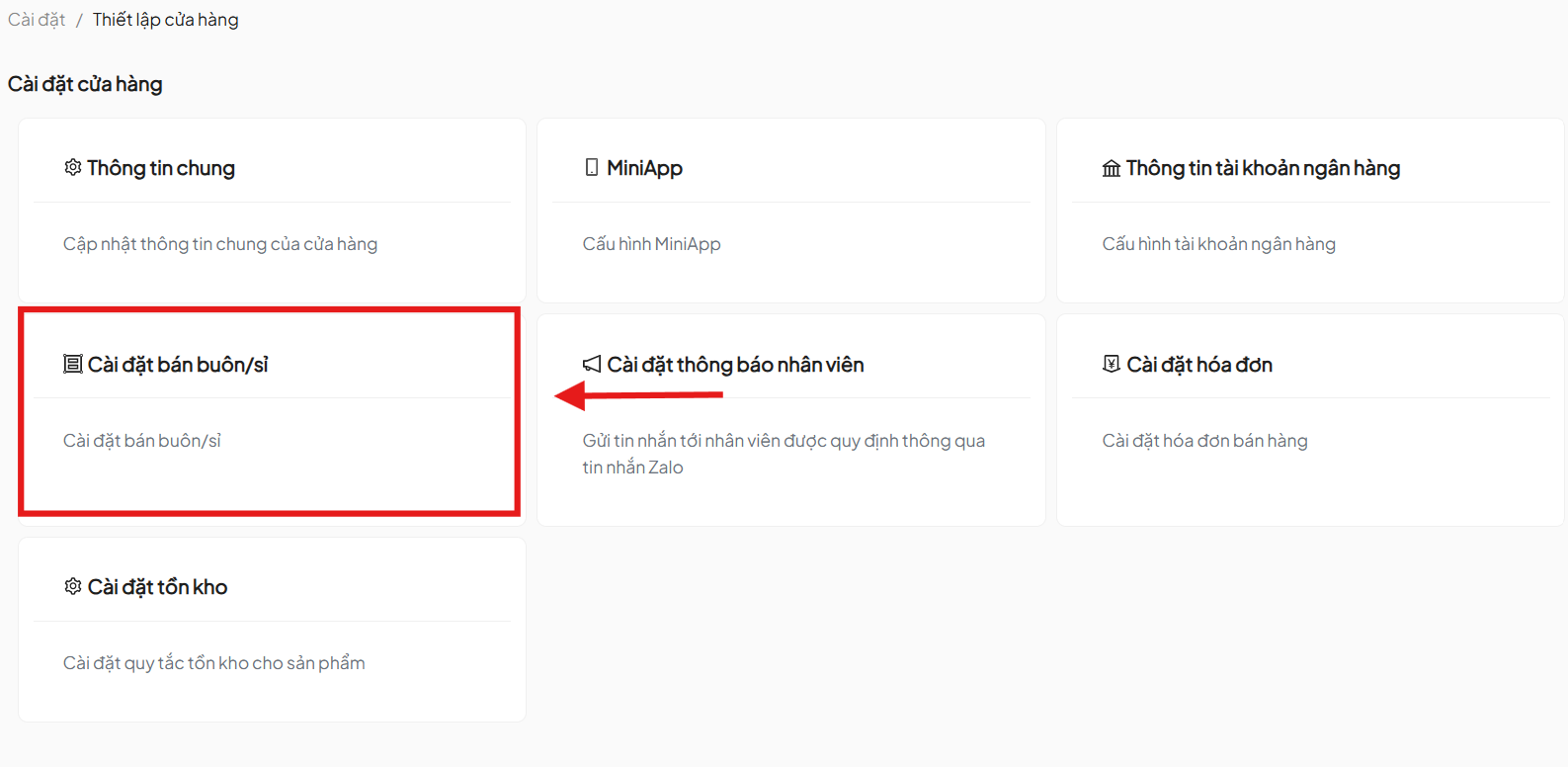
The wholesale feature allows applying discounted prices for customers purchasing in bulk.
4.1. Setup Guide
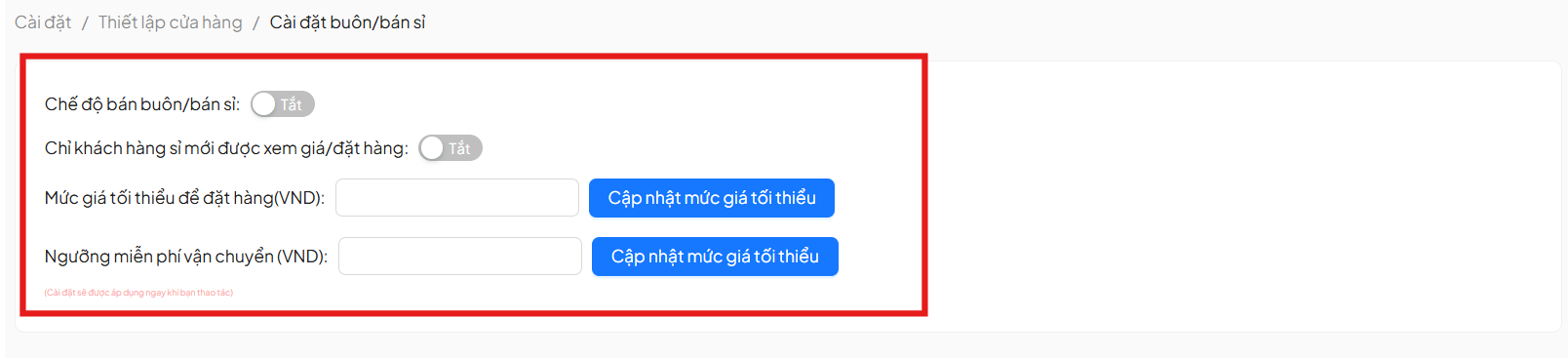
Step 1: Enable Wholesale Mode Turn on Wholesale Mode
Step 2: Price Viewing Permission (optional) Turn on Only wholesale customers can view prices/place orders
- When enabled, retail customers cannot view prices
Step 3: Minimum Order Value
Example: 200,000 VND to apply wholesale prices
Step 4: Free Shipping (optional) Set order value for free shipping
5. Staff Notification Settings
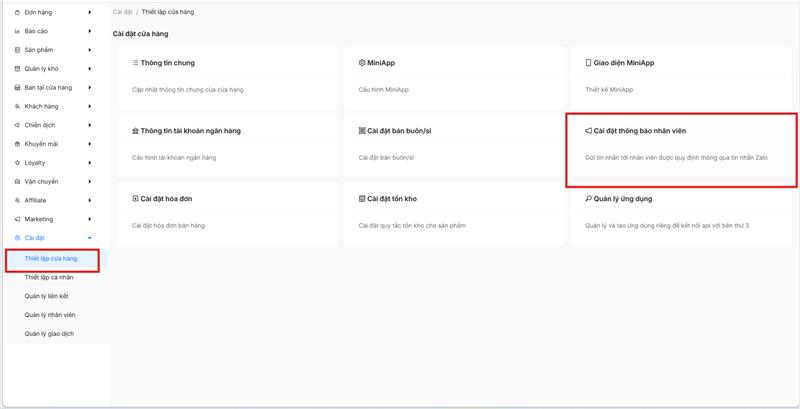
Helps staff receive new order notifications from Zalo OA.
5.1. Prerequisites
- Zalo OA must be an Advanced OA
- Staff must allow phone number access on Mini App
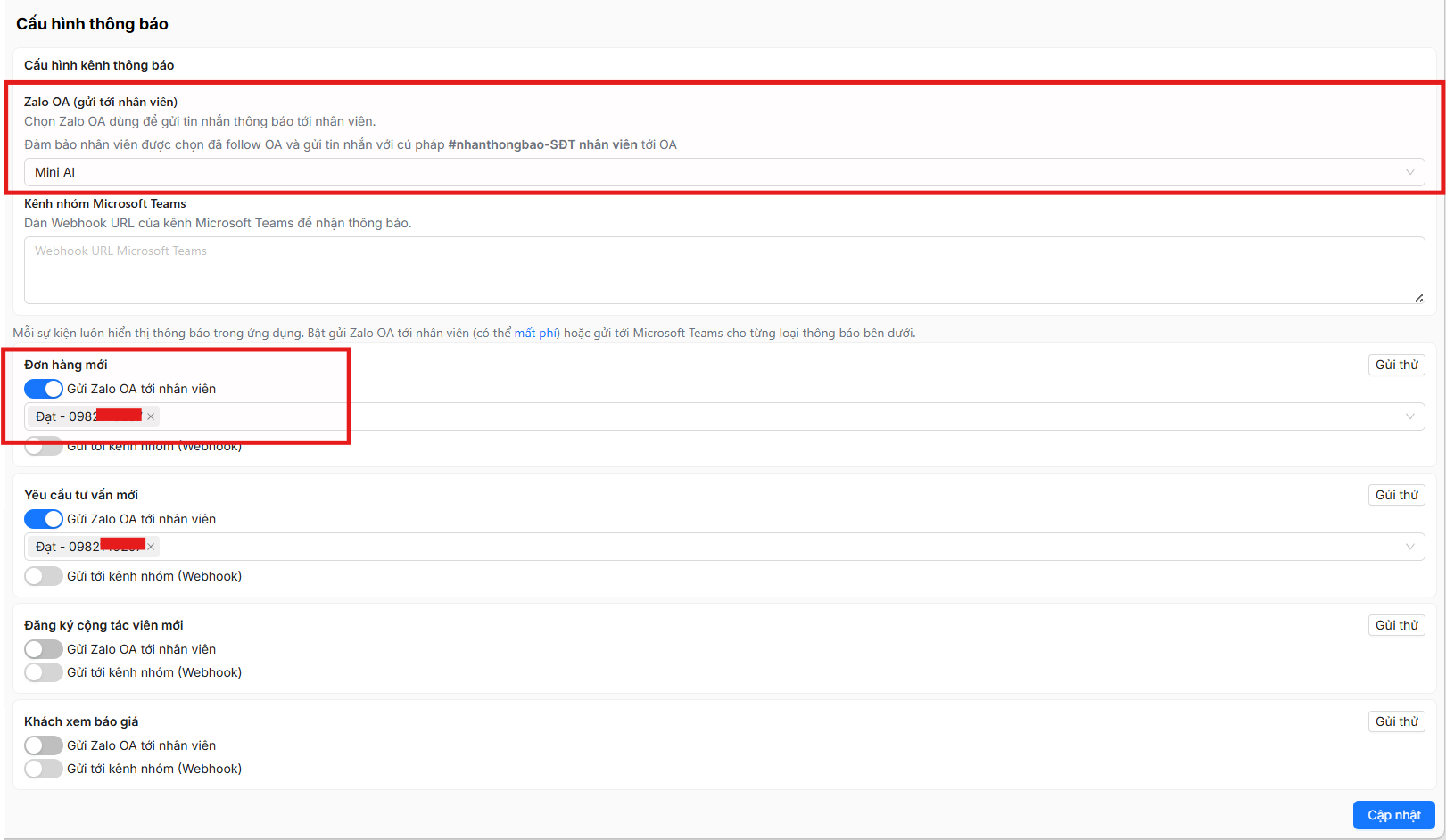
5.2. Steps
- Go to Settings → Store Setup → Staff Notification Settings
- Click Add Staff
- Select staff from the list
- Click OK
- Click Update
After completion, staff will receive new order notifications from Zalo OA.
6. Electronic Invoice Settings
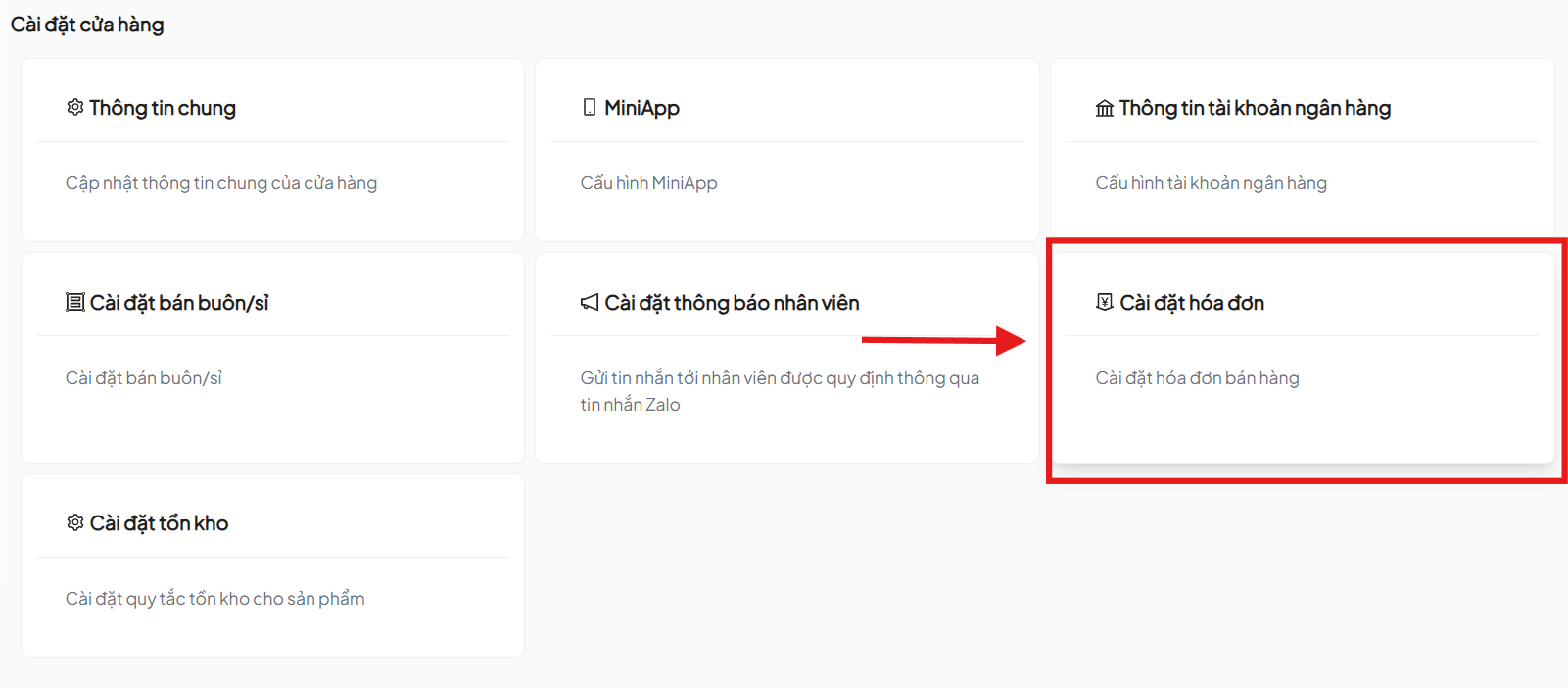
The system supports electronic invoice integration with:
- Mat Bao Invoice
- M-Invoice
Helps automatically issue invoices and comply with legal regulations.
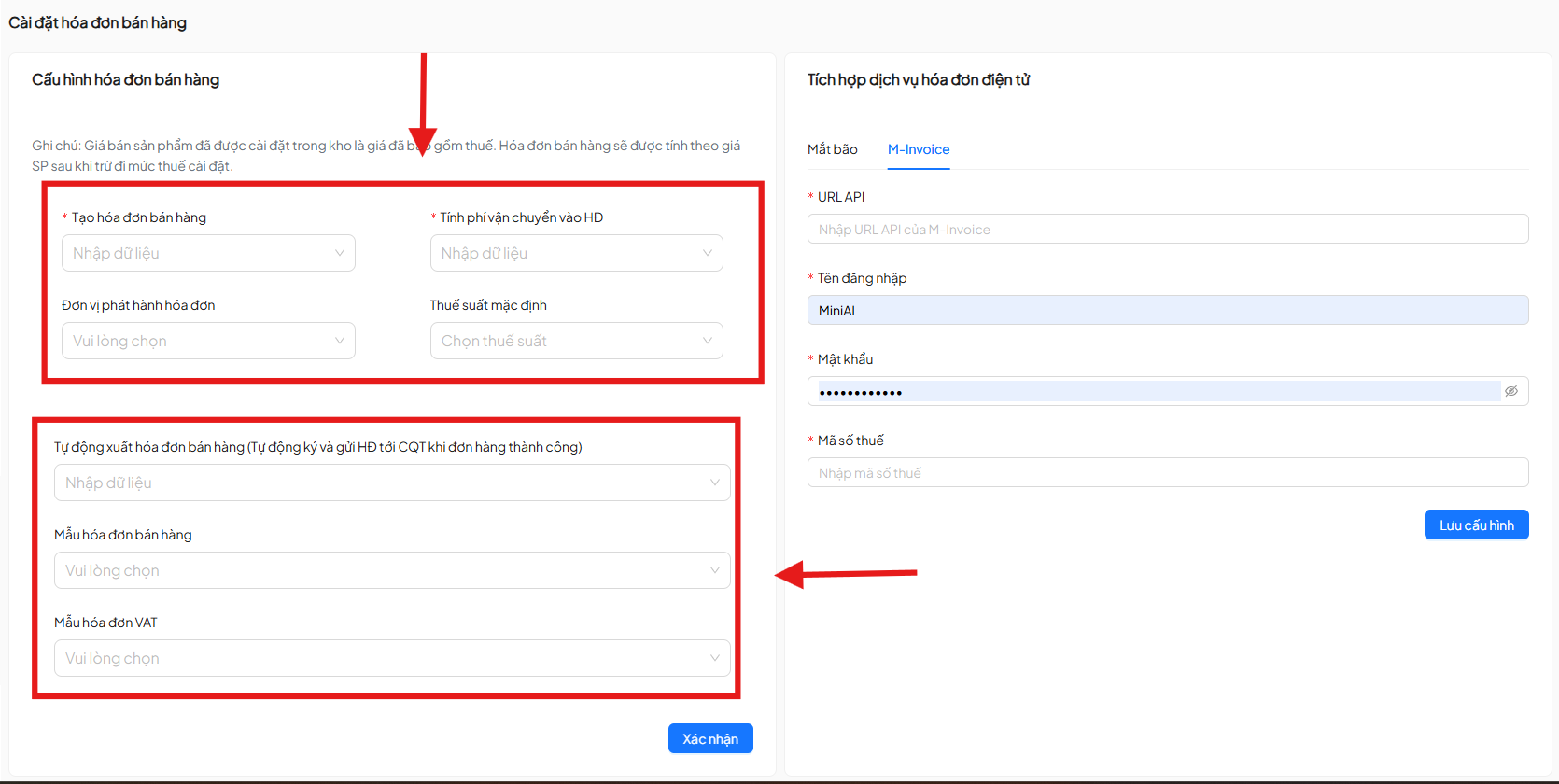
Step 1: Access Settings
Settings → Store Setup → Invoice Settings
Step 2: Connect Invoice Provider
Mat Bao Invoice
- Username
- Password
- Tax ID
- Click Save Configuration
M-Invoice
- API URL
- Username
- Password
- Tax ID
- Click Save Configuration
Step 3: Sales Invoice Configuration
- Issuing unit
- Auto-create invoice
- Include shipping fee
- Tax rate (0%, 5%, 8%, 10%)
- Auto-sign & submit to Tax Authority
- Sales invoice & VAT template
Step 4: Save & Verify
- Review all configurations
- Click Confirm
- Wait for system processing (10–20 seconds)
- Success notification will appear
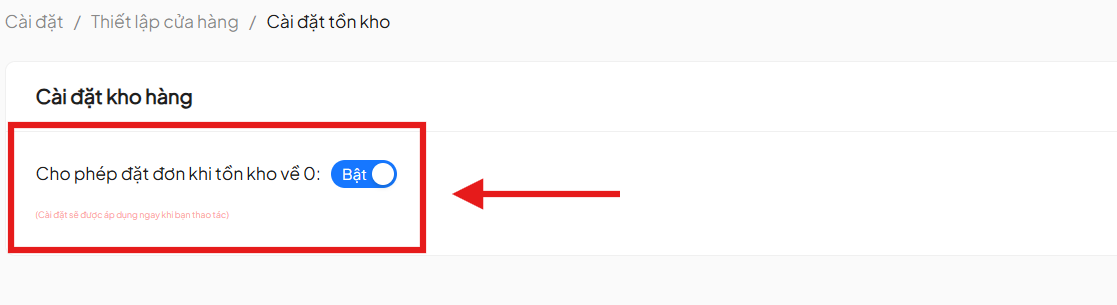
6. Inventory Settings
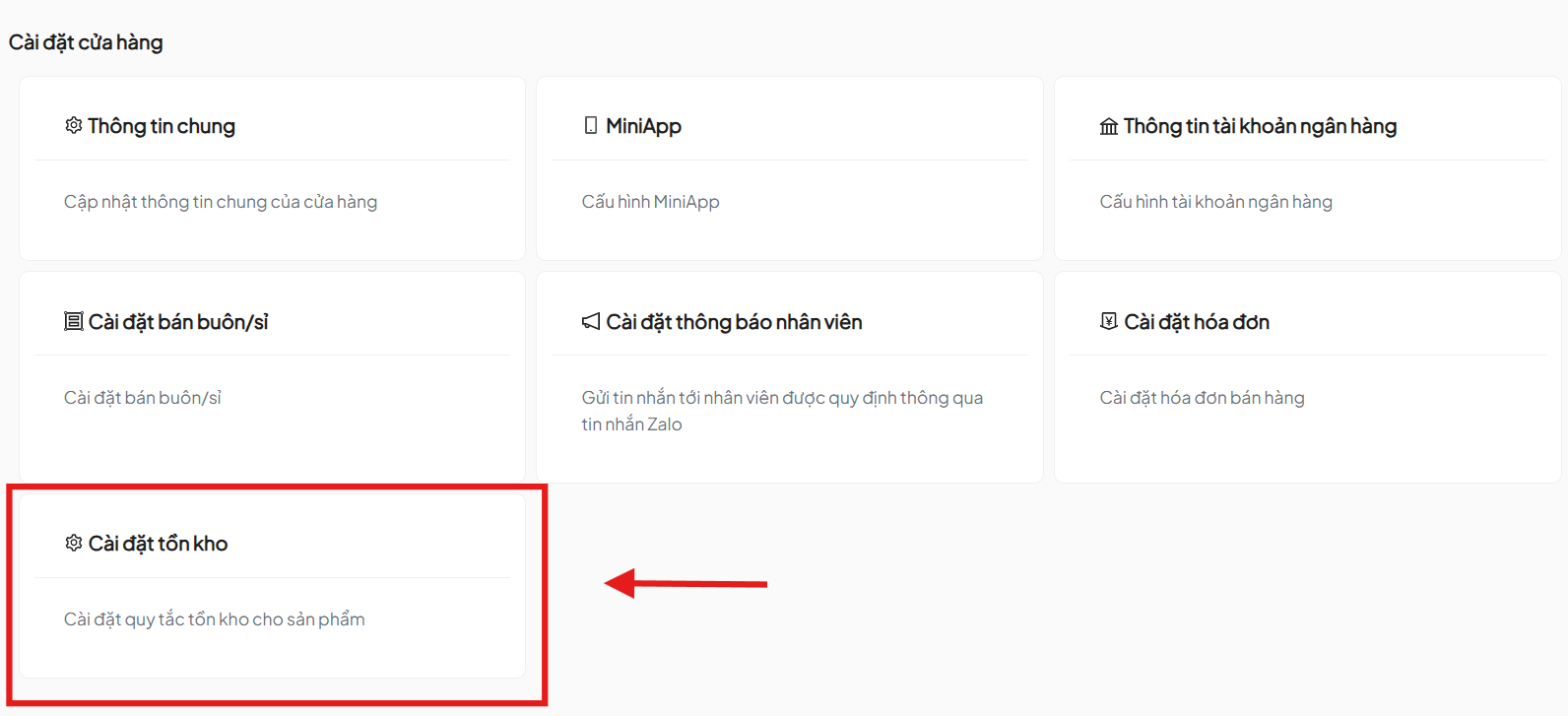
Manage inventory rules for the entire store. Allow/disallow customers to purchase when inventory reaches 0, set up low inventory alerts.