Tag Management on MiniAI SCRM
The Tag Management feature on MiniAI SCRM allows businesses to label conversations and customers flexibly, helping the sales and customer service team:
- Classify customers by potential level
- Track conversation processing status
- Build a clear sales funnel
- Control data access permissions between employees
Tag Management interface
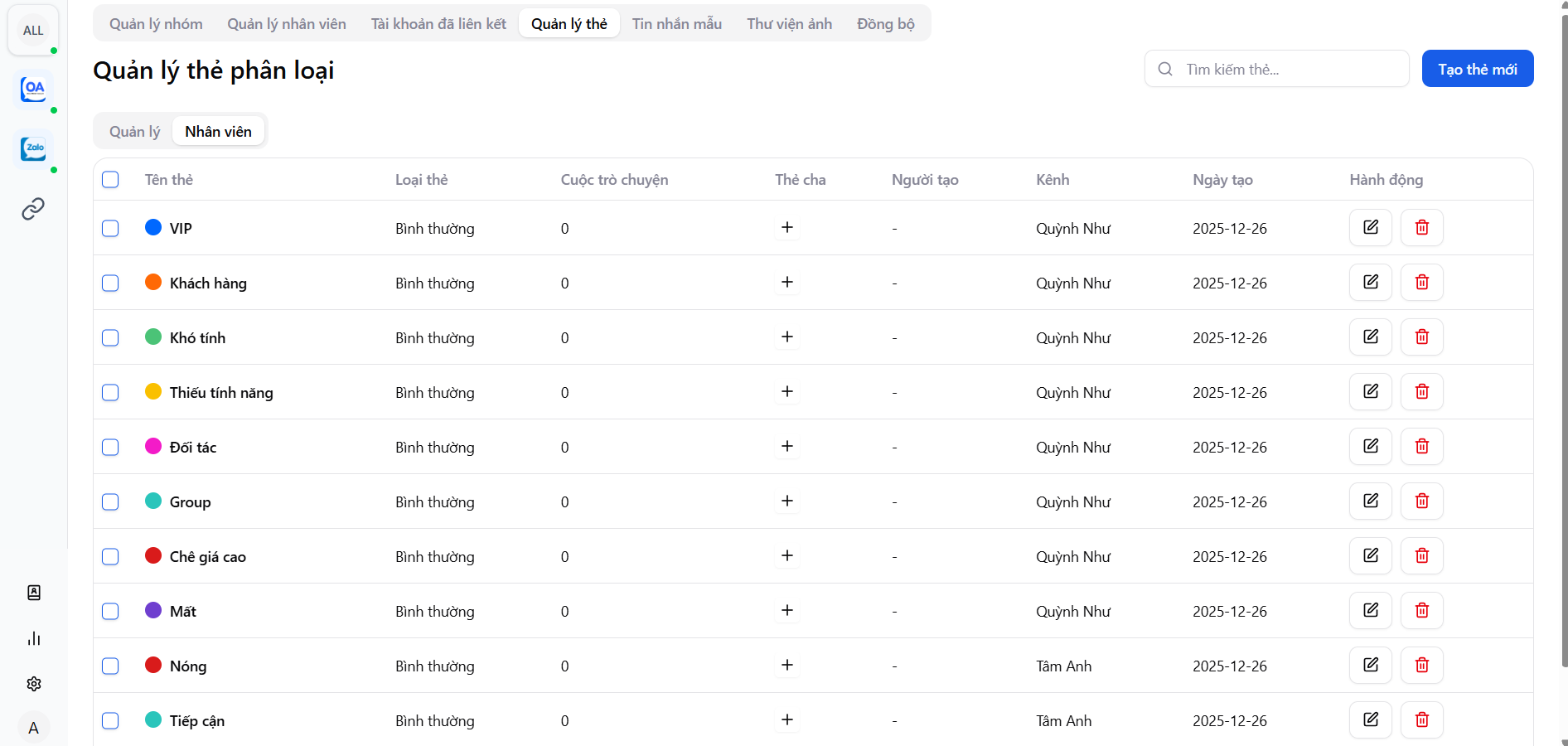
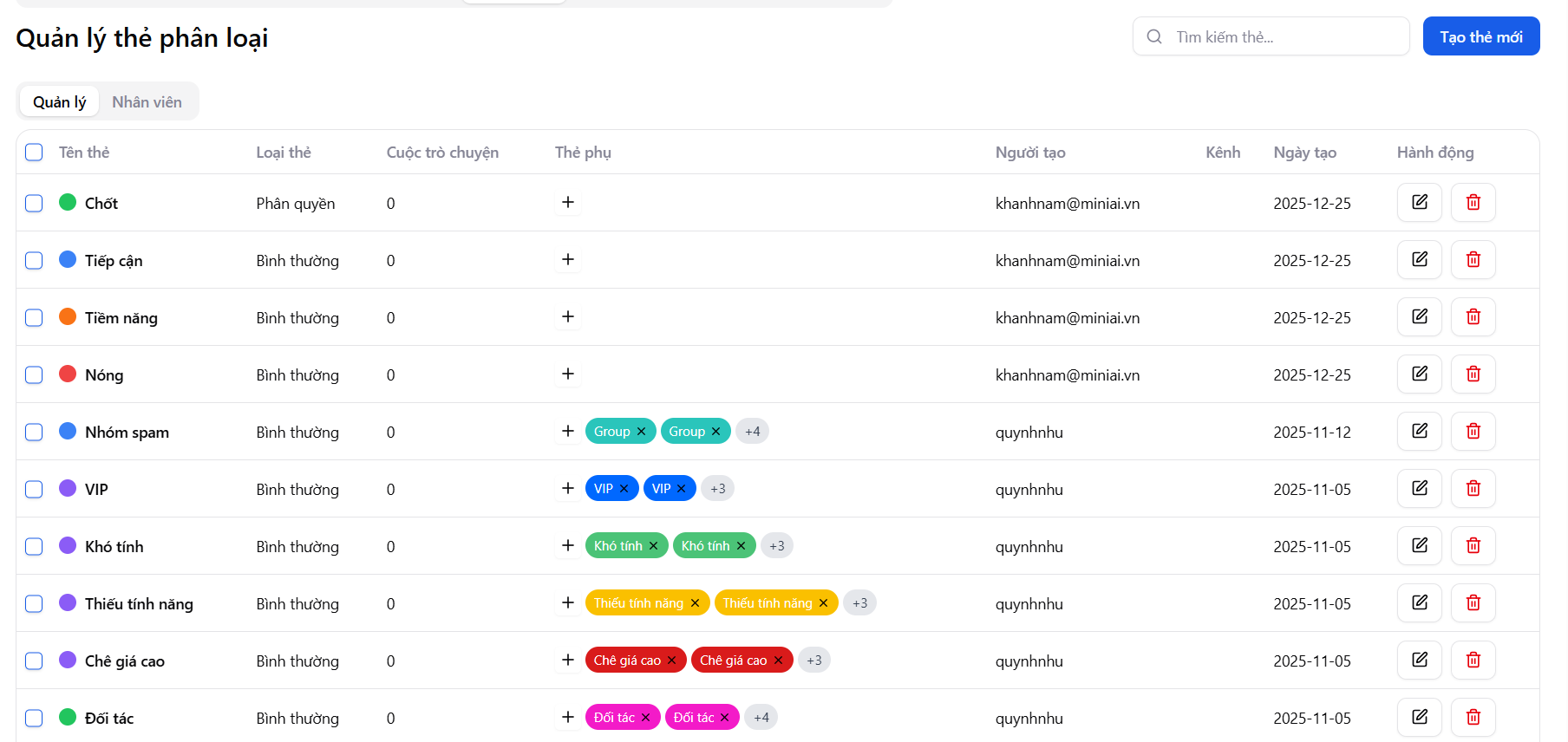
On the Tag Management screen, the system displays a list of all created tags with the following information:
- Tag name
- Tag type (Normal / Permission-based)
- Number of conversations using the tag
- Parent tag / sub-tag
- Creator – channel – creation date
- Edit / delete actions
Create a new tag
Click "Create New Tag" to open the tag creation popup.
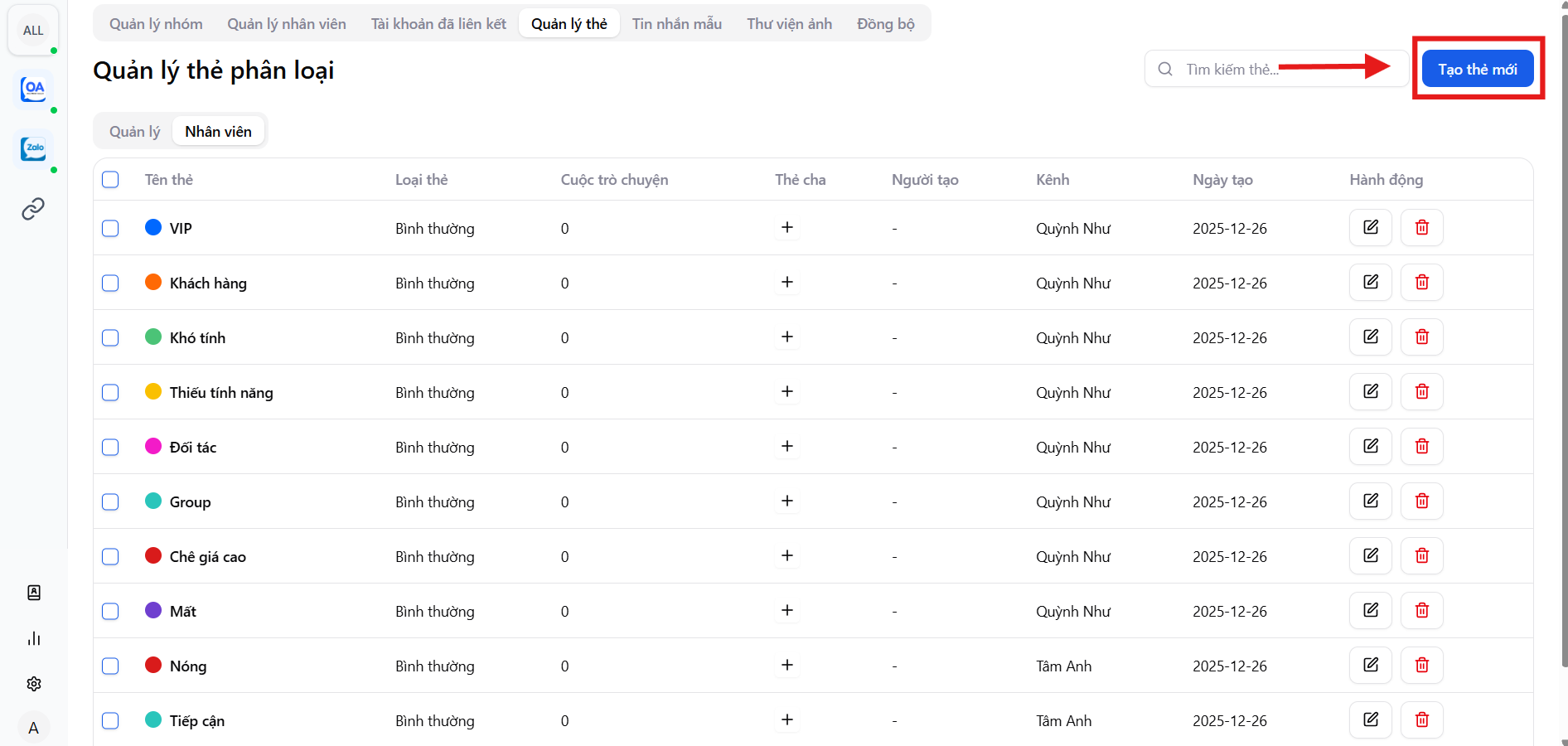
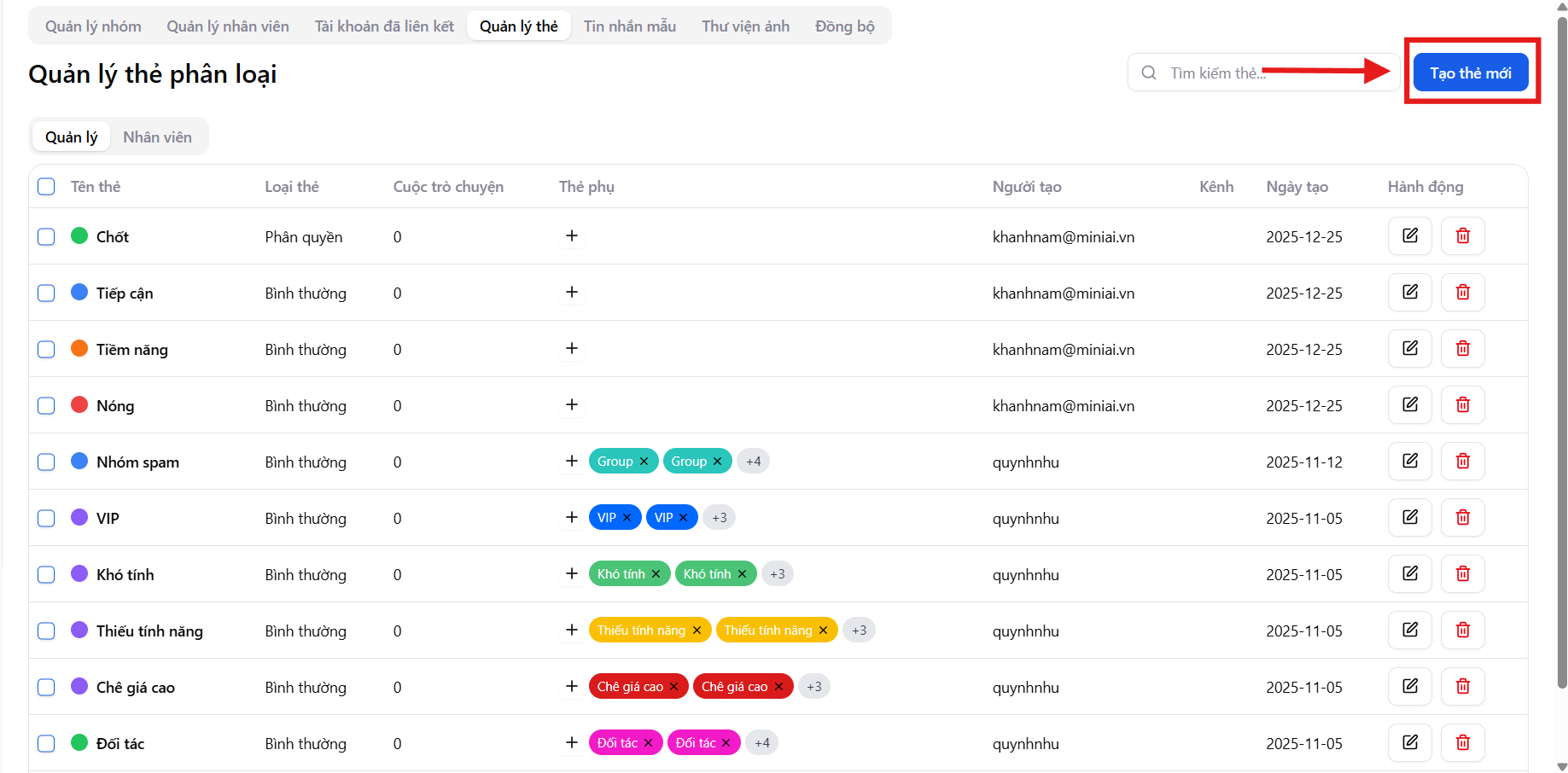
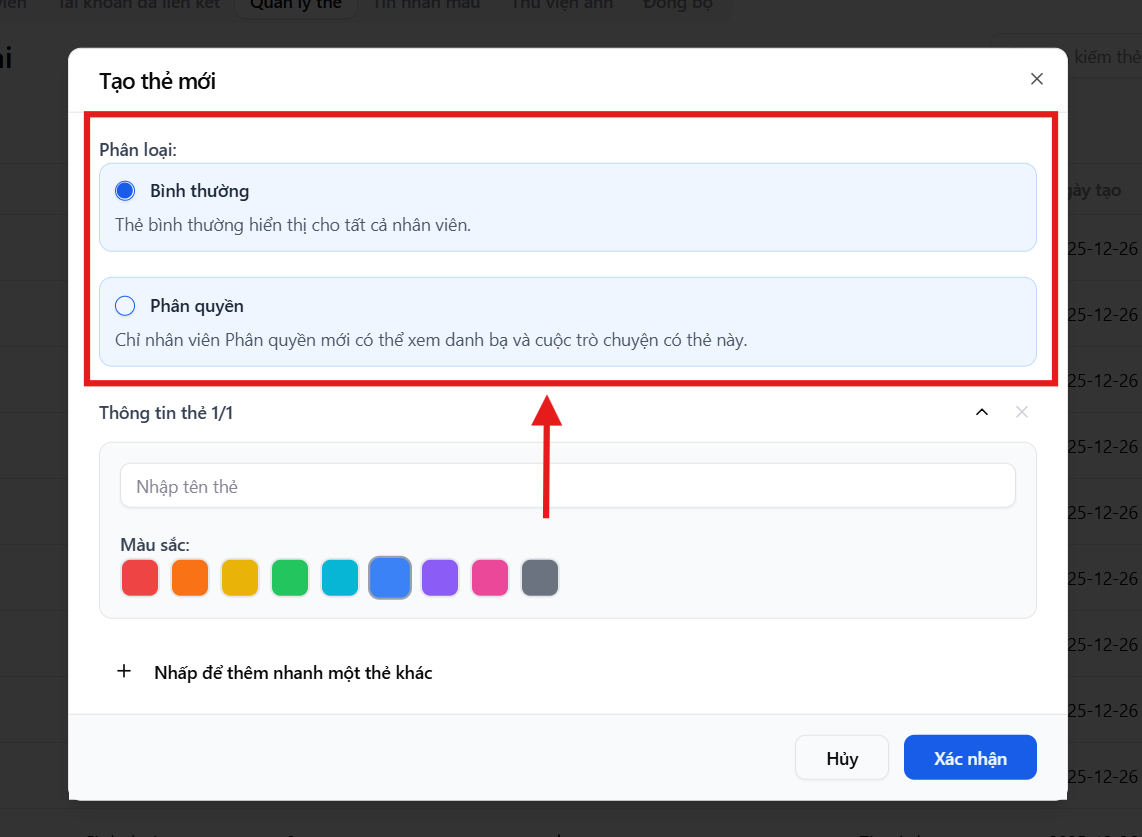
1. Select tag type
MiniAI SCRM supports 2 tag types:
- Normal Tag
- Visible to all employees
- Used to classify customers, conversations, sales status
- Examples:
- VIP
- Potential
- Difficult
- Price sensitive
- Permission-based Tag
- Only employees with permissions can:
- View contacts
- View conversations with this tag
- Suitable for:
- Closed leads
- Important customers
- Sensitive deals
2. Enter tag information
- Tag name: keep it short and clear
- Color: choose a color for quick visual identification when chatting
- Parent tag: select a parent tag if applicable (see the Parent tag – sub-tag section below) (if applicable - for managers)
It's recommended to standardize colors by funnel stage (e.g., Hot – red, Potential – orange, VIP – green).
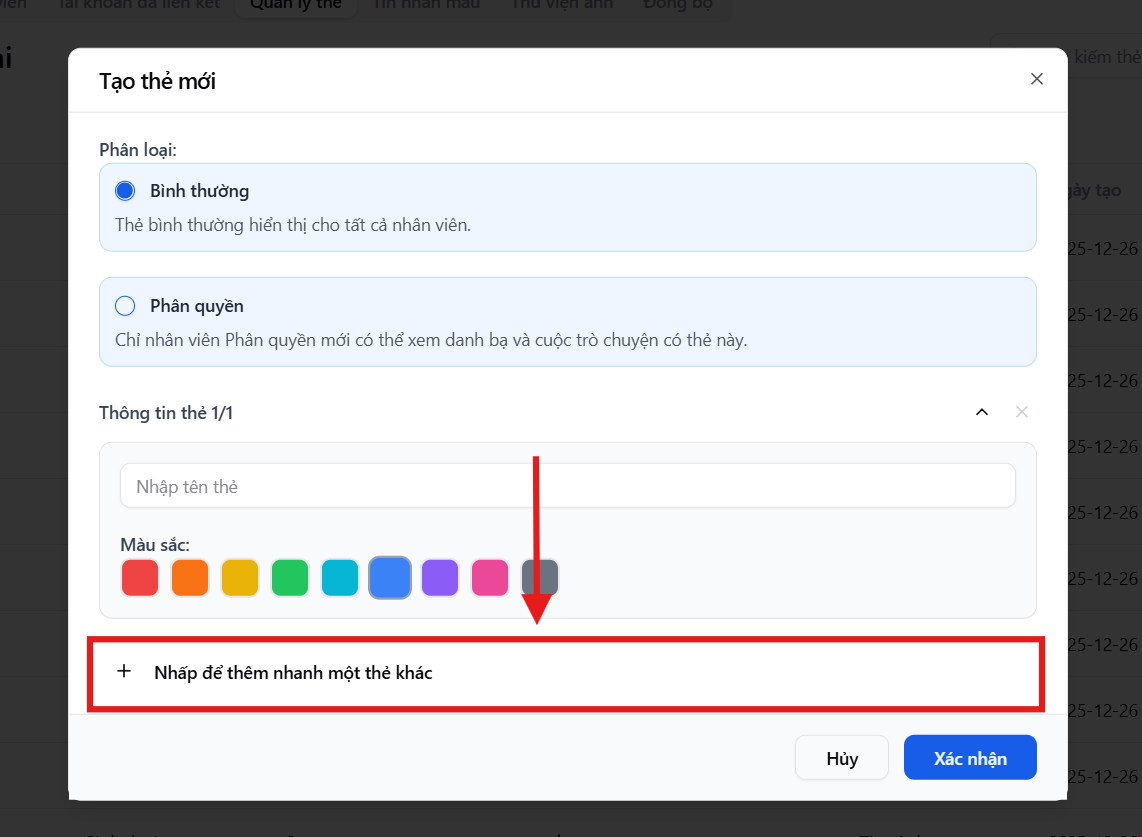
3. Quickly create multiple tags
MiniAI SCRM allows quickly adding multiple tags in succession in a single operation, making initial tag system setup extremely fast for large teams.
- When connecting accounts, tags will be synced across all channels.
- Created tags will apply to all employees in the channel (except permission-based tags).
- Each tag can be assigned to multiple conversations & customers.
Assign parent tag – sub-tag (for managers)
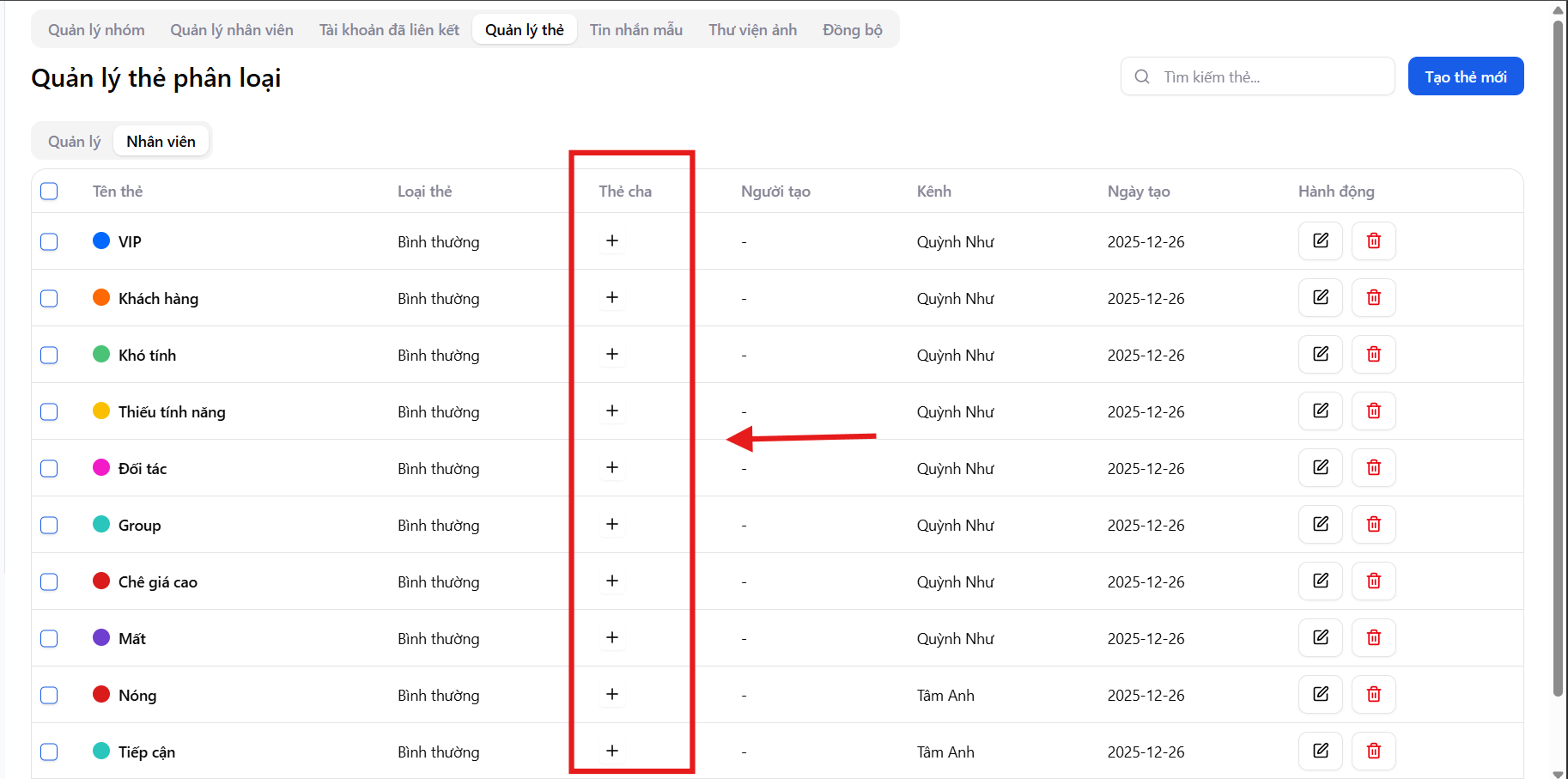
MiniAI SCRM supports a parent tag – sub-tag structure to help managers easily classify customers by detailed status groups.
How to add a parent tag to a sub-tag:
- Select the sub-tag that needs a parent tag
- Select the parent tag from the list of tags created in the management tab
- Confirm and save changes
For example:
- Parent tag: Hot Deal (tag in the management tab)
- Sub-tags: VIP, Hot, Difficult (these tags will appear in the tag assignment popup when chatting)
This approach helps:
- View the funnel more visually
- Easily filter & report by status group
Merge tags
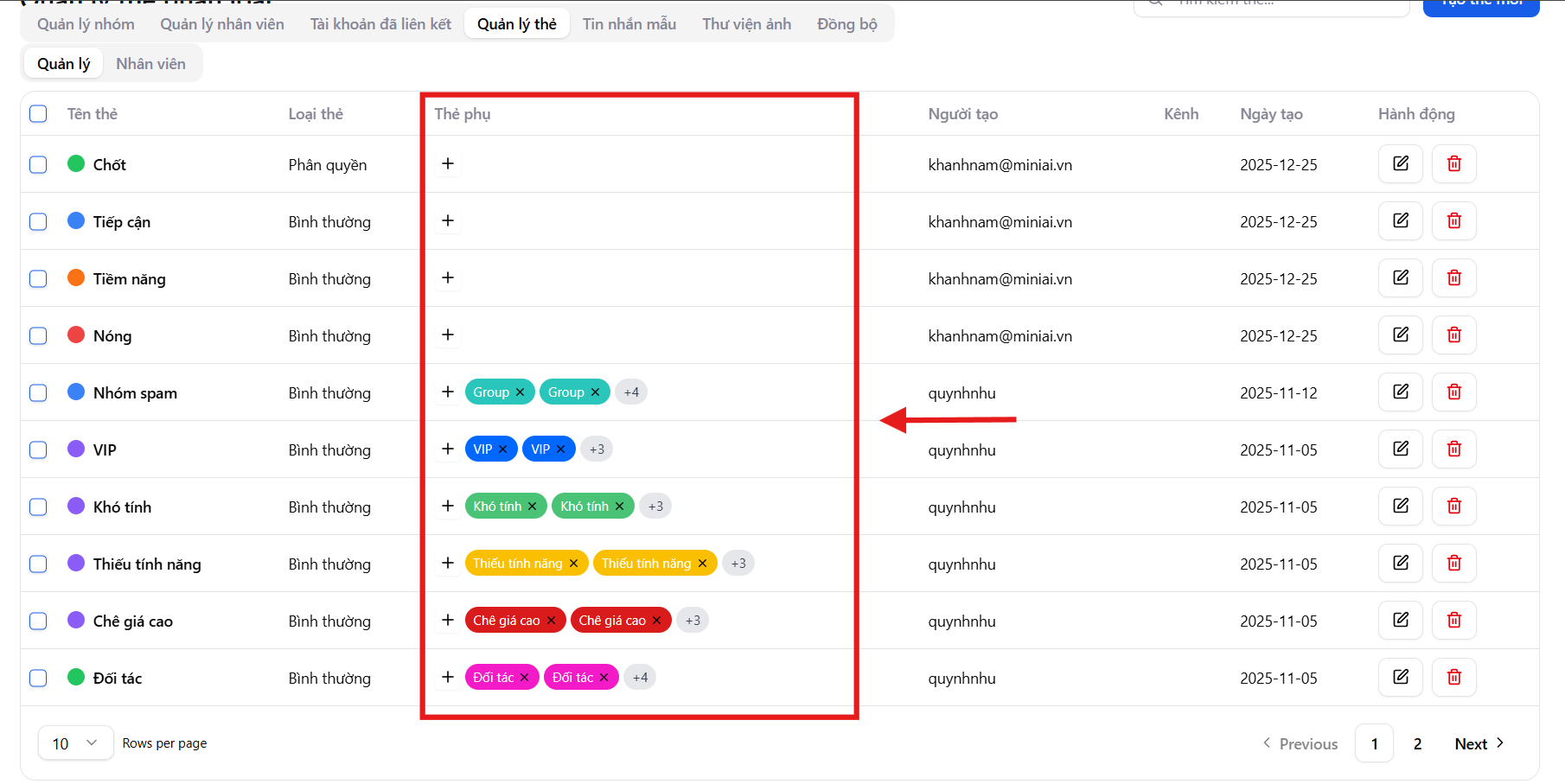
When syncing tags from employee accounts to the system, different employees may assign different tags with the same meaning. MiniAI SCRM allows merging these tags into a single tag for easier admin management.
How to merge tags:
- Open the sub-tag section within the parent tag
- Select the tags to merge
- Confirm the merge
Edit & delete tags
In the Actions column, users can:
- Edit: change name, color, tag type
- Delete: remove tags that are no longer in use
- When deleting tags, conversations that were assigned those tags will lose their tags.
- Avoid deleting tags that are currently in use to prevent losing classification data.
Assign tags during messaging
While chatting with customers, employees can:
- Assign one or more tags to a conversation
- Update tags at each consultation stage
This helps:
- Never miss a customer
- Accurately track sales status
- Standardize lead evaluation across employees
Operational value from the MiniAI SCRM tag system
The tag classification system helps businesses:
- Classify customers accurately by potential level
- Control access to sensitive customer data
- Optimize the sales process through each consultation stage
- Report effectively by specific customer groups
MiniAI SCRM turns each tag from just a label into a strategic data layer in the entire Zalo operations and growth system.