Quick Messages (Message Templates) on MiniAI SCRM
The Quick Messages feature on MiniAI SCRM allows businesses to create pre-made reply templates, helping the sales and customer service team respond to customer needs faster, more consistently, and more professionally during Zalo messaging.
This feature is especially suitable for teams with high conversation volumes, needing to ensure response speed and content consistency.
Quick Messages interface
The Quick Messages screen is divided into 2 main areas:
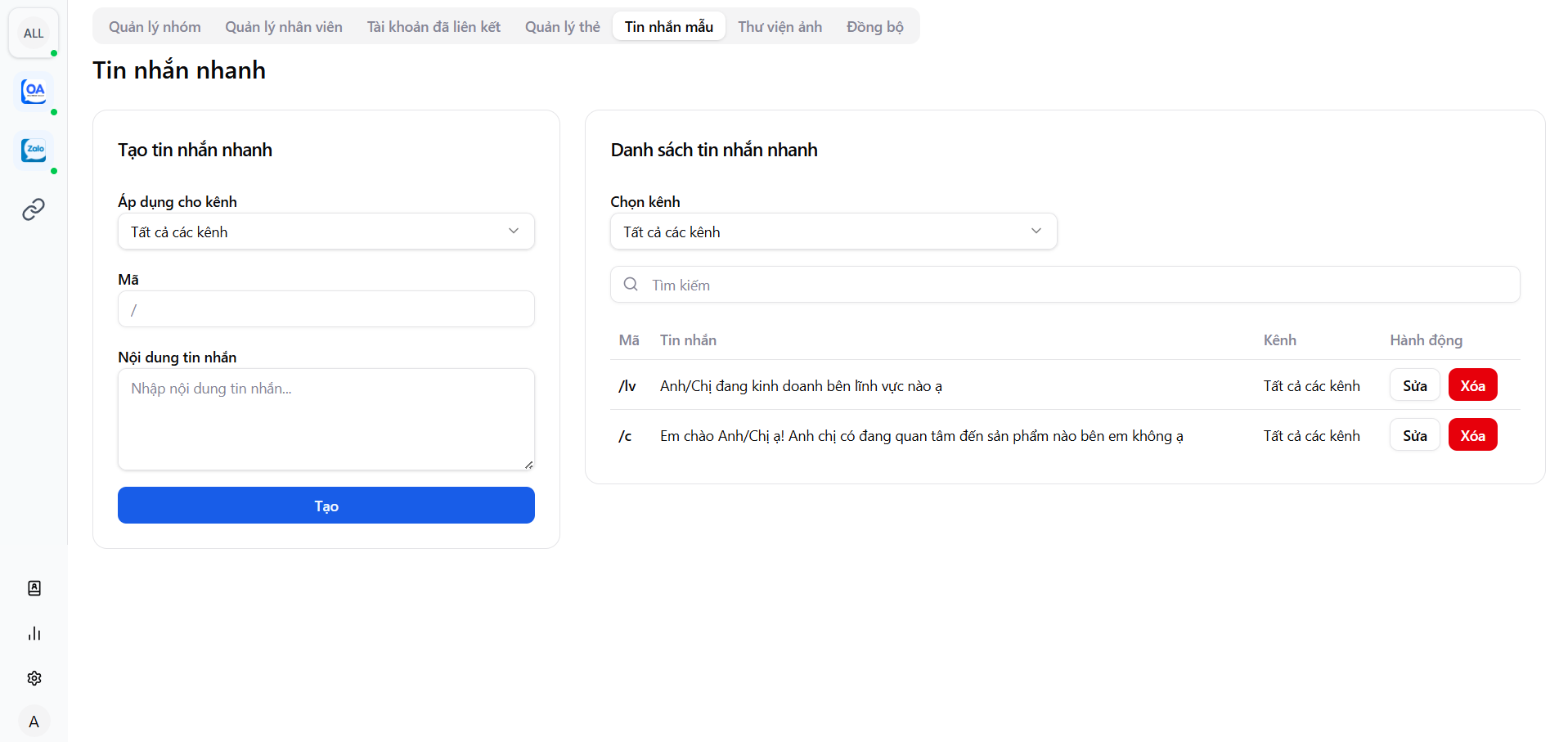
- Left side: Create new quick messages
- Right side: List of created quick messages
Create a new quick message
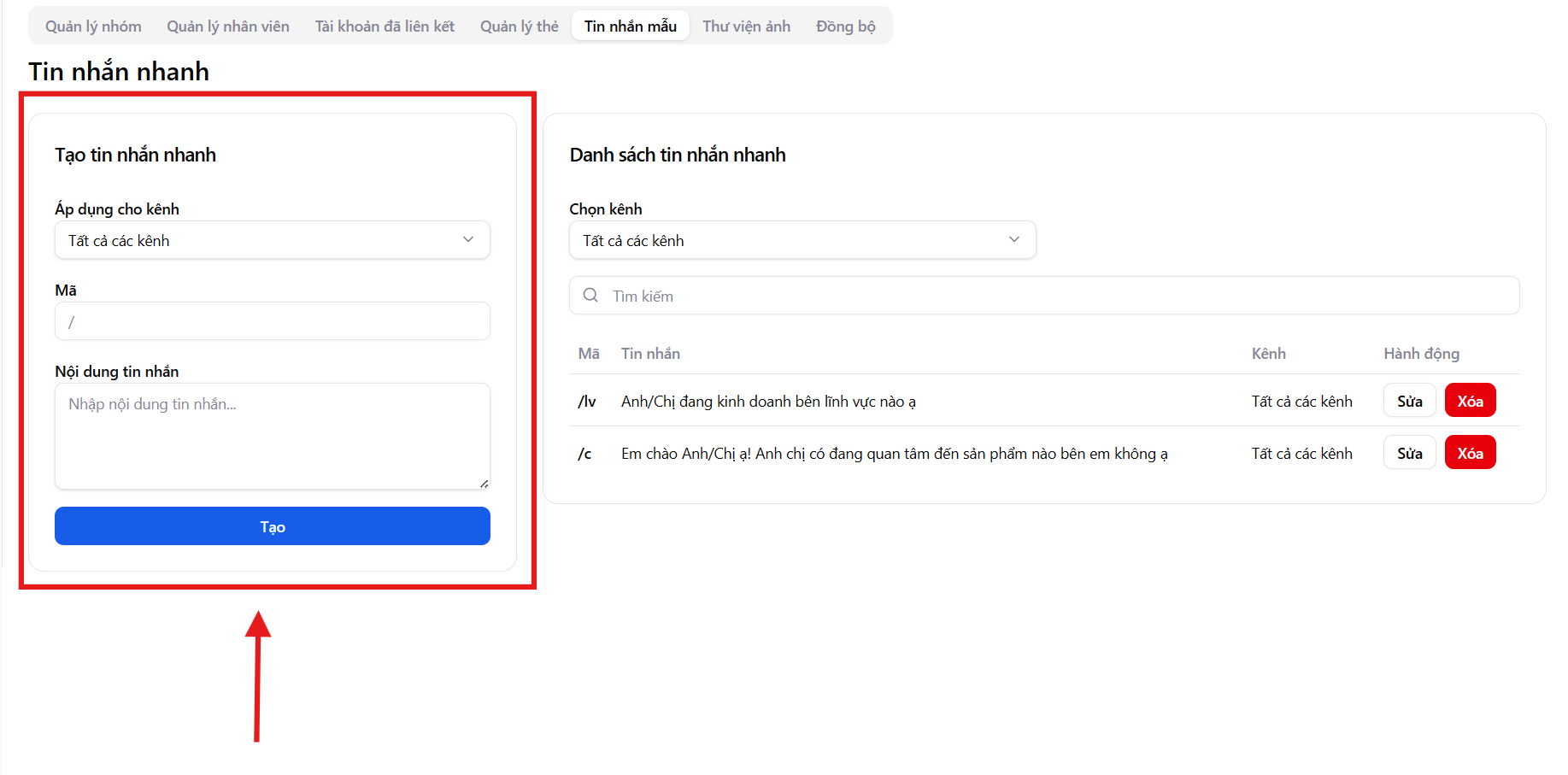
Step 1: Select the applicable channel
In the Apply to channel section, users can select:
- All channels
- Or a specific Zalo channel
This helps control the usage scope of the message template, suitable for each account or channel group.
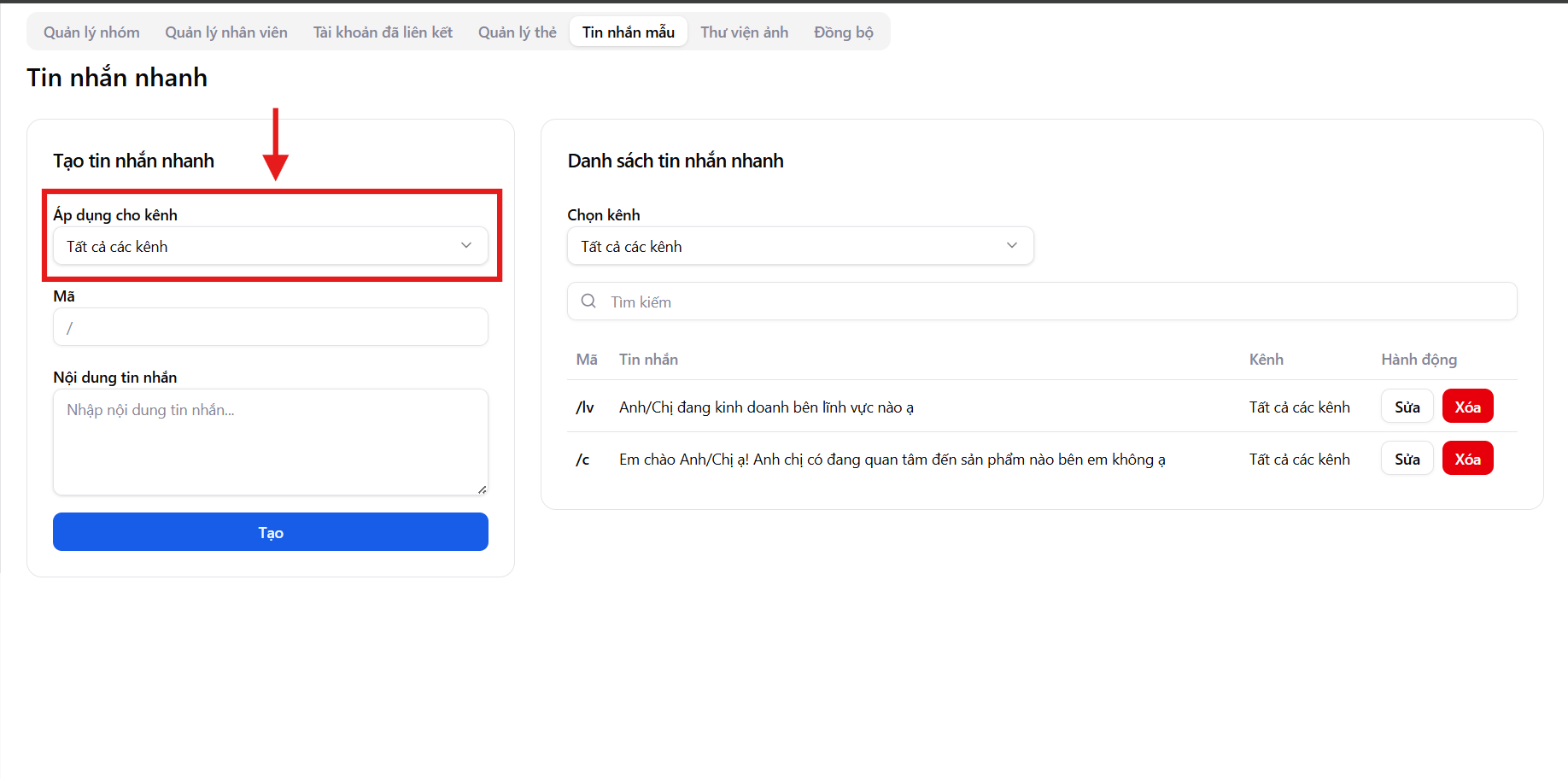
Step 2: Enter the message code
- The Code field is the shortcut syntax for calling quick messages while chatting
- Codes usually start with the "/" character (e.g.,
/c,/tv,/baogia)
Use short, memorable codes so employees can operate quickly when messaging.
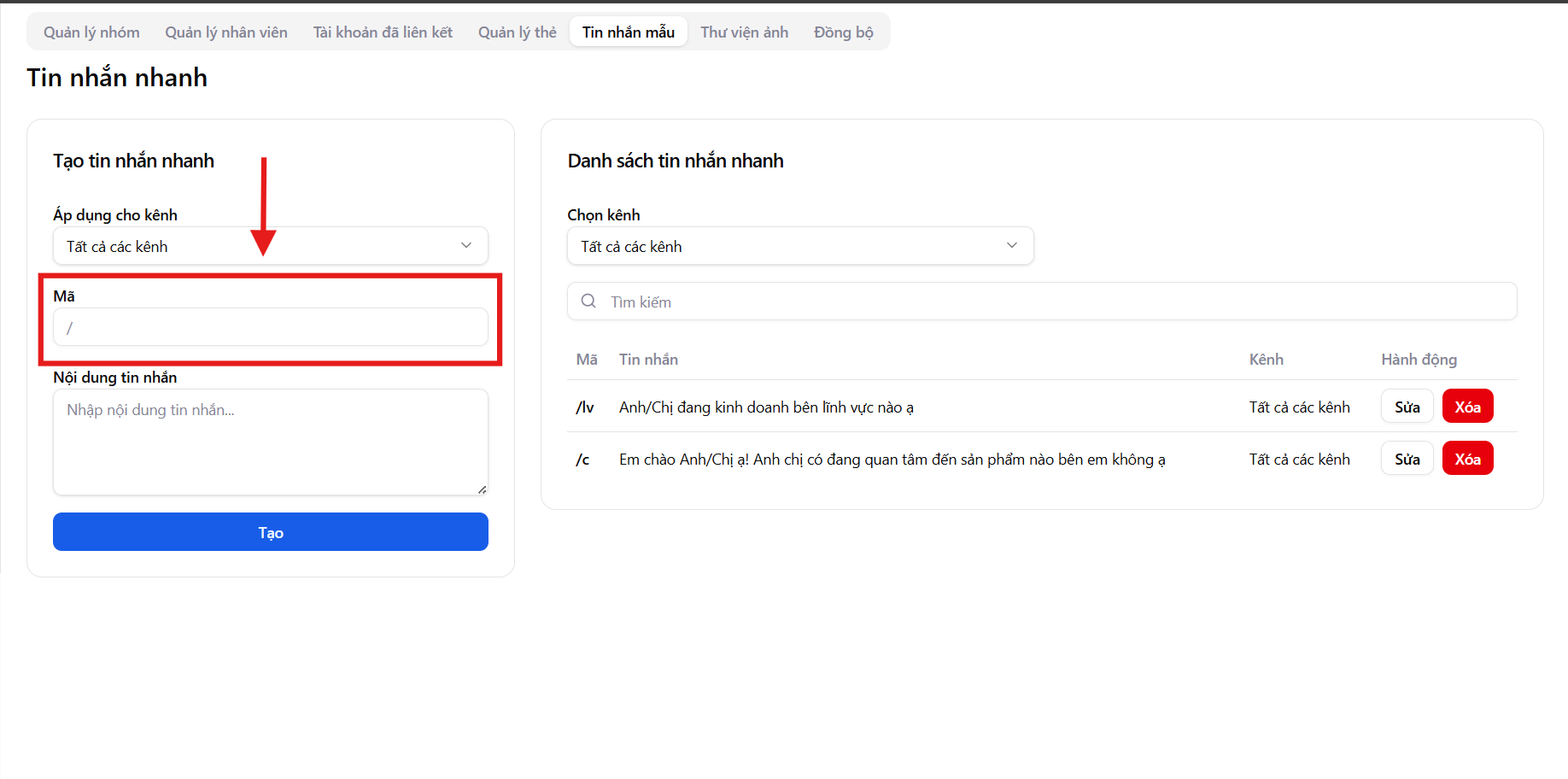
Step 3: Enter the message content
- Fill in the template message content you want to send to customers
- Content can be:
- Greetings
- Questions to explore customer needs
- Basic consultation content
- Customer care messages
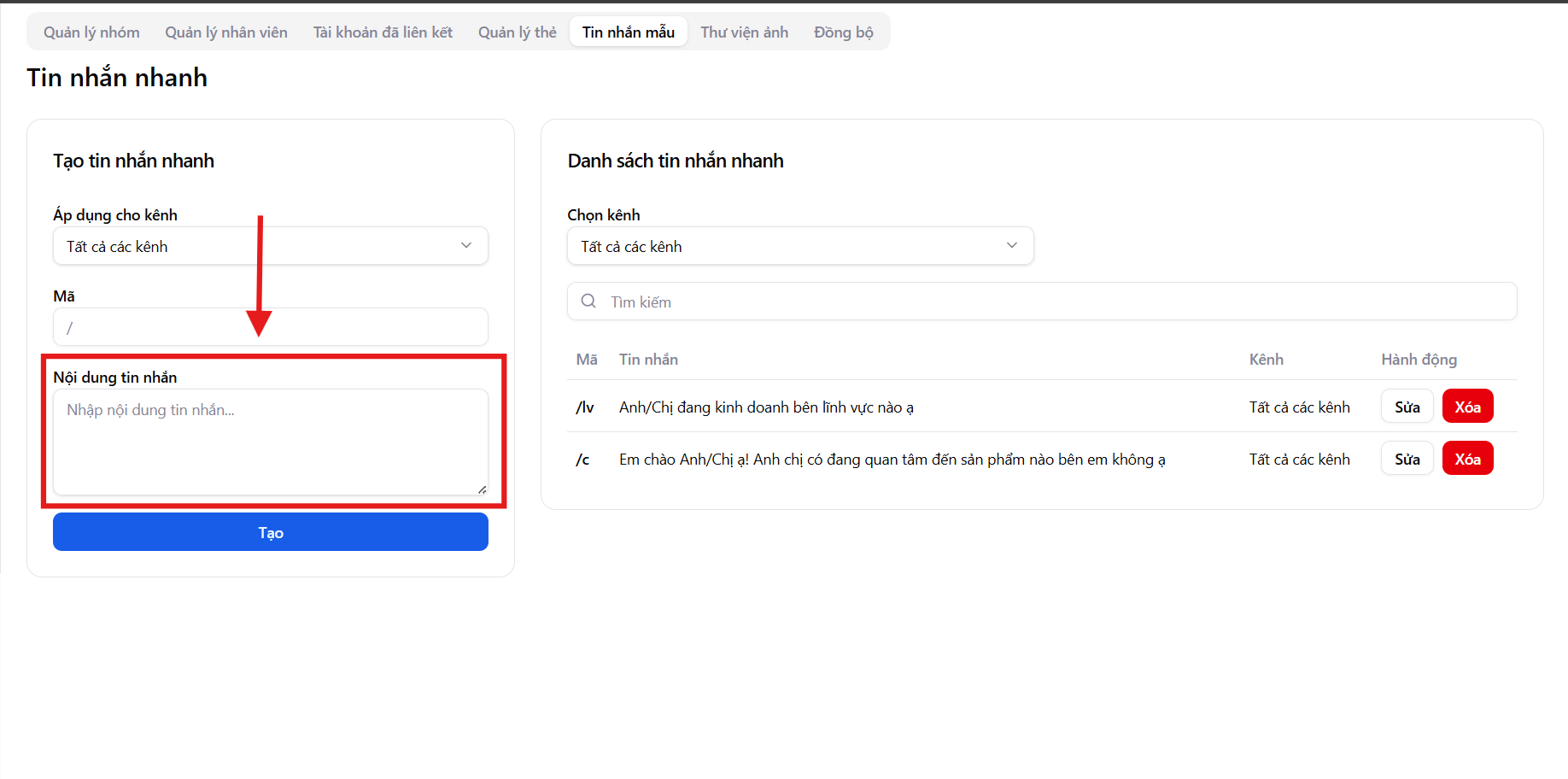
Step 4: Create the quick message
After completing the information, click "Create" to save the quick message.
The message will be added to the list immediately and ready to use.
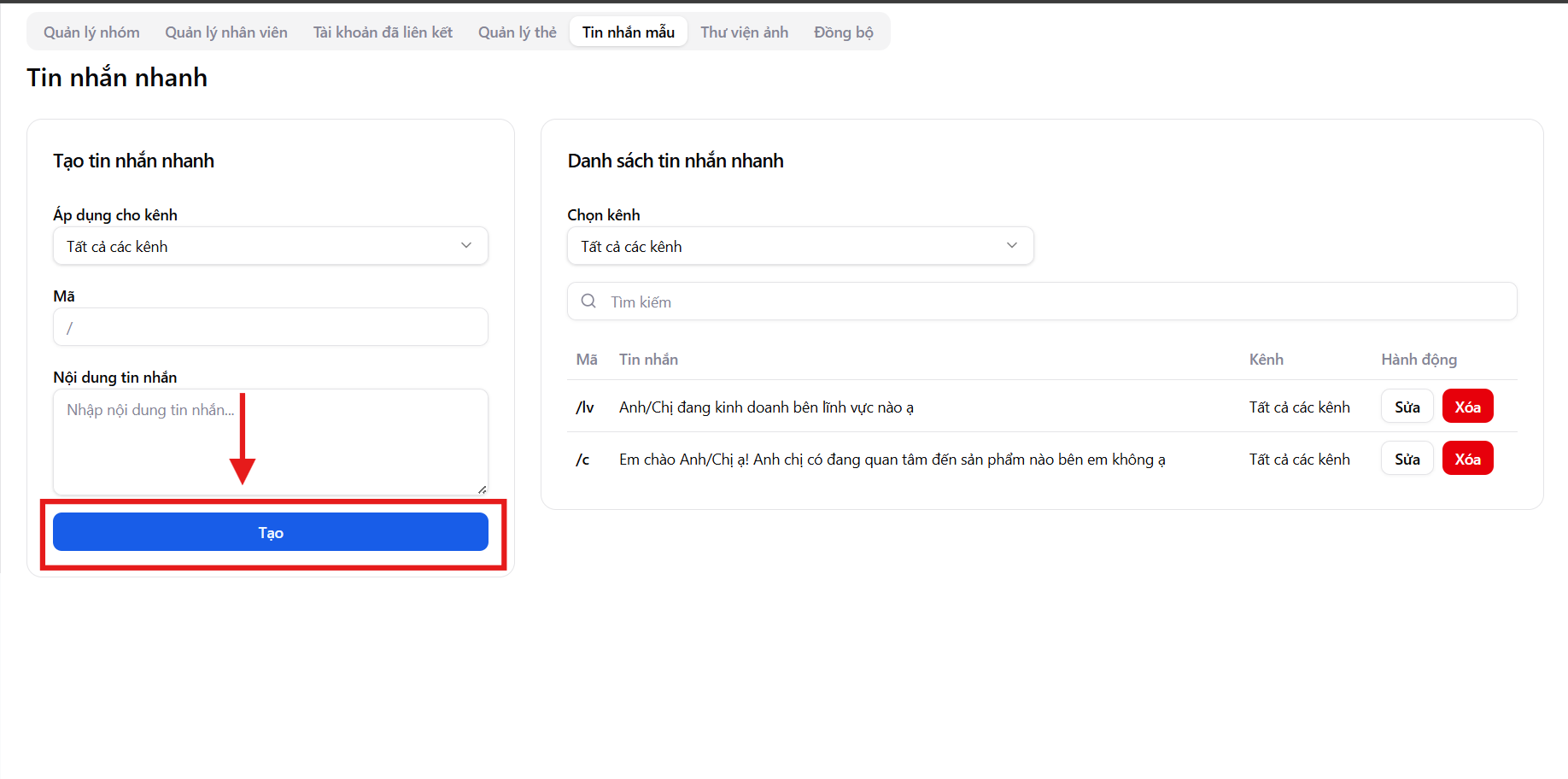
Quick message list
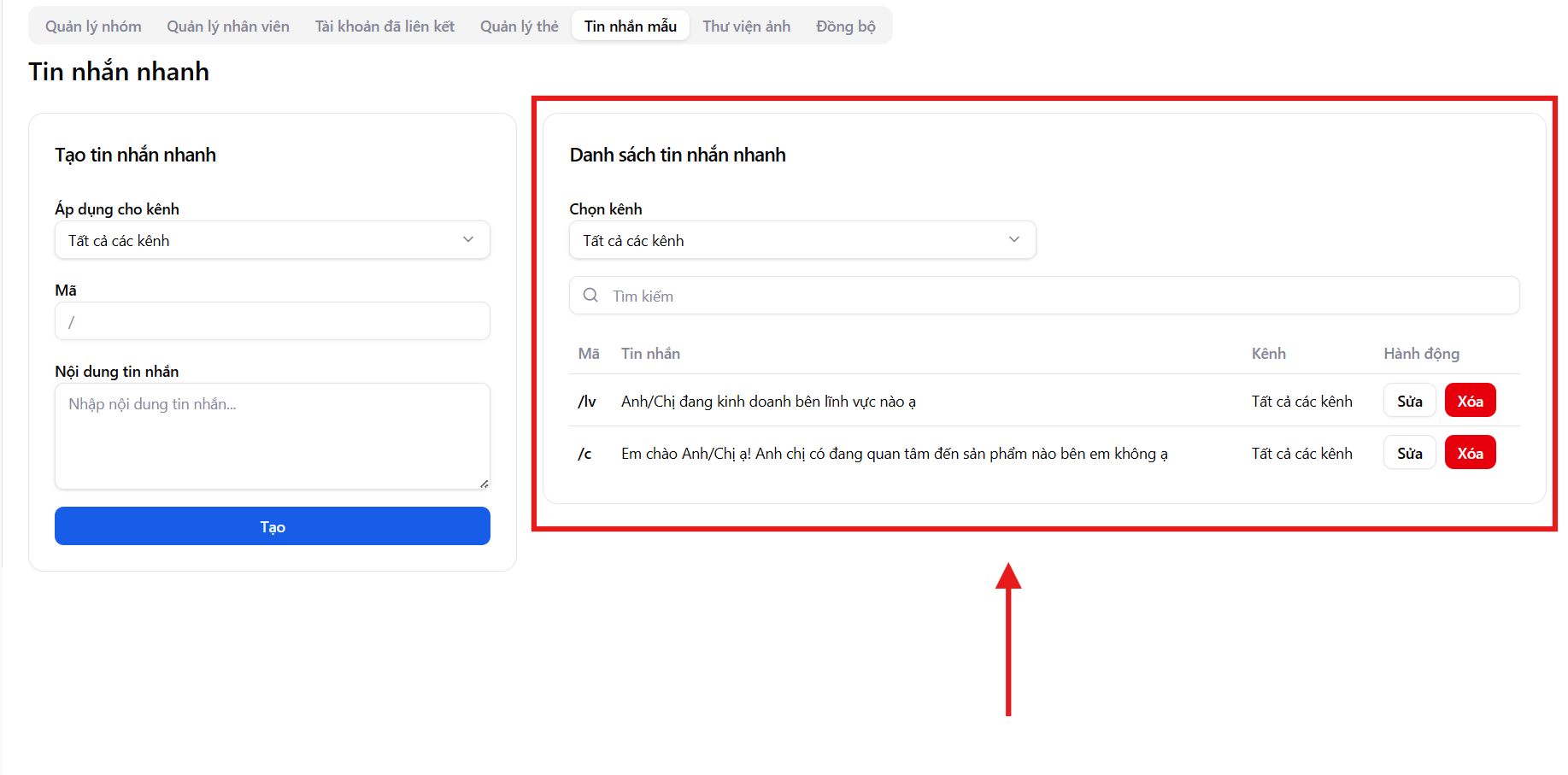
The Quick message list area displays all created messages, including:
- Message code
- Message content
- Applicable channel
- Actions
Users can:
- Quick search messages by code or content
- Filter by channel for easier management
How to use quick messages when chatting with customers
During messaging, employees simply need to:
Step 1: Enter the message code
Type the message code (e.g., /c) in the chat box.
Step 2: Select the message template
The system will automatically suggest the corresponding message template for the entered code.
Step 3: Send the message to the customer
Select the appropriate message and send it to the customer.
This allows employees to respond to customers quickly and accurately without having to retype the entire content.
Benefits of using Quick Messages on MiniAI SCRM
The Quick Messages feature helps businesses:
- Increase customer response speed
- Standardize consultation content across employees
- Enhance customer experience
- Reduce operational pressure when handling multiple conversations simultaneously
- Easily manage and update message template content