Guide to Adding Pop-ups in Mini App
Introduction to the Pop-up Feature
Pop-up is a tool that supports displaying notifications or prominent campaign content immediately when users access the Mini App. Pop-ups are commonly used for:
- Promoting promotional programs
- Announcing events, mini games
- Short-term marketing campaign communication
- Directing users to important content
The system only allows a maximum of 3 Pop-ups to be displayed on the Mini App at the same time.
Accessing the Pop-up Management Screen
From the admin interface, follow the path:
Campaigns → Pop up
Here, the system displays the full list of Pop-ups that have been created.
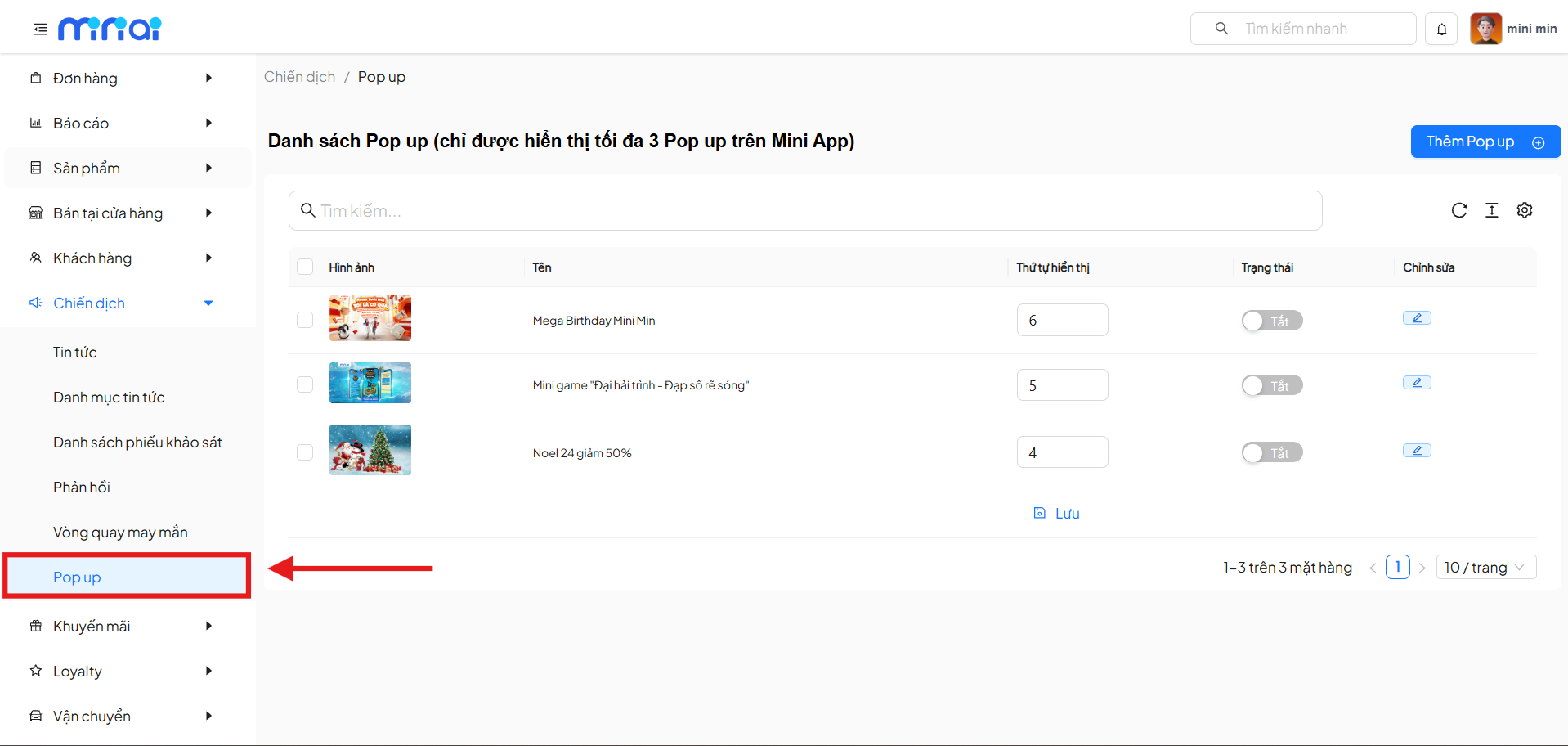
Pop-up List
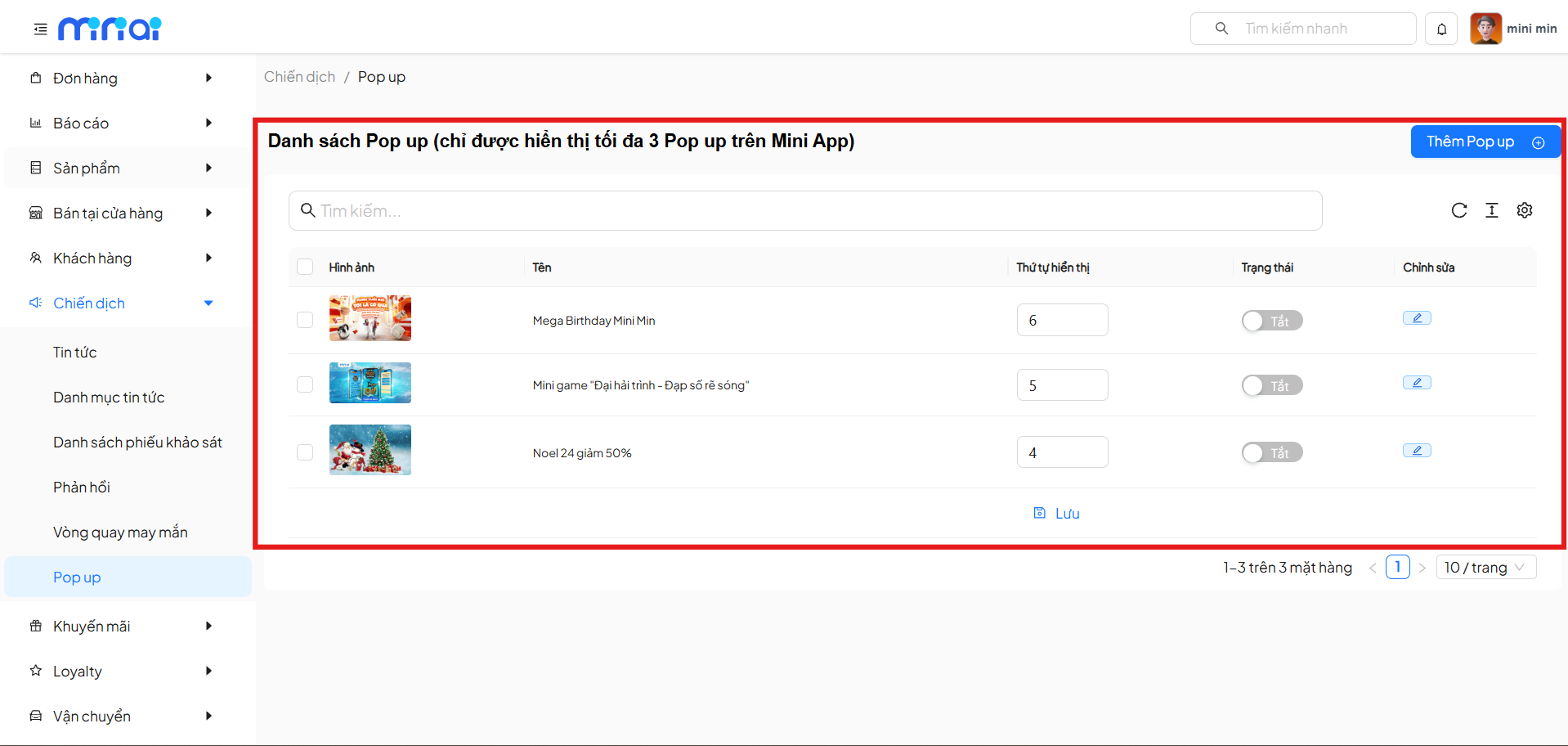
The Pop-up list screen includes the following main features:
- Search Pop-ups by name
- View Pop-up thumbnail images
- Set display order
- Enable / disable Pop-up status
- Edit Pop-ups
- Add new Pop-ups
Information Columns in the List
| Column | Description |
|---|---|
| Image | Thumbnail image of the Pop-up |
| Name | Pop-up name used for management |
| Display Order | Display priority order on the Mini App |
| Status | Enable or disable the Pop-up |
| Edit | Pop-up editing action |
Add New Pop-up
To create a new Pop-up, click the Add Pop up button in the upper right corner of the list screen.
The system will navigate to the Add Pop-up screen.
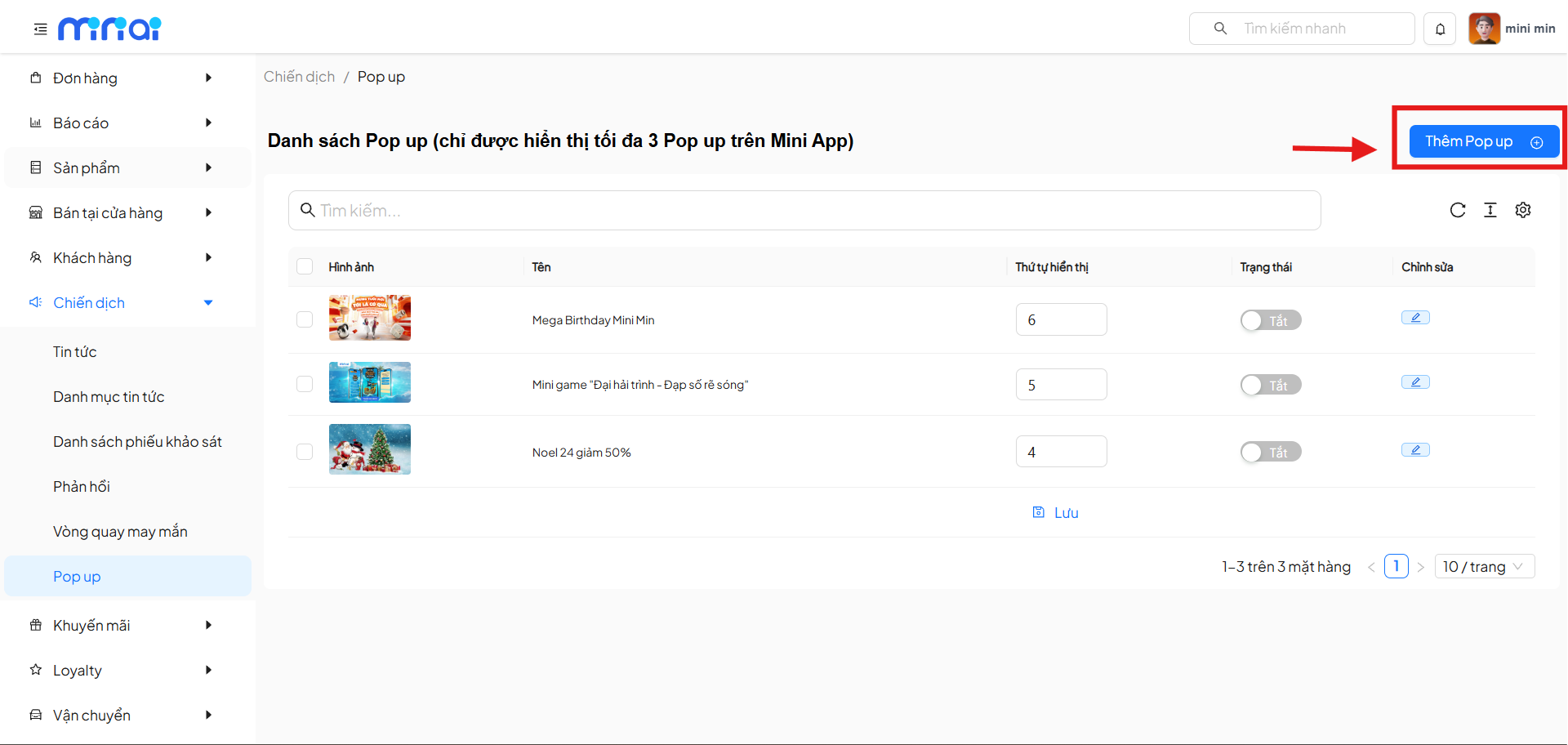
Configure Pop-up Information
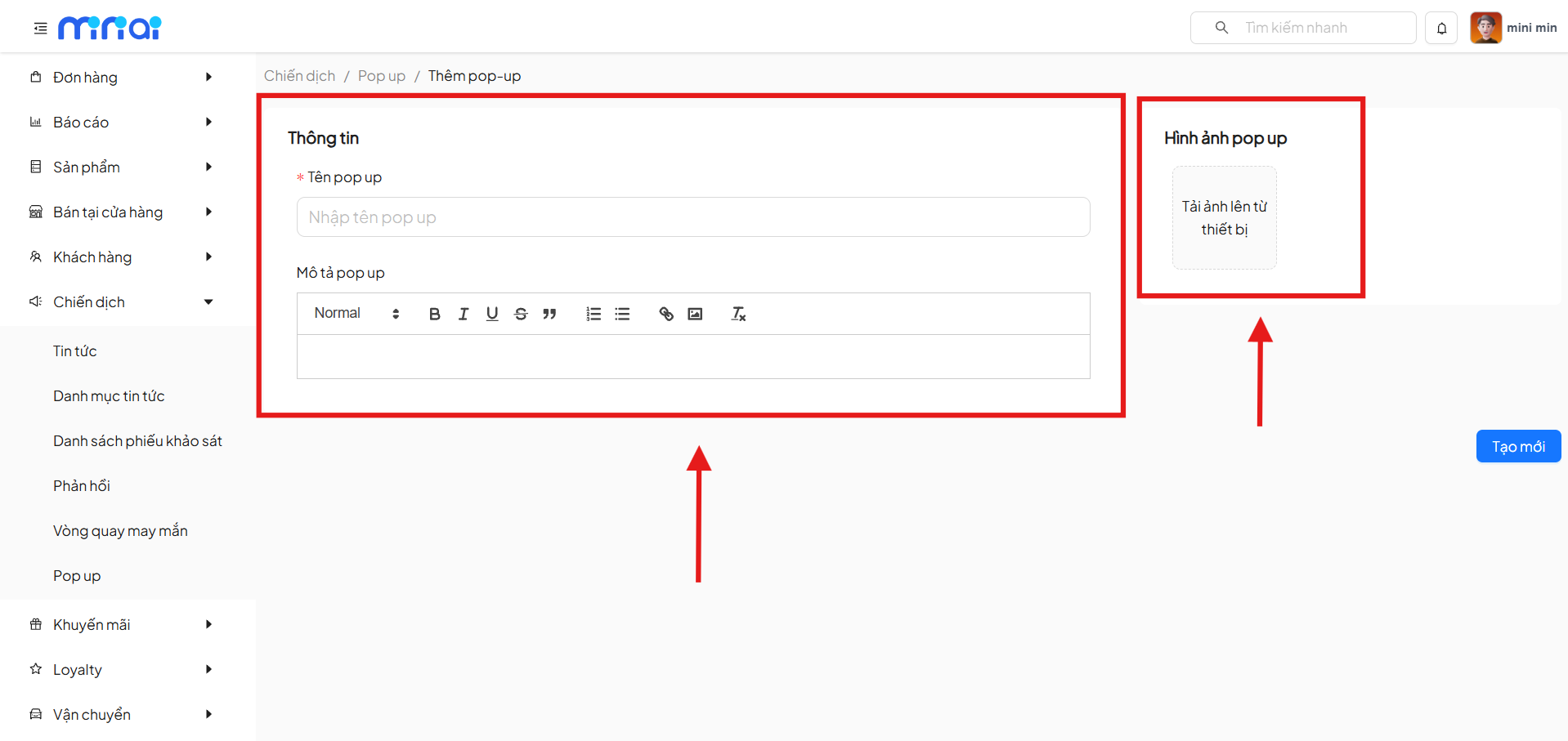
1. Basic Information
| Field | Description |
|---|---|
| Pop-up Name | Pop-up identifier name in the system (required) |
| Pop-up Description | Content displayed in the Pop-up, supports text formatting |
- Pop-up names should be concise and memorable for convenient management.
- Pop-up descriptions can include links or formatting to highlight important information.
2. Pop-up Image
| Field | Description |
|---|---|
| Pop-up Image | Main display image in the Pop-up |
- Recommended size: 1080 x 1920 pixels.
- Image format: JPG, PNG.
- Maximum file size: 2MB.
Save Pop-up
After completing the configuration:
- Review the Pop-up information
- Click Create New to save
After creation, the Pop-up can be:
- Enabled / disabled for display
- Display order adjusted
- Content edited at any time
Pop-up Display Rules
- A maximum of 03 Pop-ups can be displayed simultaneously on the Mini App
- Display order depends on the Display Order value
- Only Pop-ups with Enabled status will be displayed
Conclusion
The Pop-up feature in the Mini App is an effective tool that helps businesses:
- Enhance communication of promotional programs and events
- Improve user experience through prominent notifications
- Optimize short-term marketing campaigns
Configuring Pop-ups with the right content, images, and display order will help optimize user experience and campaign effectiveness.