Affiliate Commission Reconciliation History
Overview
The Commission Reconciliation History screen is used to track and process commission withdrawal requests from Affiliate ambassadors. Here, administrators can check withdrawal information, confirm or reject payments, and store transparent reconciliation history for the entire Affiliate system.
Reconciliation information is submitted by ambassadors from the Mini App when they make commission withdrawal requests and is processed by the system in real time.
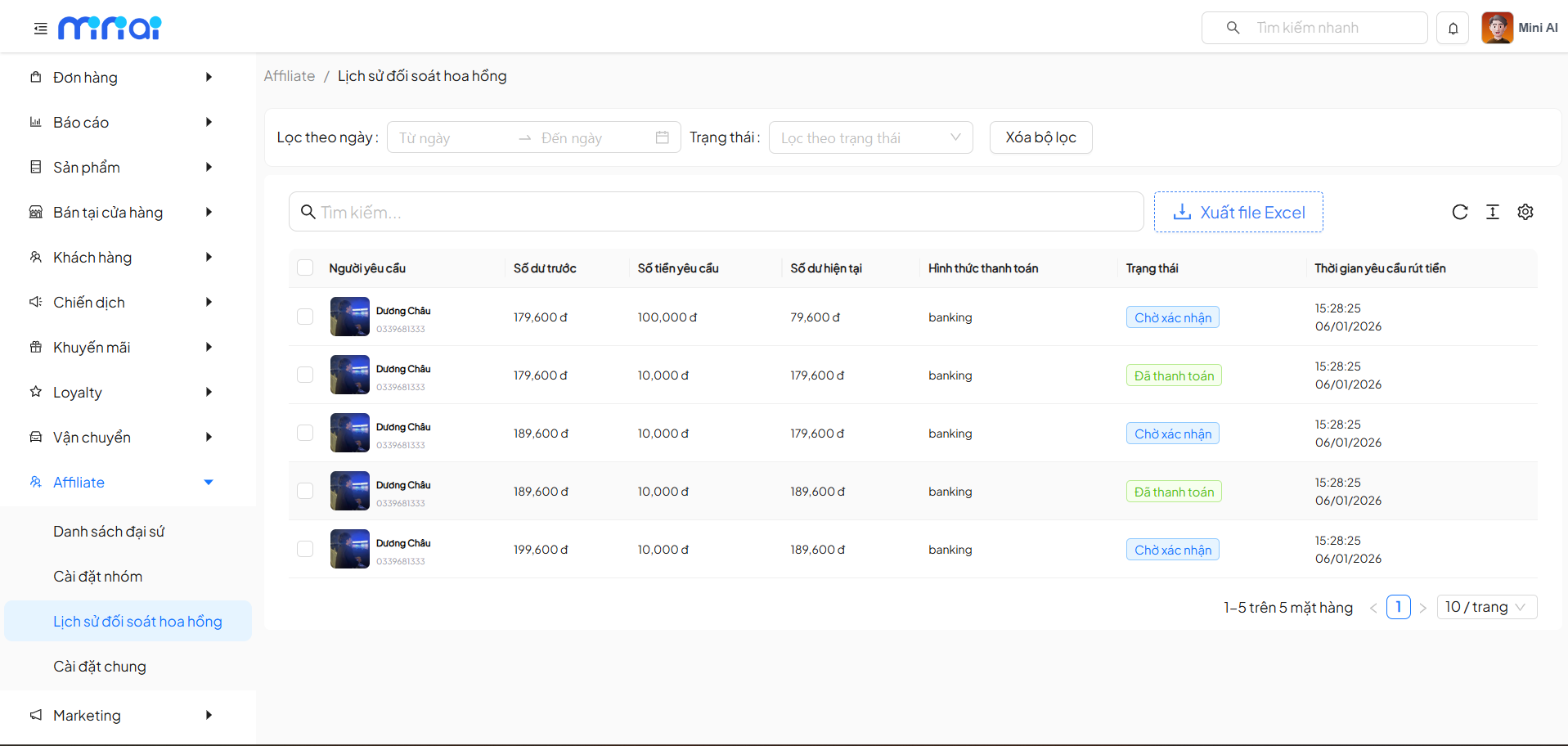
Information Displayed in the Reconciliation List
Each row in the Commission Reconciliation History table represents a withdrawal request, including:
-
Requester: Ambassador information (full name and phone number), retrieved from Affiliate registration data.
-
Previous Balance: The total commission available for the ambassador at the time of submitting the withdrawal request.
-
Requested Amount: The amount the ambassador entered in the Withdrawal Amount field on the Mini App.
-
Current Balance: The remaining balance after the ambassador submitted the commission withdrawal request.
-
Payment Method: The system default is Banking.
-
Status Shows the processing status of the request, including:
- Pending Confirmation
- Paid
- Payment Rejected
-
Withdrawal Request Time: Recorded by the system in real time when the ambassador submits the request.
Filtering and Searching Reconciliation History
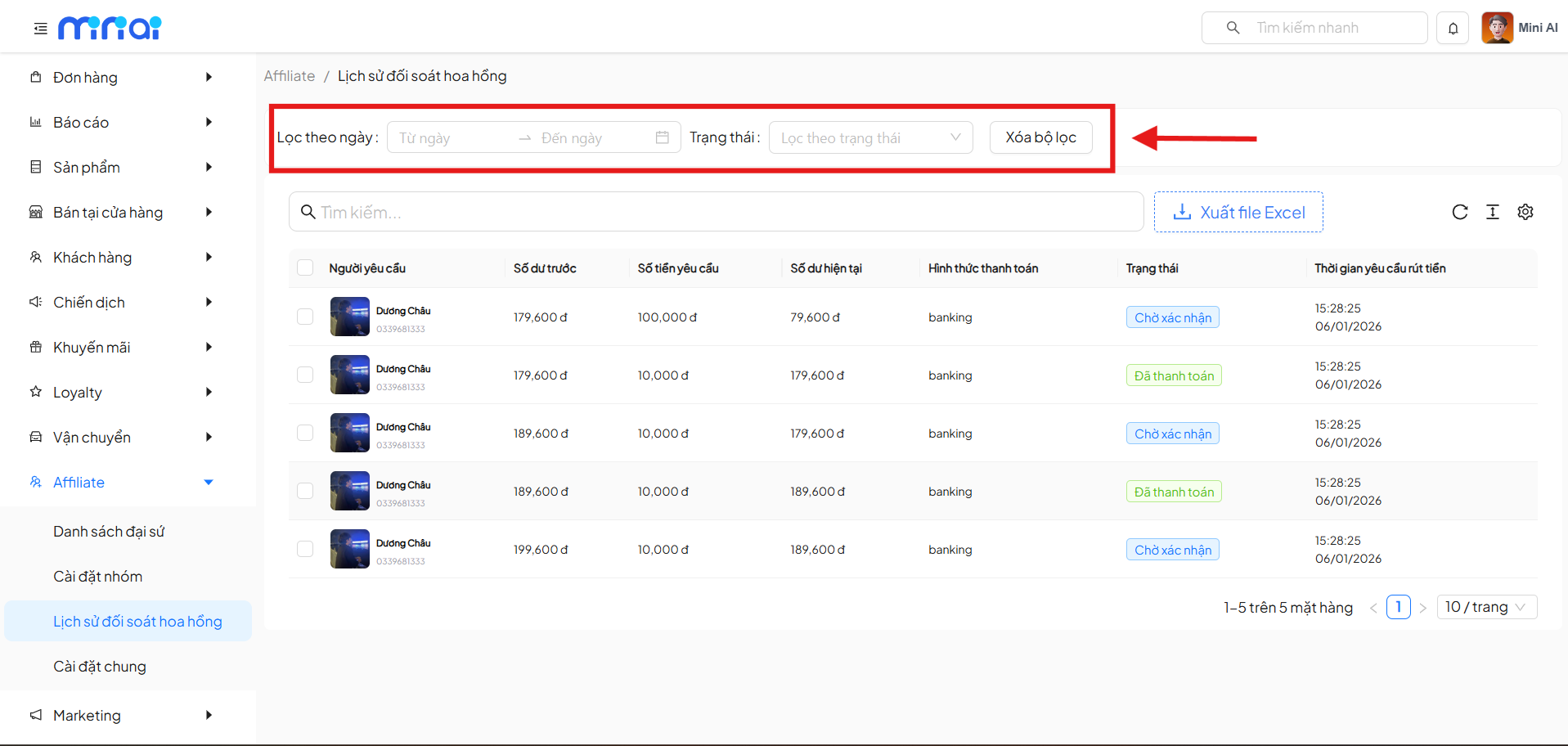
Administrators can easily filter and search data using the following filters:
- Filter by date: select a time range from date → to date
- Filter by status: pending confirmation / paid / rejected
- Clear filters: reset the list to its default state
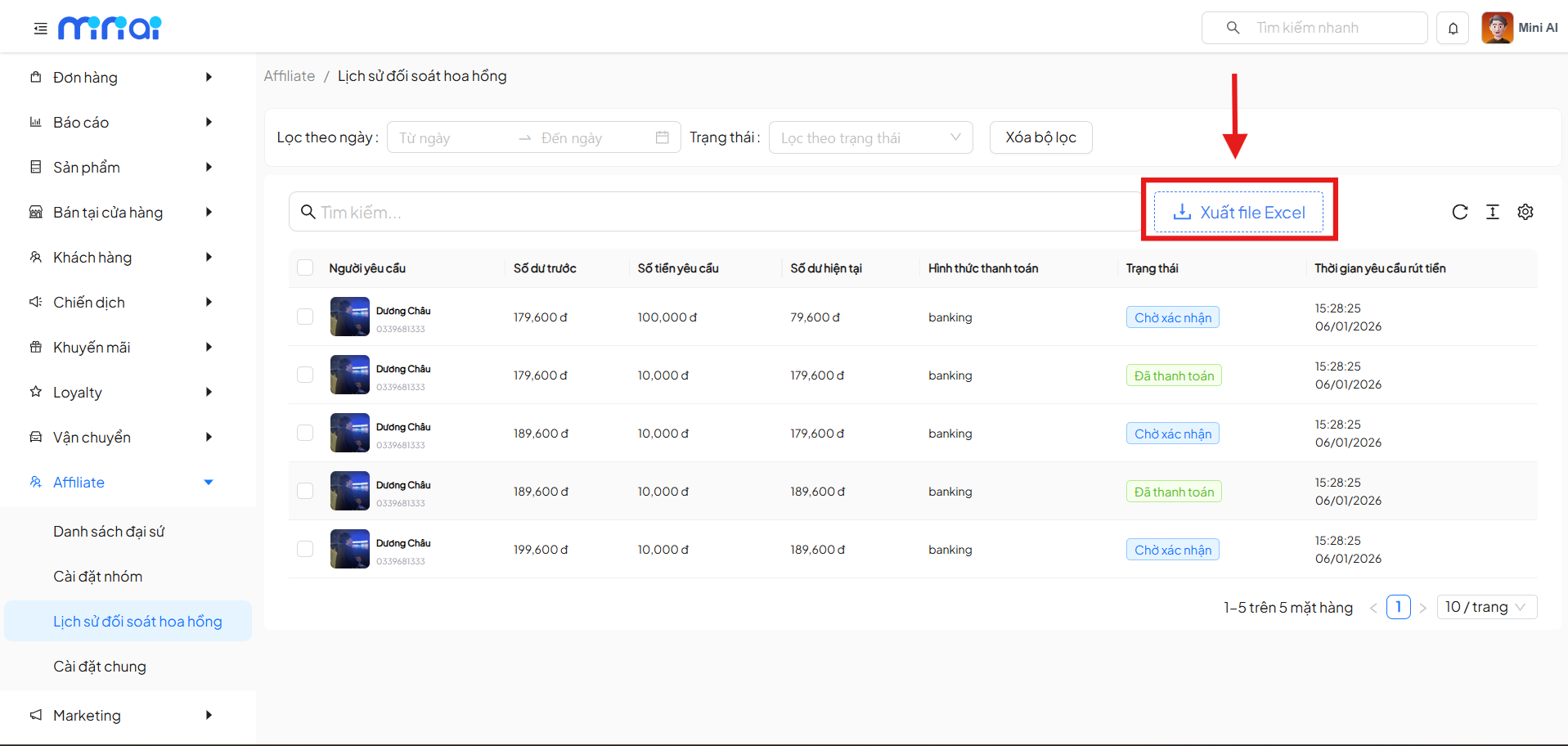
Export Reconciliation History to Excel
The system supports exporting the reconciliation list to an Excel file for cross-checking, accounting, or internal storage.
- Click the Export to Excel button
- The exported file will include all data currently displayed based on the selected filters
Commission Payment Confirmation
Opening the Payment Confirmation Screen
Click on a commission withdrawal request row to open the Payment Confirmation screen.
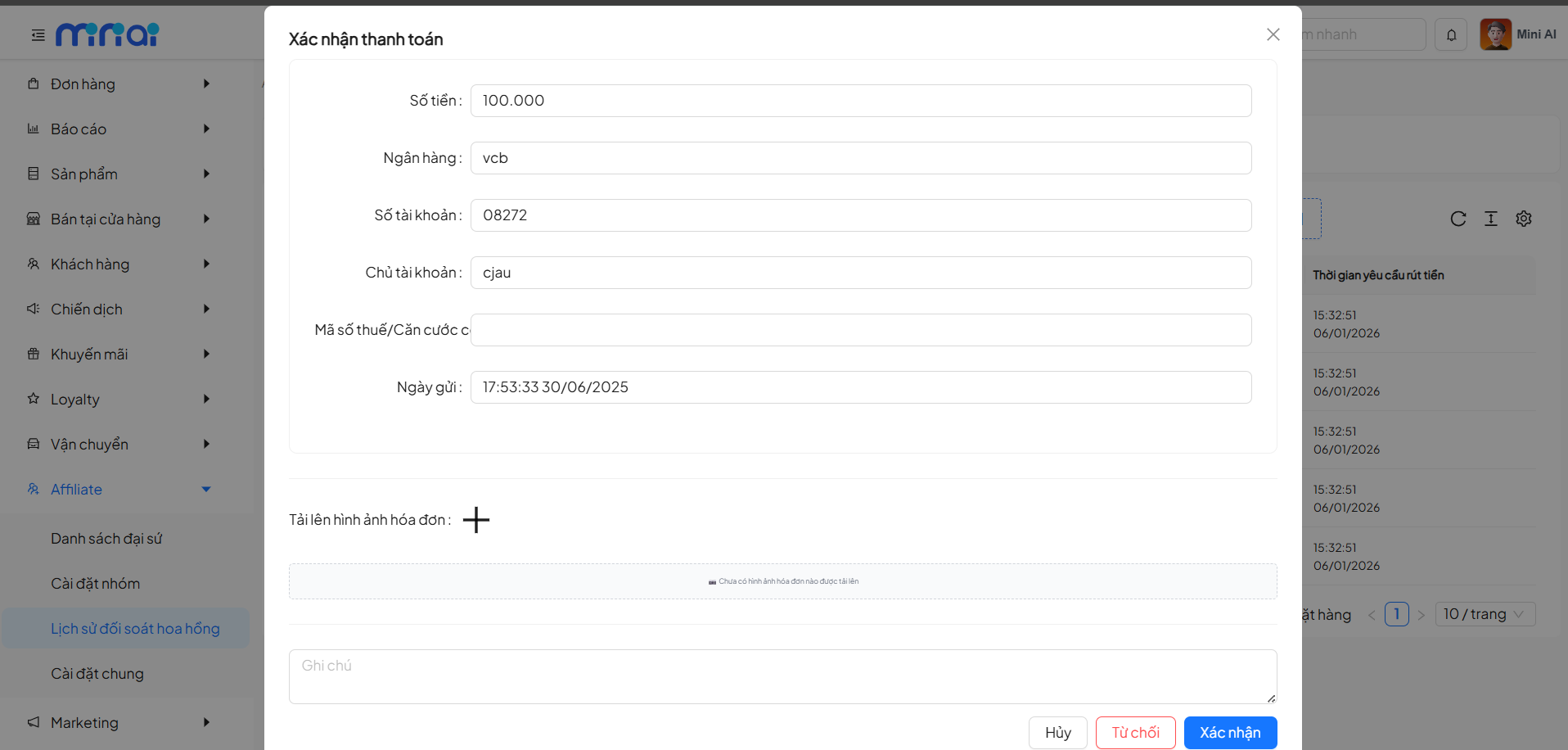
Information Displayed on the Payment Confirmation Screen
The information on this screen is retrieved directly from the Mini App and the system, including:
-
Amount: Taken from the amount the ambassador requested to withdraw.
-
Bank: Taken from the bank name the ambassador entered.
-
Account Number: Taken from the account number provided by the ambassador.
-
Account Holder: Taken from the account holder name entered by the ambassador.
-
Tax ID / National ID: Taken from the information the ambassador declared on the Mini App.
-
Submission Date: The time recorded by the system when the ambassador submitted the request.
-
Upload Invoice Image: Administrators can upload:
- Transfer receipt screenshots
- Payment confirmation documents → Serves as reconciliation evidence and helps ambassadors track their status clearly.
-
Notes
- Internal notes for administrators only.
- Ambassadors cannot see this content.
Actions on the Payment Confirmation Screen
Administrators have 2 processing options:
- The commission withdrawal request is accepted
- Pay the commission to the ambassador
- Upload payment receipts (if available)
- Save all reconciliation information and documents
- Hide the Confirm buttons
- The commission withdrawal request is not approved
- Reject commission payment to the ambassador
- The system updates the status to Rejected
- Save all processing information
- Display the rejected status on the Commission Reconciliation History screen
Summary
The Commission Reconciliation History screen plays a central role in:
- Controlling Affiliate cash flow transparently
- Ensuring a clear payment process with proper reconciliation
- Storing complete commission withdrawal history
- Supporting accounting and Affiliate operations management effectively
To ensure the commission reconciliation process runs smoothly, administrators should:
- Carefully verify withdrawal information from ambassadors
- Store payment receipts completely
- Update processing status promptly
- Use filters and export to Excel for easier reconciliation history tracking