Flash Sale User Guide
Flash Sale Overview
Flash Sale is a promotional program limited to a short time period that helps:
- Quickly boost sales
- Drive purchase decisions
- Efficiently clear inventory
- Create a scarcity effect (FOMO)
The system allows administrators to:
- Create multiple Flash Sales
- Assign multiple products to a Flash Sale
- Set discounted prices, discount percentages, and promotional quantities
- Enable / disable individual products in the program
Access Path
From the admin page, navigate to:
Promotions → Flash Sale
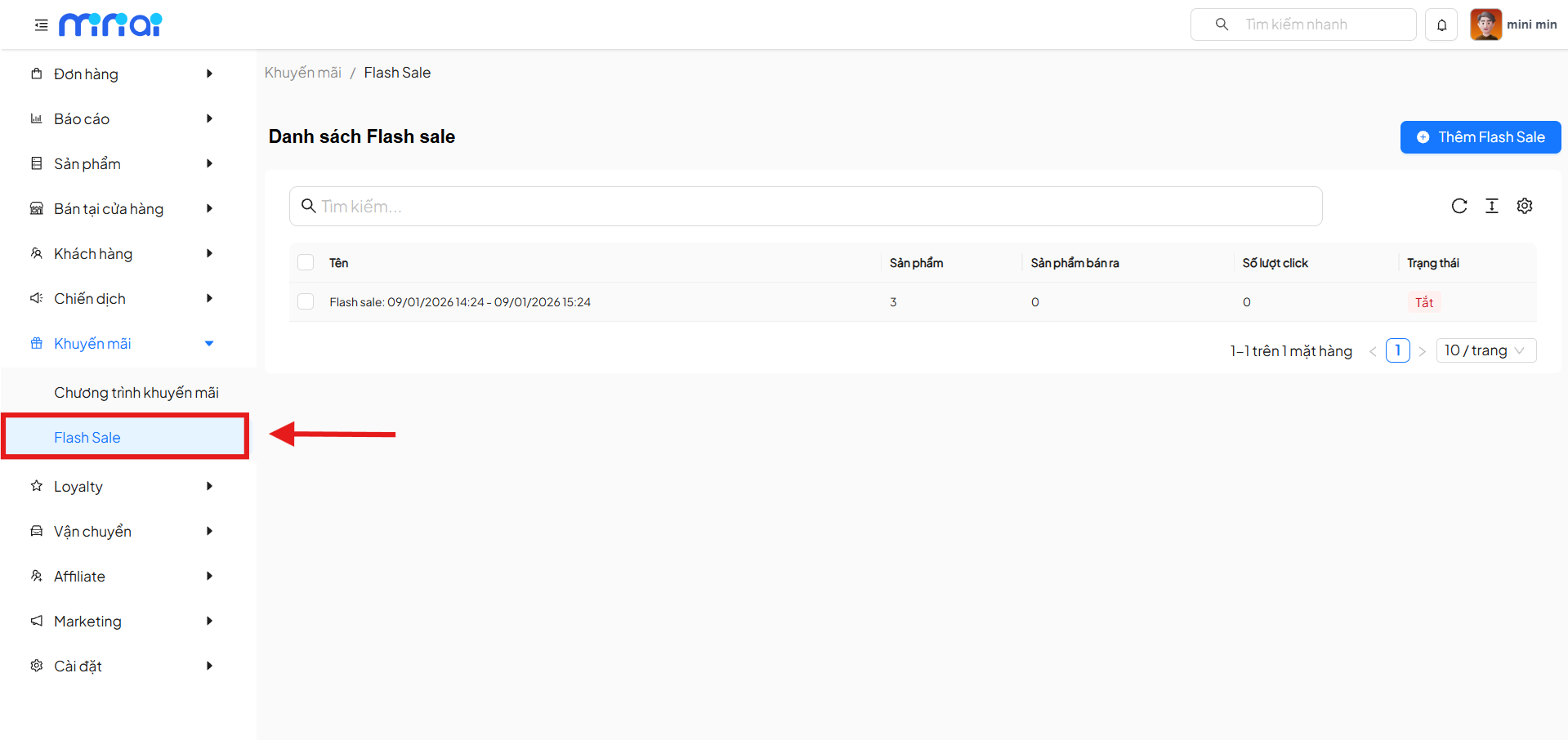
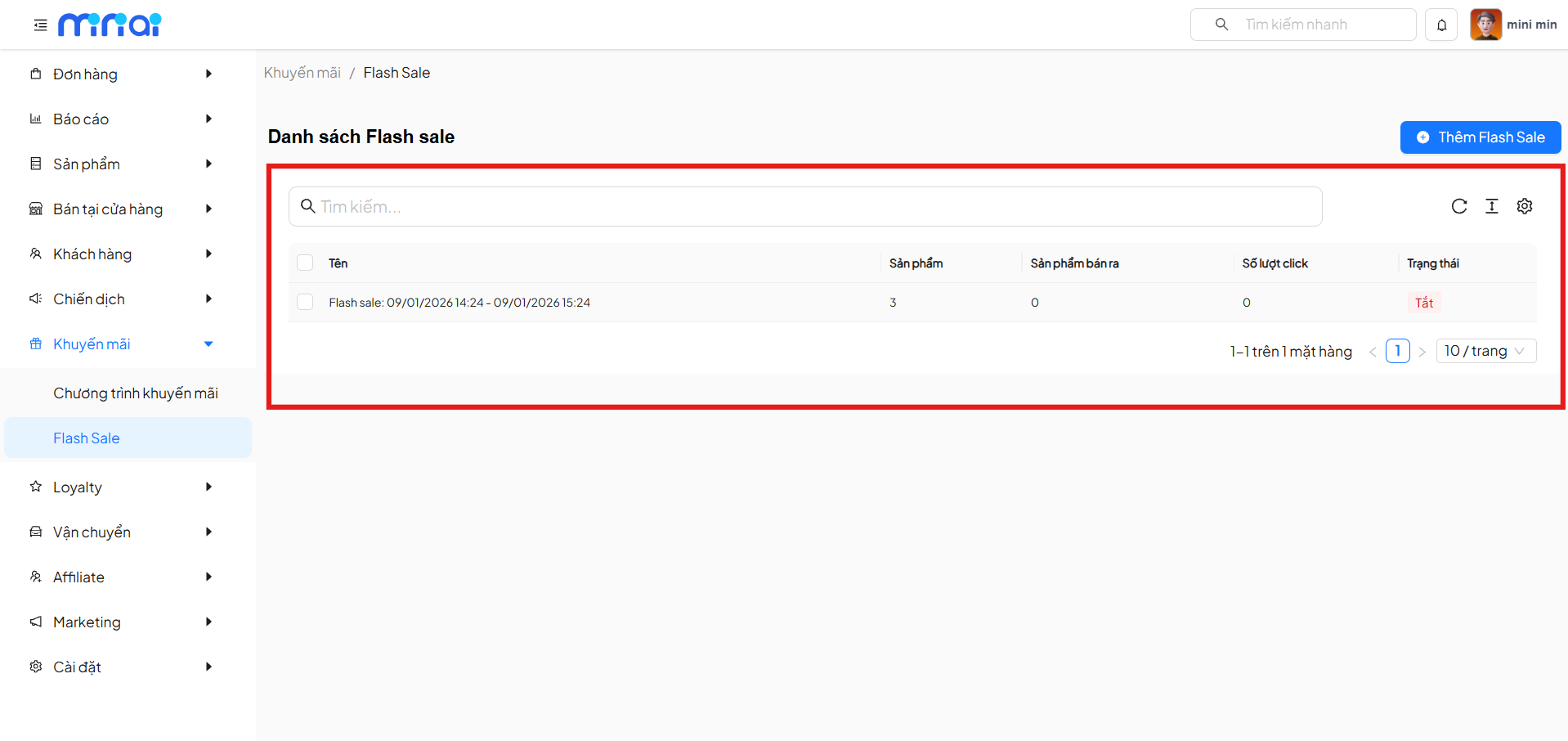
Flash Sale List
Key Features
| Feature | Description |
|---|---|
| Search | Search Flash Sale by name |
| Add Flash Sale | Create a new Flash Sale program |
| List | Display all Flash Sales |
| Status | Enable / Disable Flash Sale |
| Statistics | Product count, sold count, click count |
Information Columns
| Column | Meaning |
|---|---|
| Name | Flash Sale name & duration |
| Products | Number of participating products |
| Products Sold | Total quantity sold |
| Click Count | Flash Sale access visits |
| Status | Active status |
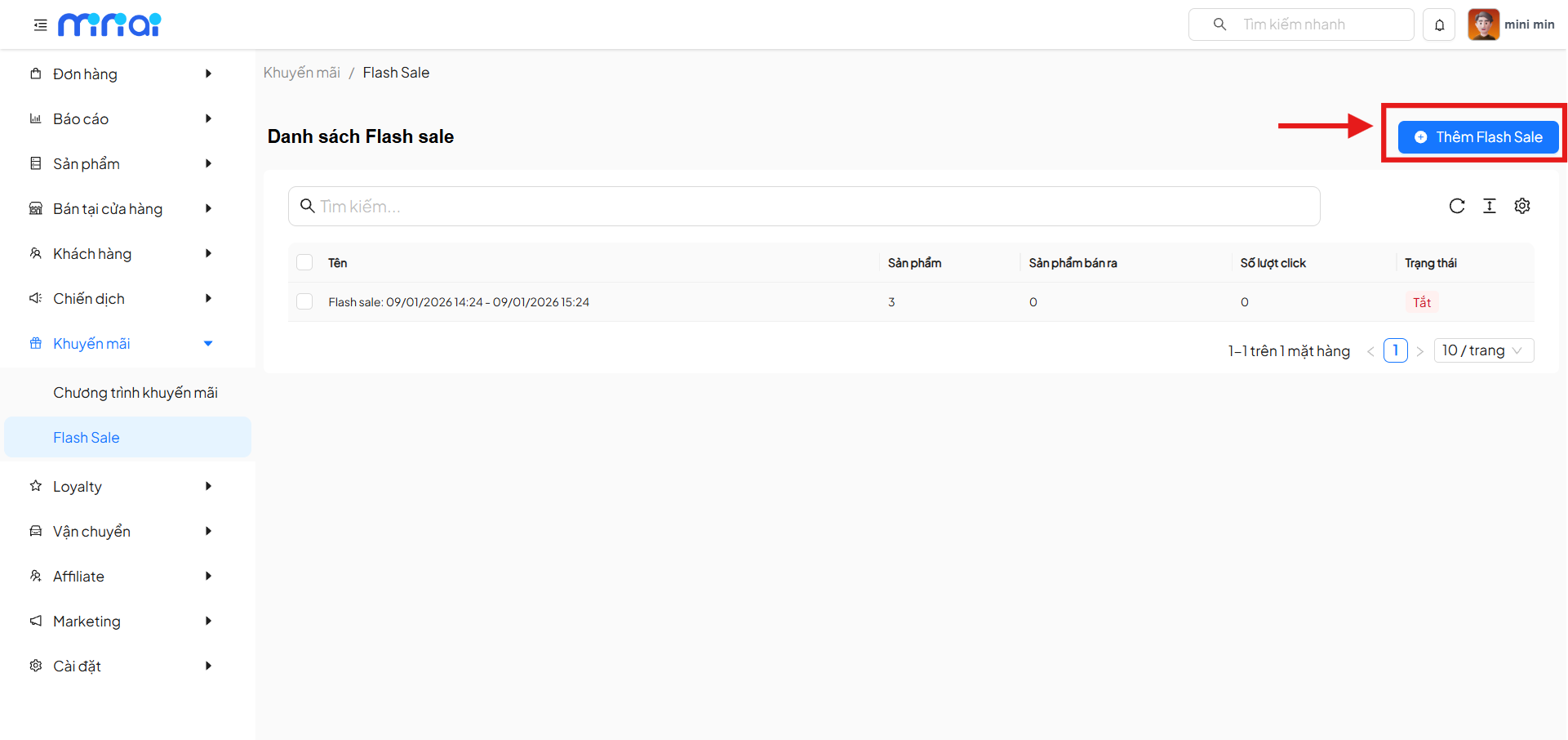
Create a New Flash Sale
Click Add Flash Sale to start creating a program.
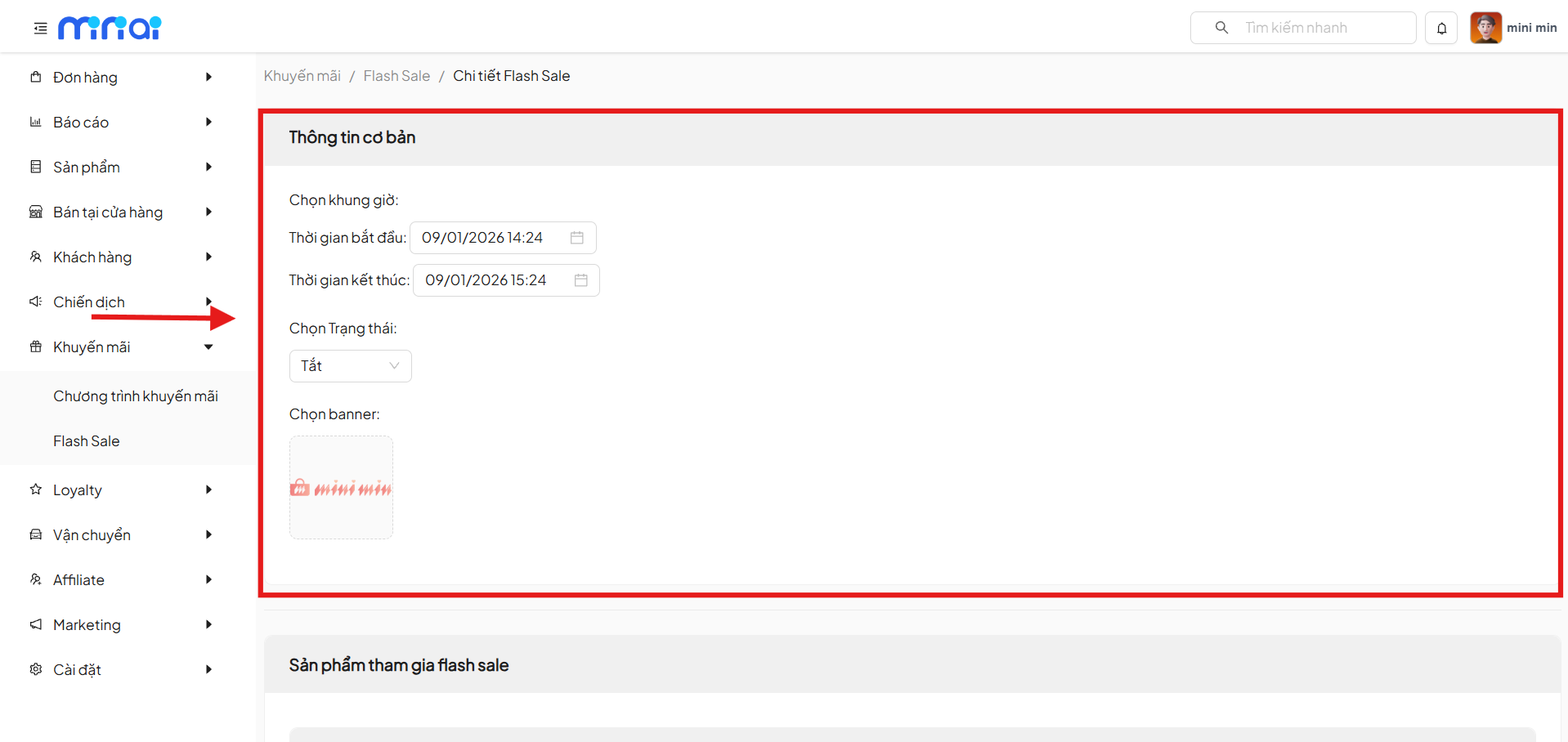
Basic Information
| Field | Description |
|---|---|
| Start Time | Flash Sale start time |
| End Time | Flash Sale end time |
| Status | Enable or Disable the Flash Sale |
| Banner | Display image for the Flash Sale |
Note
Flash Sale is only displayed to users when it is Enabled and within the validity period.
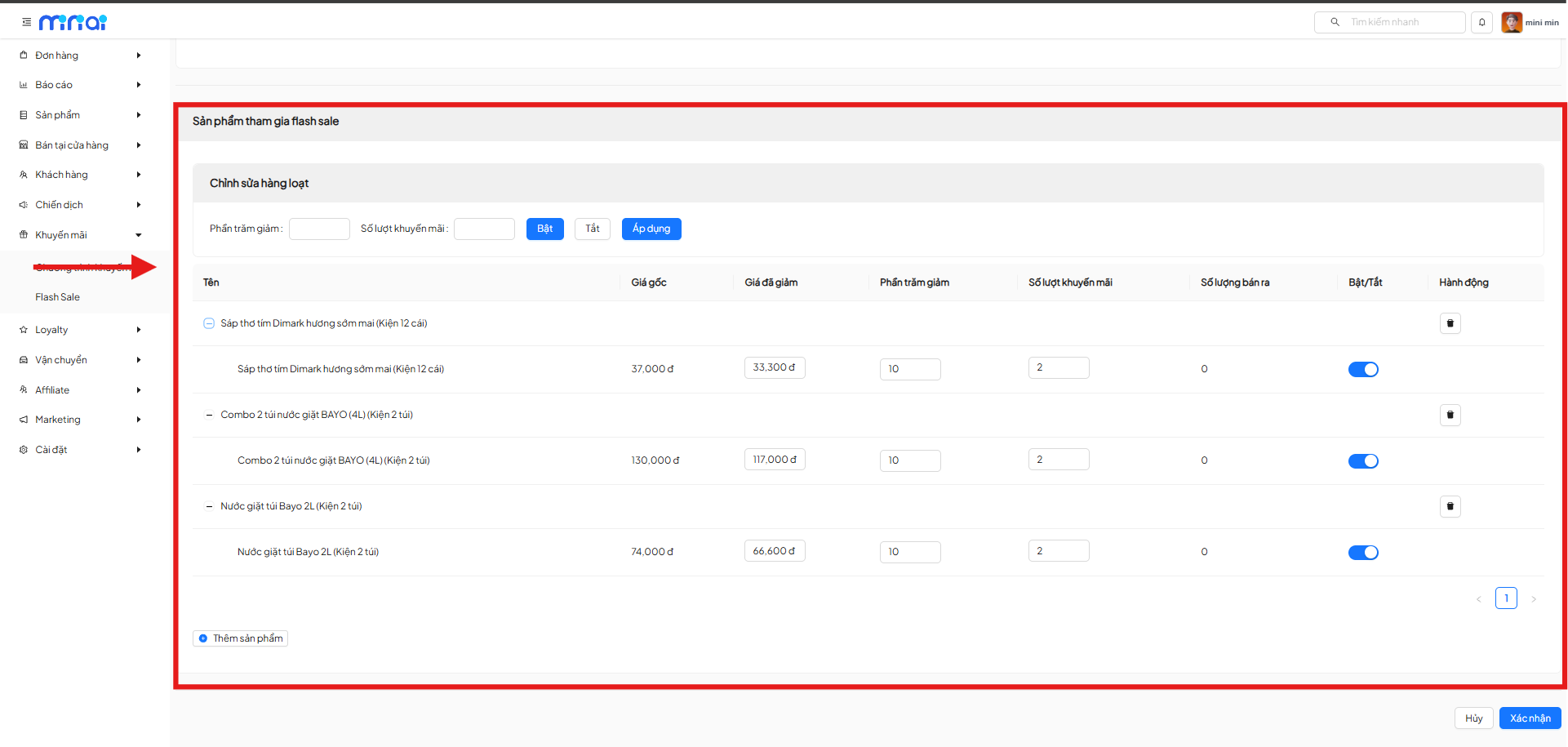
Products Participating in Flash Sale
After creating a Flash Sale, administrators set up the list of participating products.
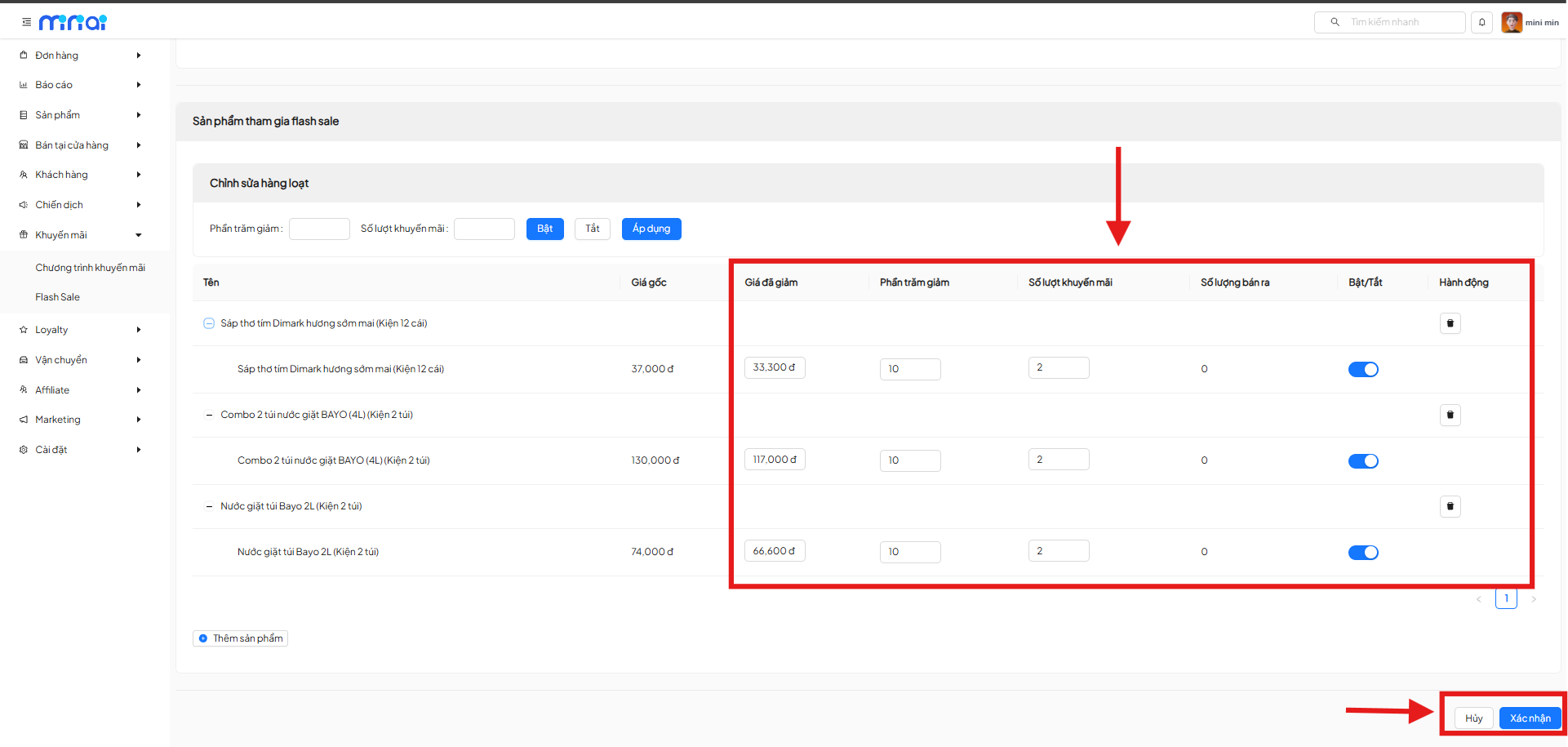
Product List
| Column | Meaning |
|---|---|
| Name | Product name |
| Original Price | Original selling price |
| Discounted Price | Selling price during Flash Sale |
| % Discount | Discount percentage |
| Promotional Quantity | Maximum quantity available for sale |
| Quantity Sold | Sold during Flash Sale |
| Enable/Disable | Application status |
| Actions | Remove product from Flash Sale |
Add Products to Flash Sale
- Click Add Product
- Select the products to apply Flash Sale
- Configure discount information
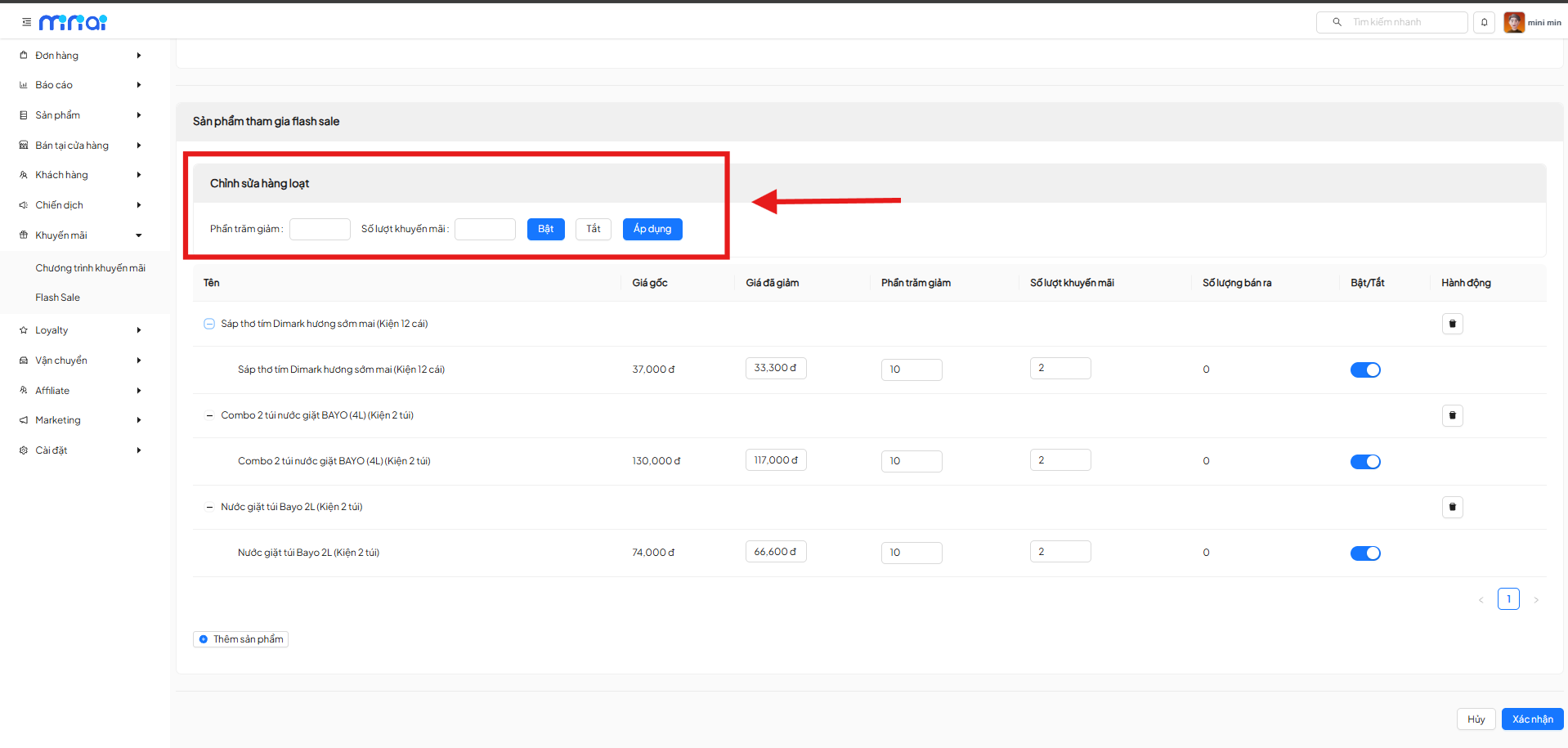
Bulk Edit
The Bulk Edit feature helps quickly configure multiple products at once.
Options
| Setting | Description |
|---|---|
| Discount Percentage | Apply % discount to multiple products |
| Promotional Quantity | Limit the quantity for sale |
| Enable / Disable | Apply or stop applying |
| Apply | Save bulk configuration |
Note
Recommended when the Flash Sale has many products with the same policy. This feature saves time and ensures consistency.
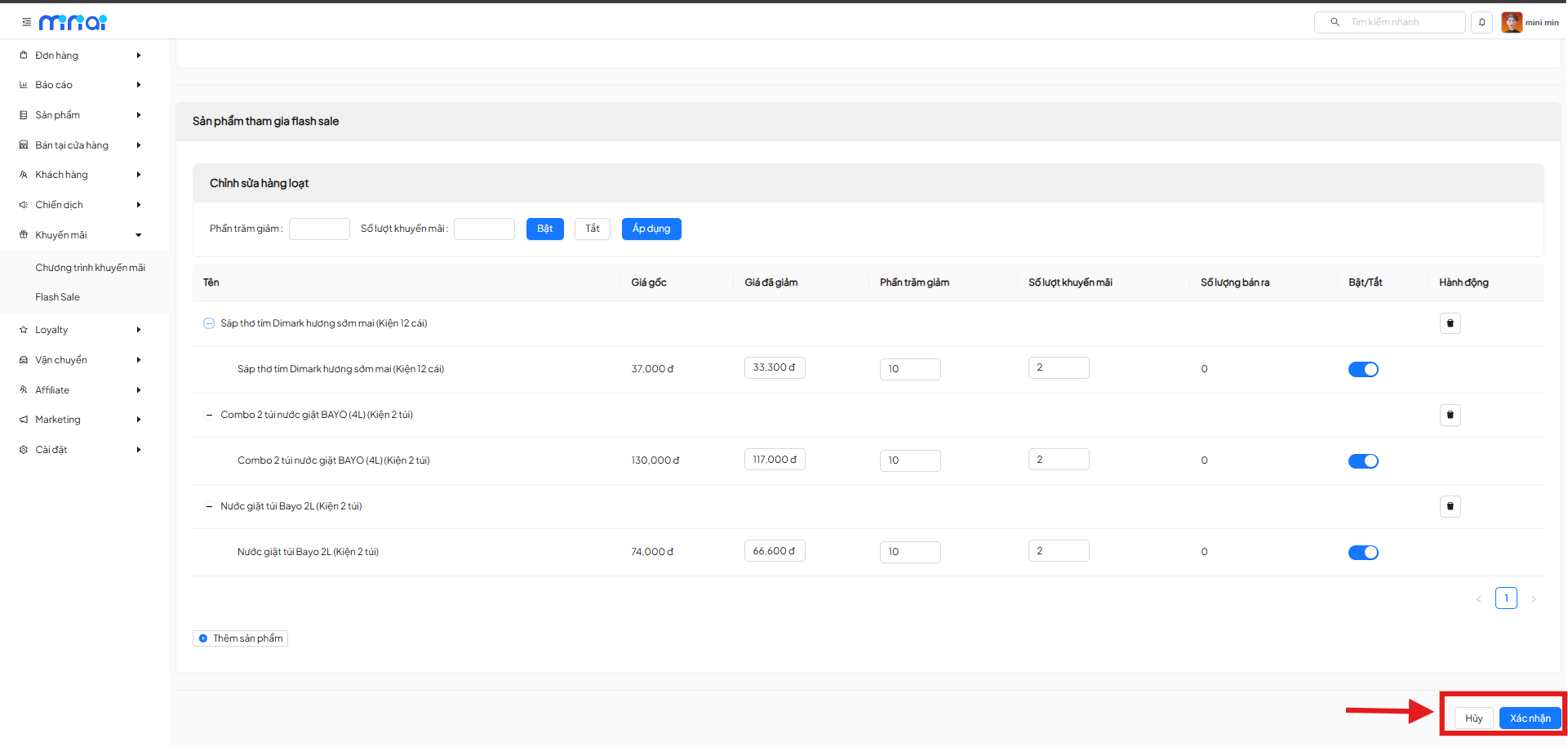
Save & Complete Flash Sale
| Feature | Description |
|---|---|
| Confirm | Save all settings |
| Cancel | Exit without saving changes |
Important Notes When Using Flash Sale
- Do not set too high a discount percentage for products with low profit margins
- Control promotional quantities to avoid overselling
- When Flash Sale ends, product prices automatically revert to original prices
- Flash Sales can be combined with:
- Loyalty
- Affiliate
- Marketing Campaign
Conclusion
Summary
The Flash Sale feature is a powerful tool that helps businesses:
- Create effective short-term sales campaigns
- Drive fast purchasing behavior
- Increase conversions in a short period