Order List
Overview
Order List is a feature that allows administrators to:
- Track all orders generated on the system
- Manage processing and payment status
- Edit, update, and synchronize orders
- Export data for reporting and reconciliation
Accessing the Feature
From the left menu, navigate to:
Orders → Order List
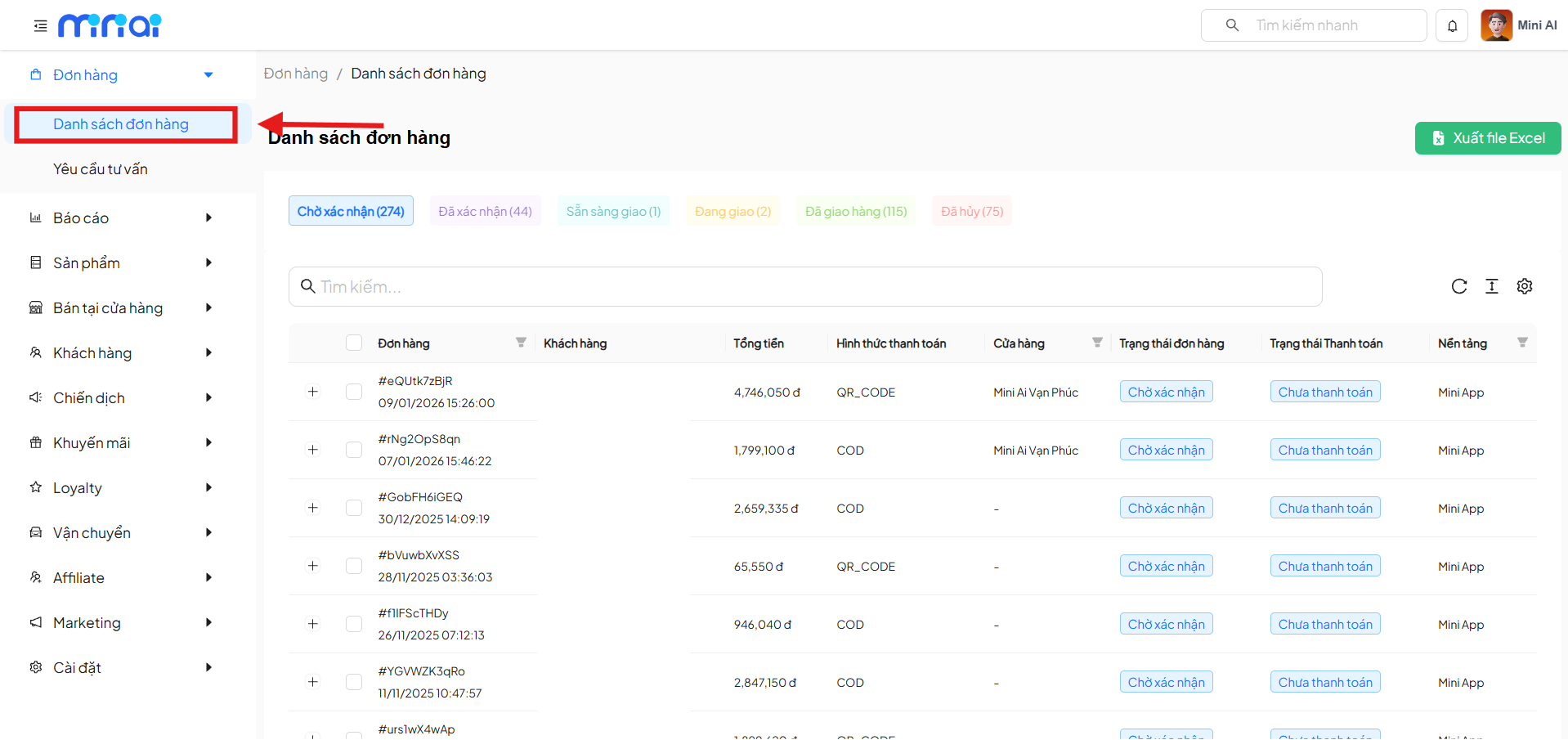
Order List Interface
The screen displays all orders with filtering, searching, and quick action tools.
Order Status Bar
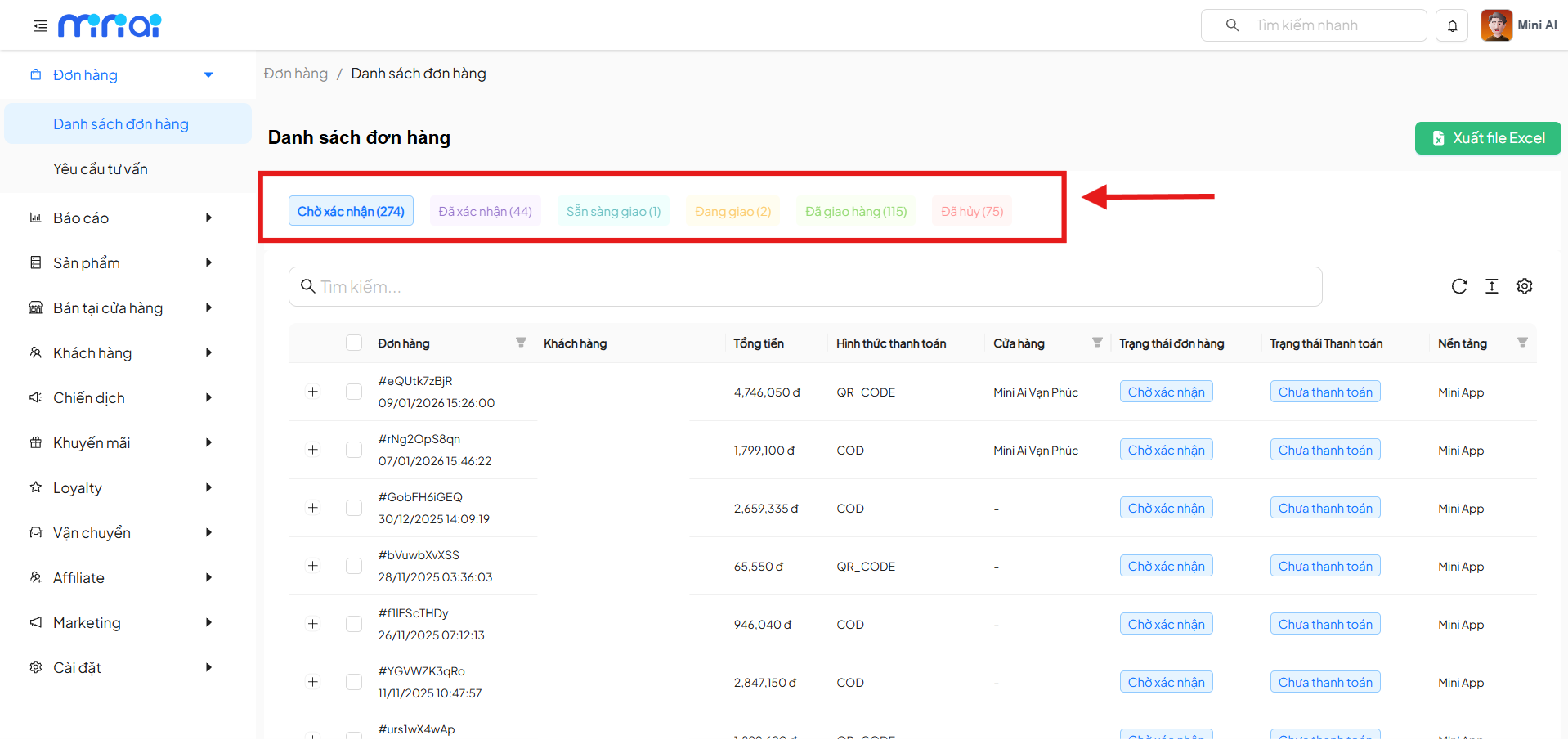
The system classifies orders by processing status:
| Status | Meaning |
|---|---|
| Pending Confirmation | New order, not yet processed |
| Confirmed | Order has been confirmed |
| Ready to Ship | Order is ready for handover |
| Shipping | Order is in transit |
| Delivered | Order delivery completed |
| Cancelled | Order has been cancelled |
Click on each status to filter the corresponding list.
Search & Filter Orders
- Quick search by order code or related information
- Filter data by processing status
- Supports sorting and pagination
Order List Table
Column Information
| Column | Description |
|---|---|
| Order | Order code and creation time |
| Customer | Customer information |
| Total Amount | Order value |
| Payment Method | QR Code, COD, Cash, etc. |
| Store | Store processing the order |
| Order Status | Processing status |
| Payment Status | Paid/Unpaid |
| Platform | Mini App, system |
Export to Excel
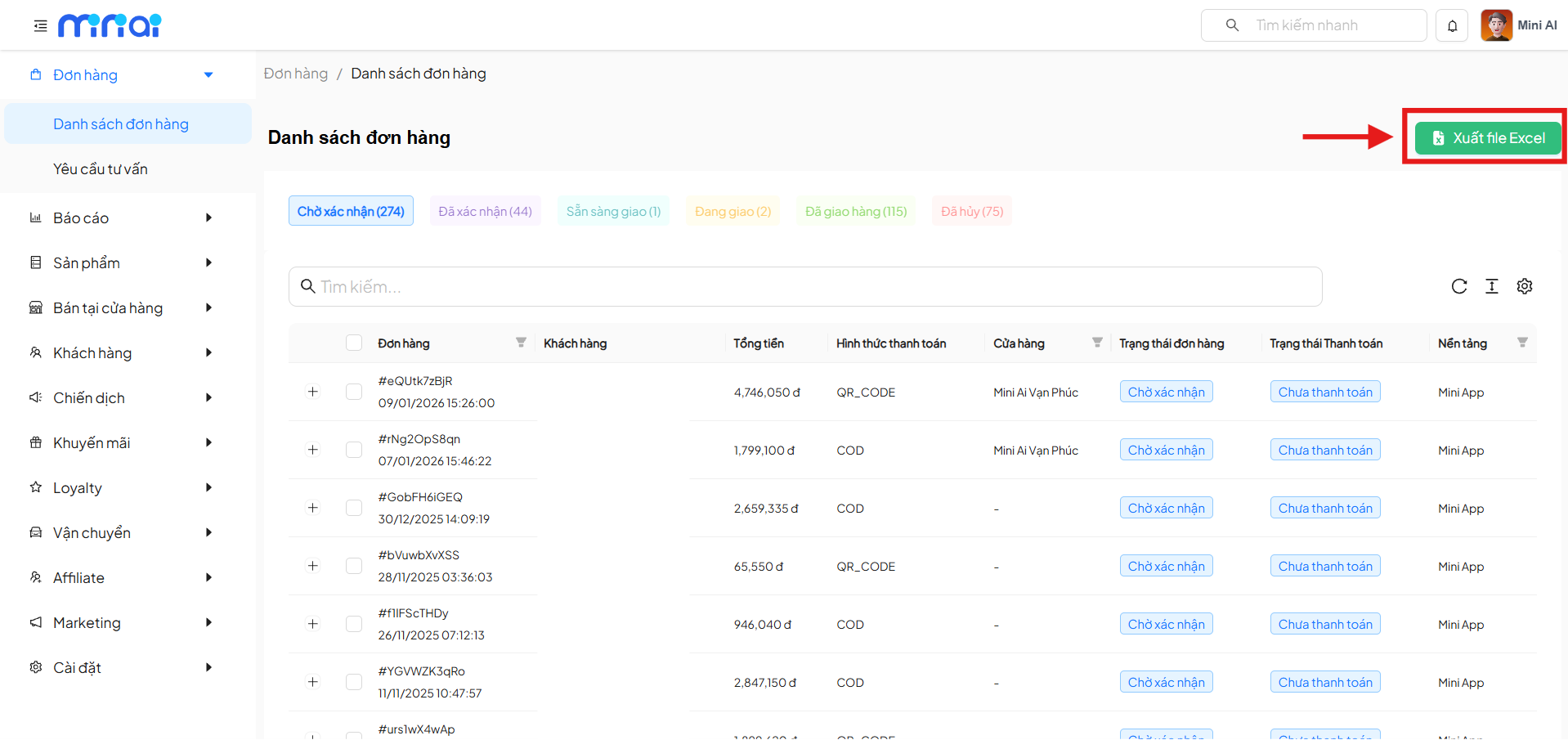
Click Export to Excel to download the order list for:
- Reporting
- Reconciliation
- Data archiving
Bulk Order Processing
Allows selecting multiple orders for quick actions:
Supported Bulk Order Actions
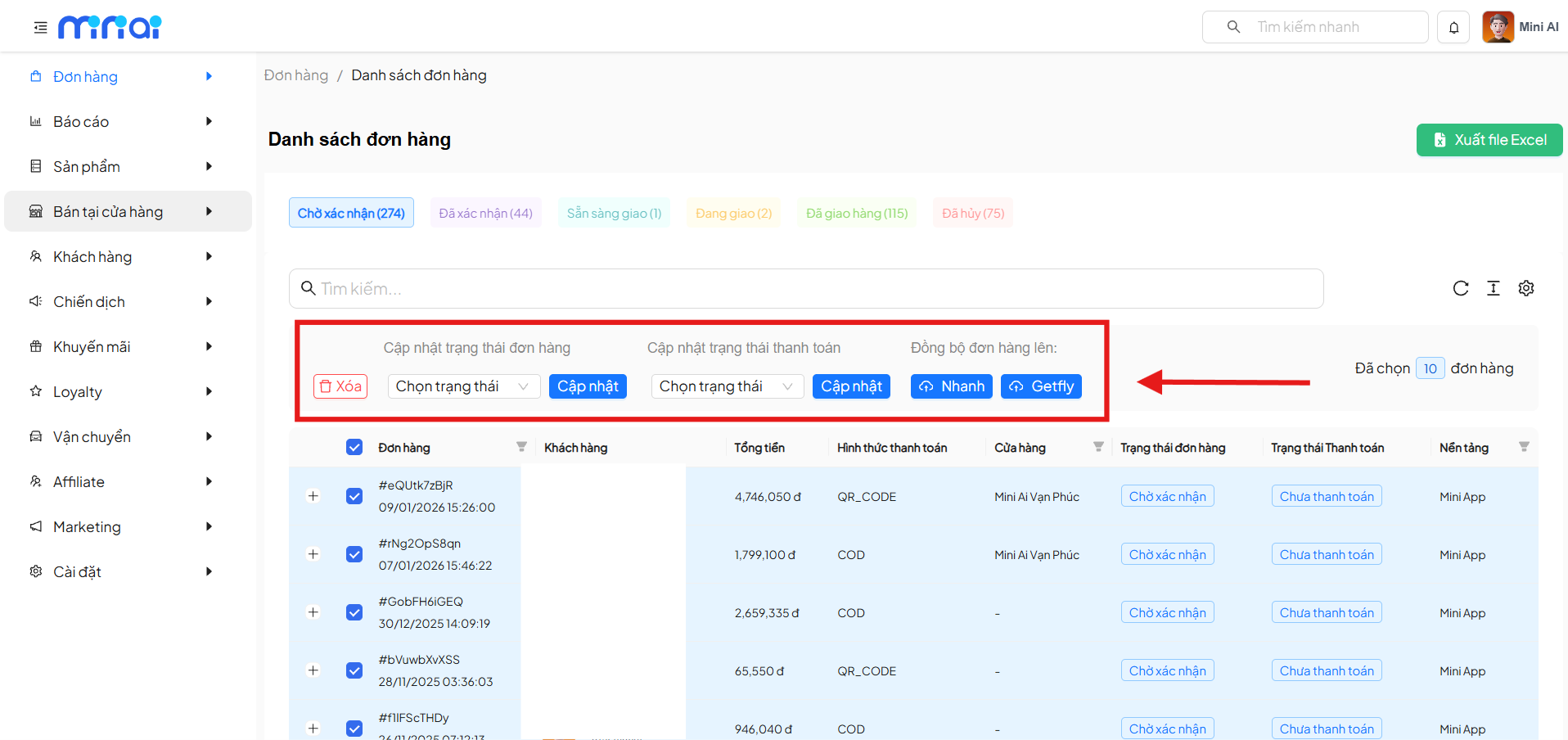
| Action | Description |
|---|---|
| Delete | Delete selected orders |
| Update Order Status | Quickly update multiple orders |
| Update Payment Status | Synchronize payment status |
| Sync Orders | Sync data to other systems |
View Order Details
Click on the order code to view Order Details.
Detail Contents
- Product list
- Quantity and selling price
- Customer information
- Store information
- Delivery information
- Total amount and payment details
Edit Order
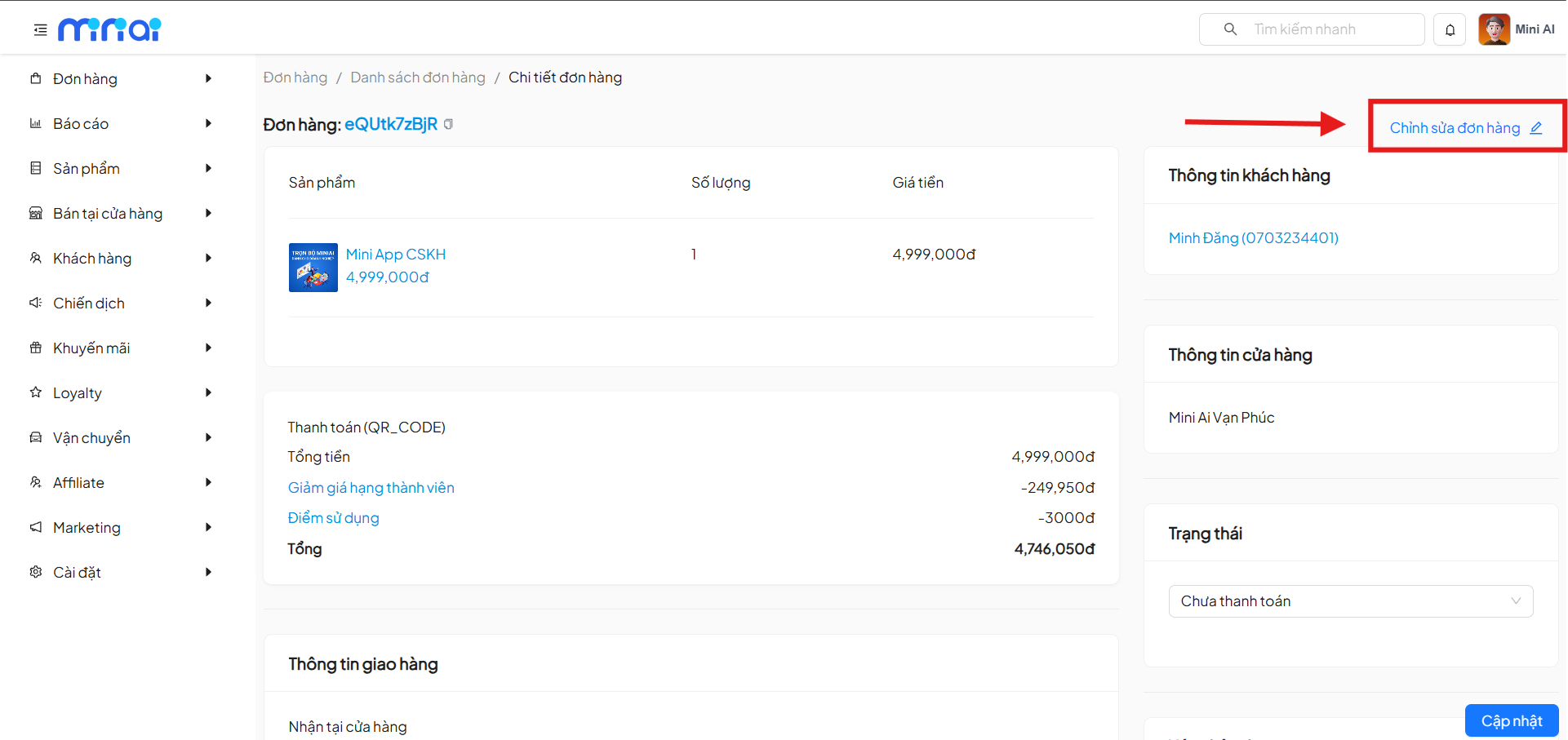
Click Edit Order to update:
| Field | Description |
|---|---|
| Order Status | Update processing progress |
| Payment Status | Confirm payment |
| Notes | Internal notes |
Click Update to save changes.
Create & Manually Update Orders
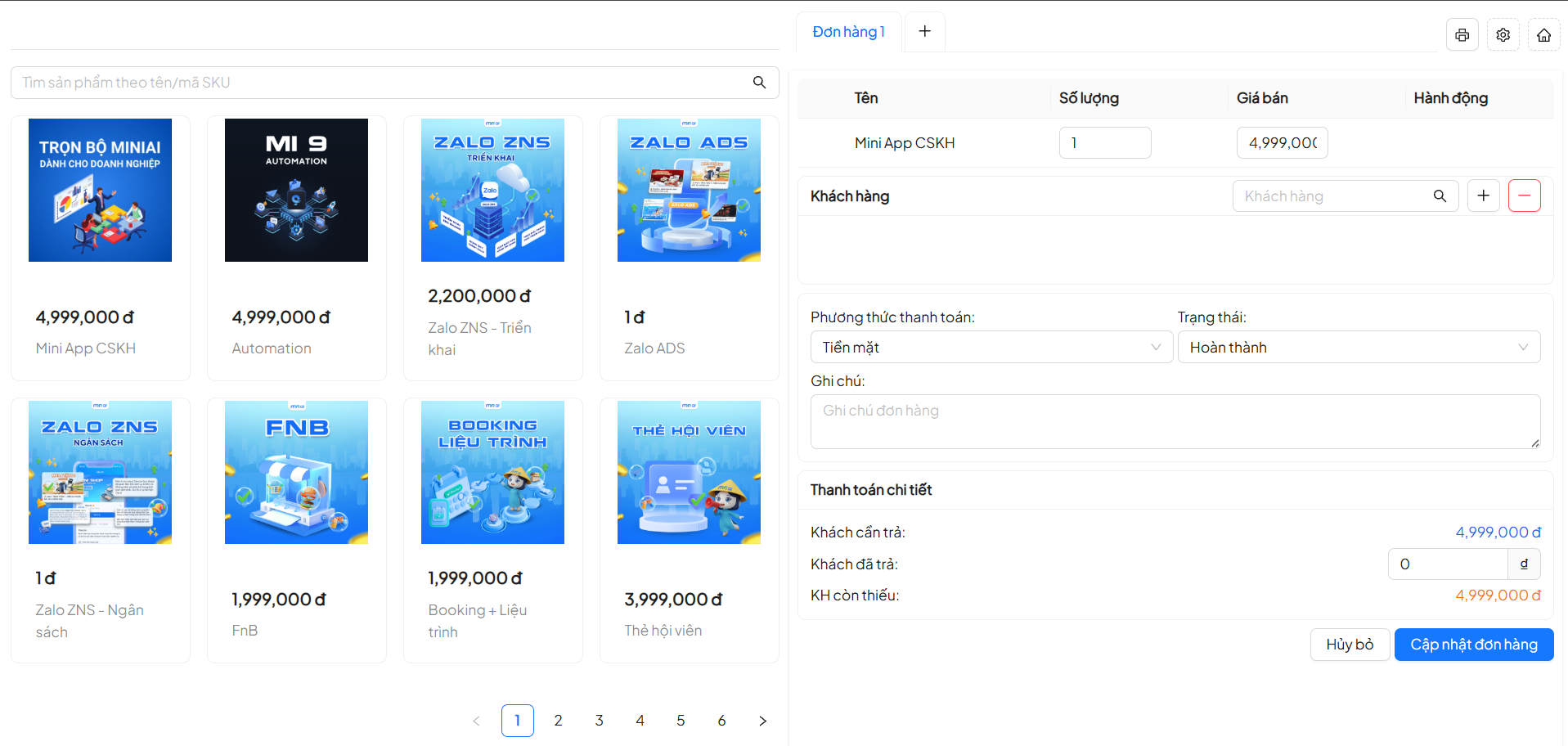
The system supports:
- Adding products to the order
- Selecting customers
- Selecting payment methods
- Tracking detailed amounts paid / outstanding by the customer
Usage Notes
Notes
- Carefully check the status before updating
- Avoid editing completed orders
- Use status filtering for efficient management
- Export files periodically for data reconciliation
Conclusion
Summary
Order List is a core tool that helps businesses:
- Centralized sales management
- Reduce errors in order processing
- Track business status in real-time
Efficient use of this feature will help optimize operations and improve customer experience.