In-Store POS Sales
In-Store POS Sales Feature Overview
In-Store POS Sales is a feature that supports direct sales at the counter, helping staff quickly create orders, select products, apply taxes and discounts, and complete payment in just a few steps.
This feature is suitable for:
- Direct in-store sales
- Quick payment for walk-in customers
- Managing orders at the point of sale (POS)
Accessing the POS Screen
To access the In-Store POS Sales feature:
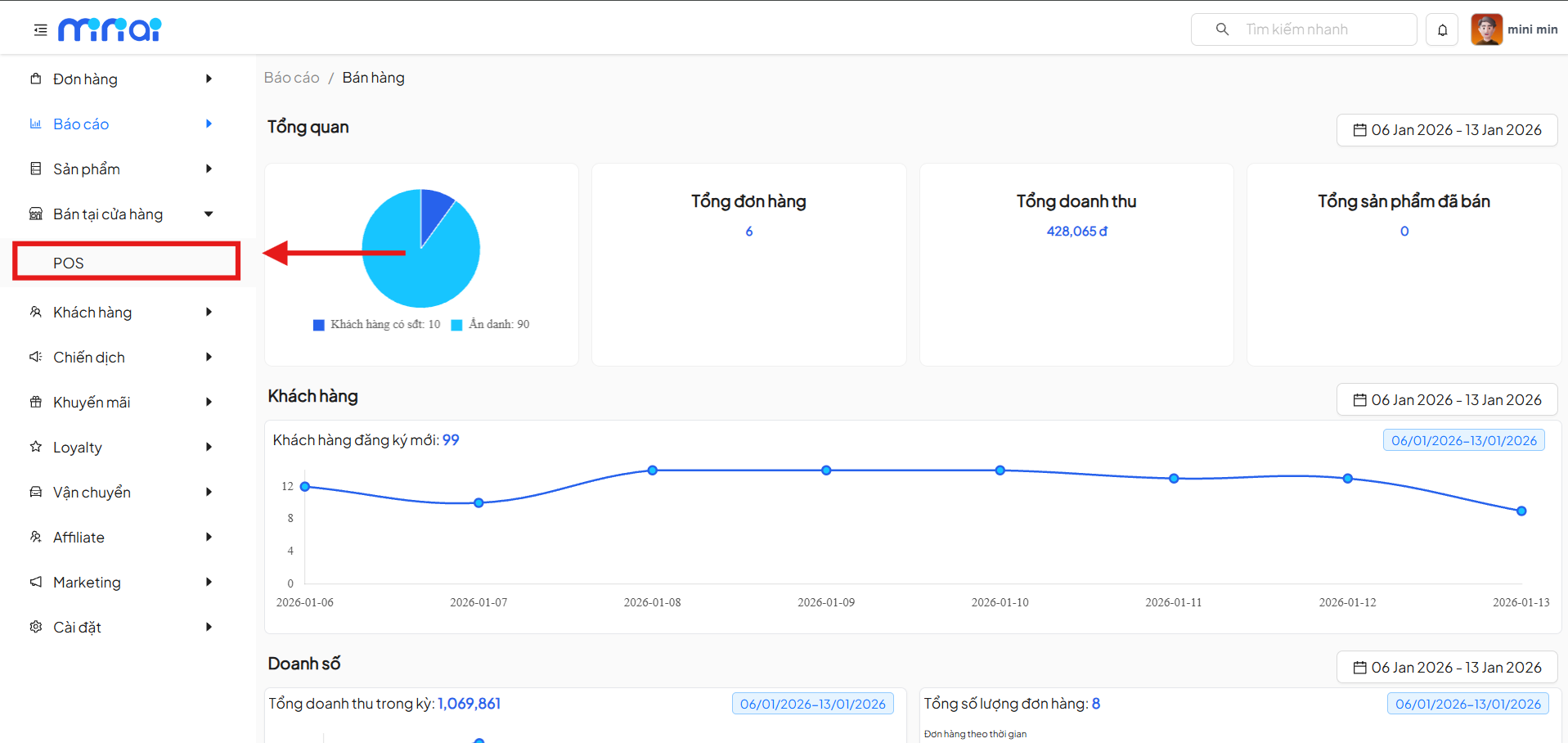
- From the left menu, select In-Store Sales
- Click on POS
- The system displays the counter sales interface (POS)
POS Overview Interface
The POS screen is divided into 2 main areas:
1. Product List Area
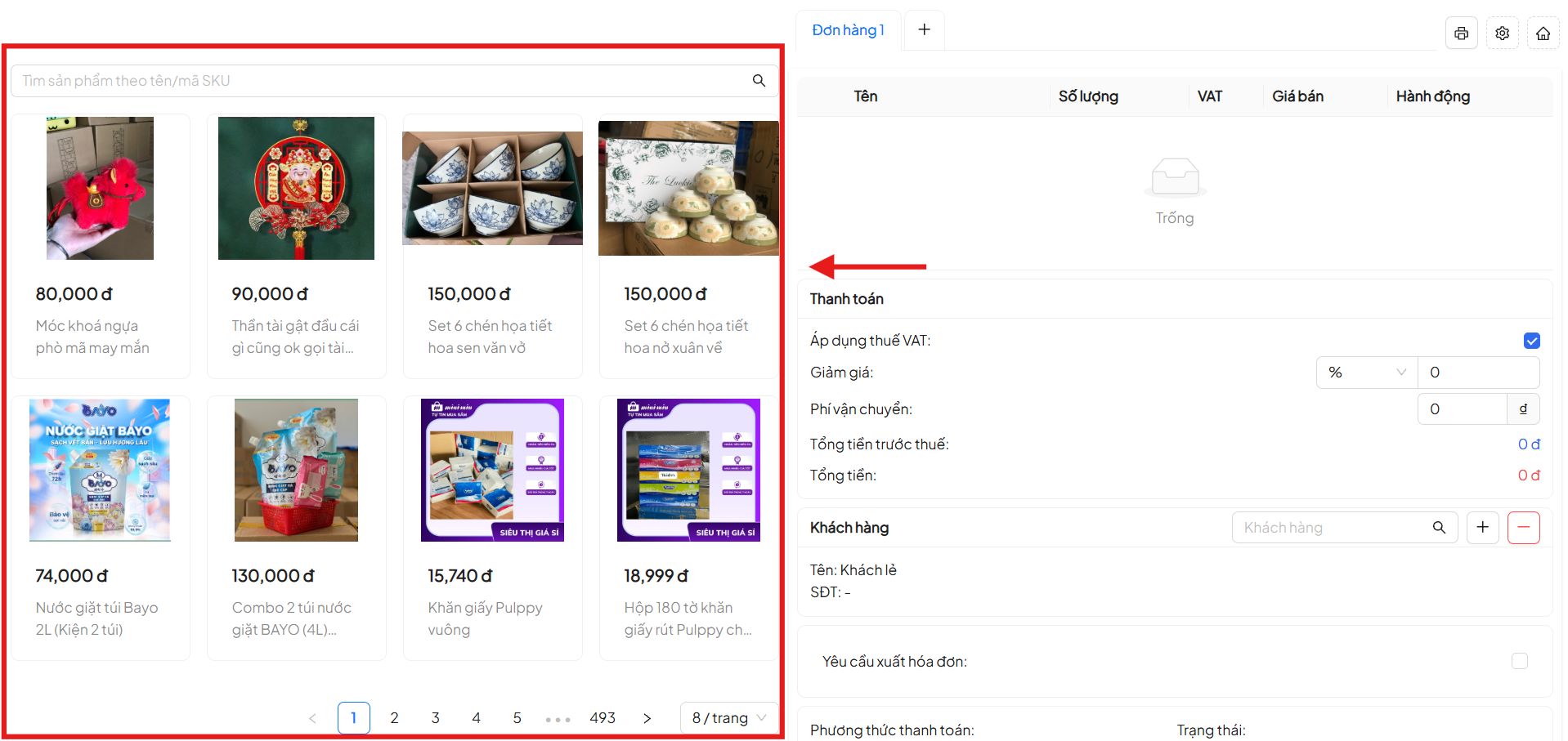
- Product search box by name or SKU code
- Product list displayed as cards:
- Product image
- Product name
- Selling price
- Pagination to browse many products
Use the search box to quickly find the product to sell instead of browsing through a long list. Staff simply click on a product to add it to the order.
2. Order Area
The right side of the screen displays the current order information, including:
- List of selected products
- Quantity
- VAT
- Selling price
- Order editing actions
Managing Multiple Orders
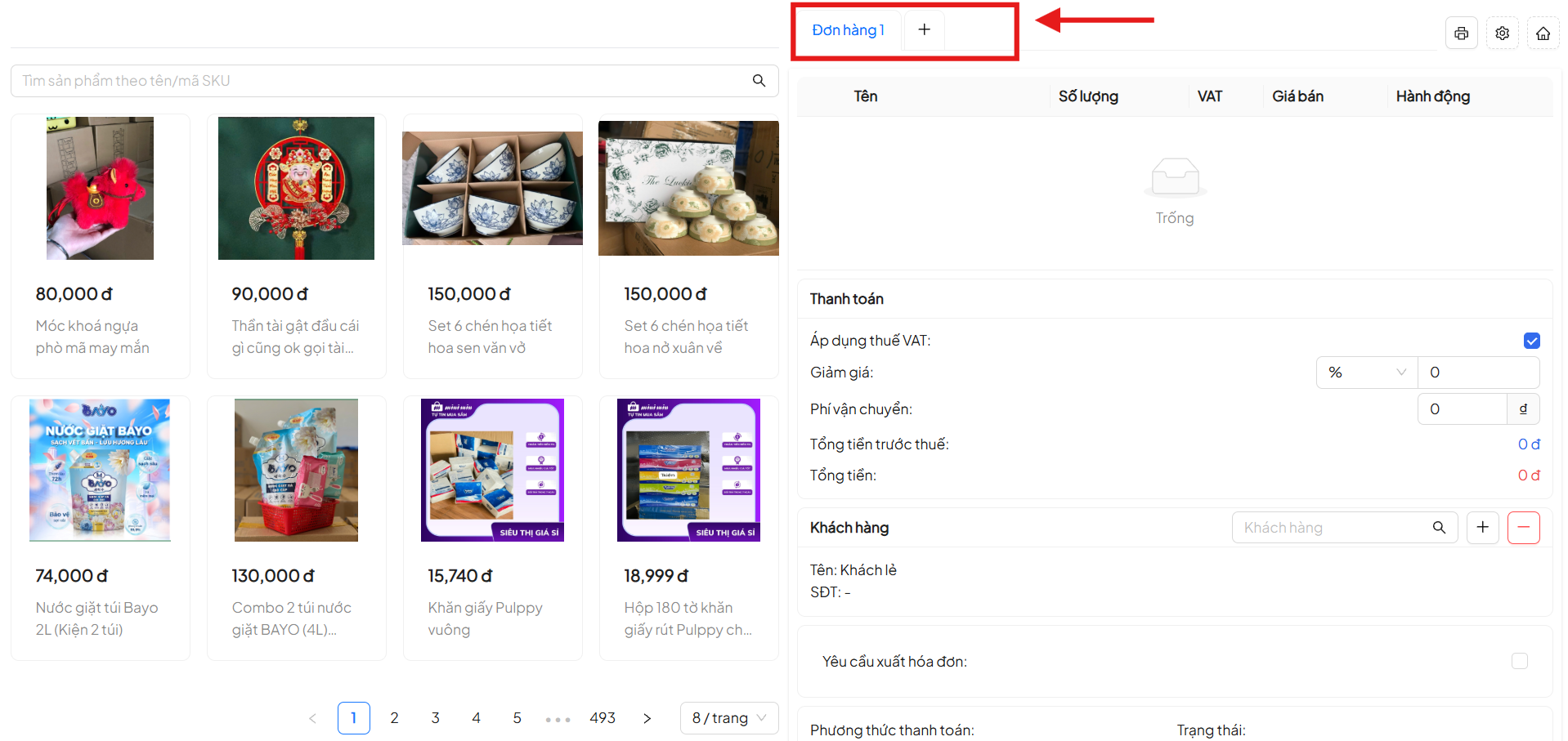
POS supports creating and managing multiple orders simultaneously through order tabs.
How to Use
- Order 1: Current order
- Click the ( + ) button to create a new order
- Switch between orders by clicking the corresponding tab
Each order is managed separately, helping staff serve multiple customers at once without confusion.
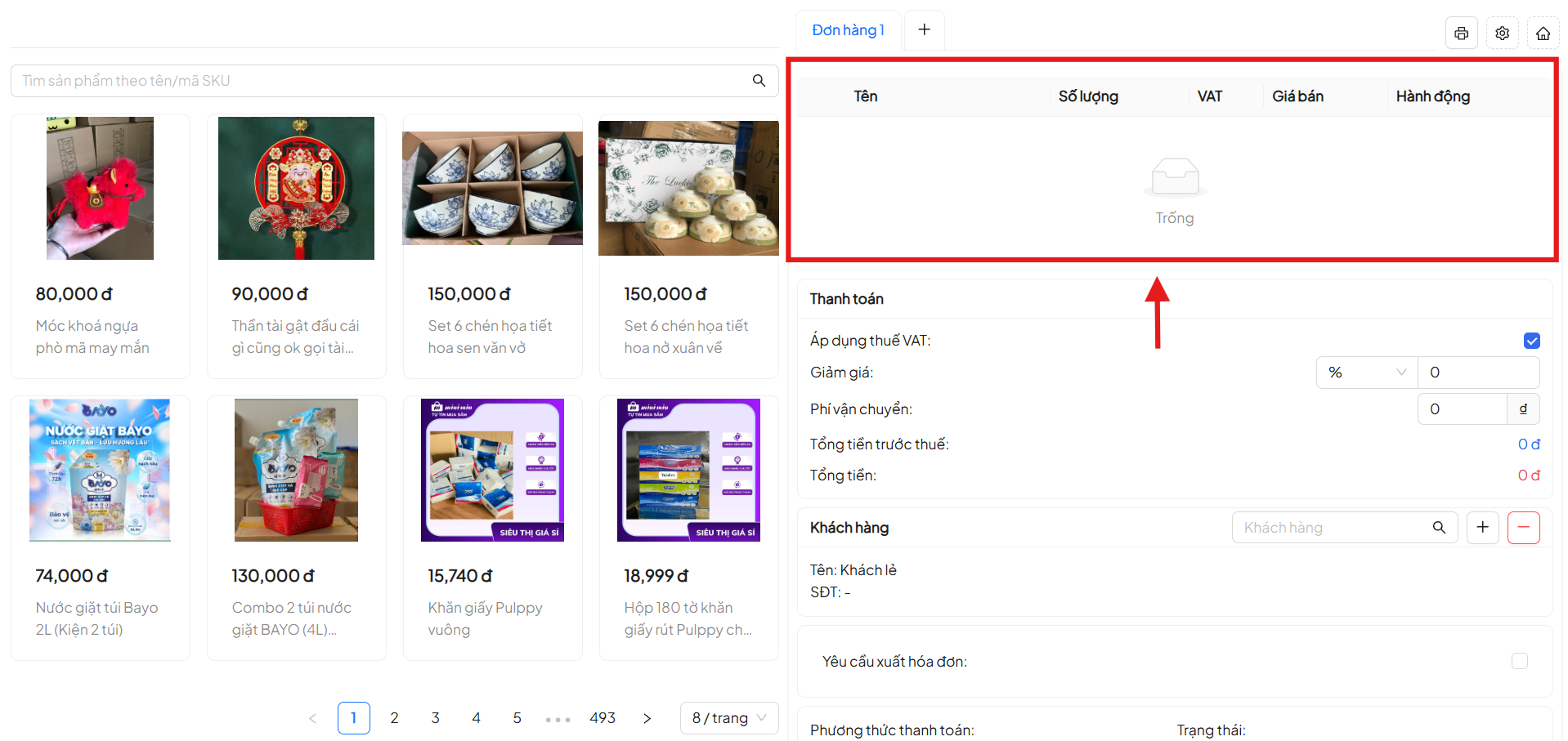
Products in the Order
After selecting products, the system displays them in the order table with columns:
- Product Name
- Quantity
- VAT
- Selling Price
- Action (remove product from order)
If no products have been added, the system displays an Empty status.
Payment Section
The Payment section allows configuring order value information.
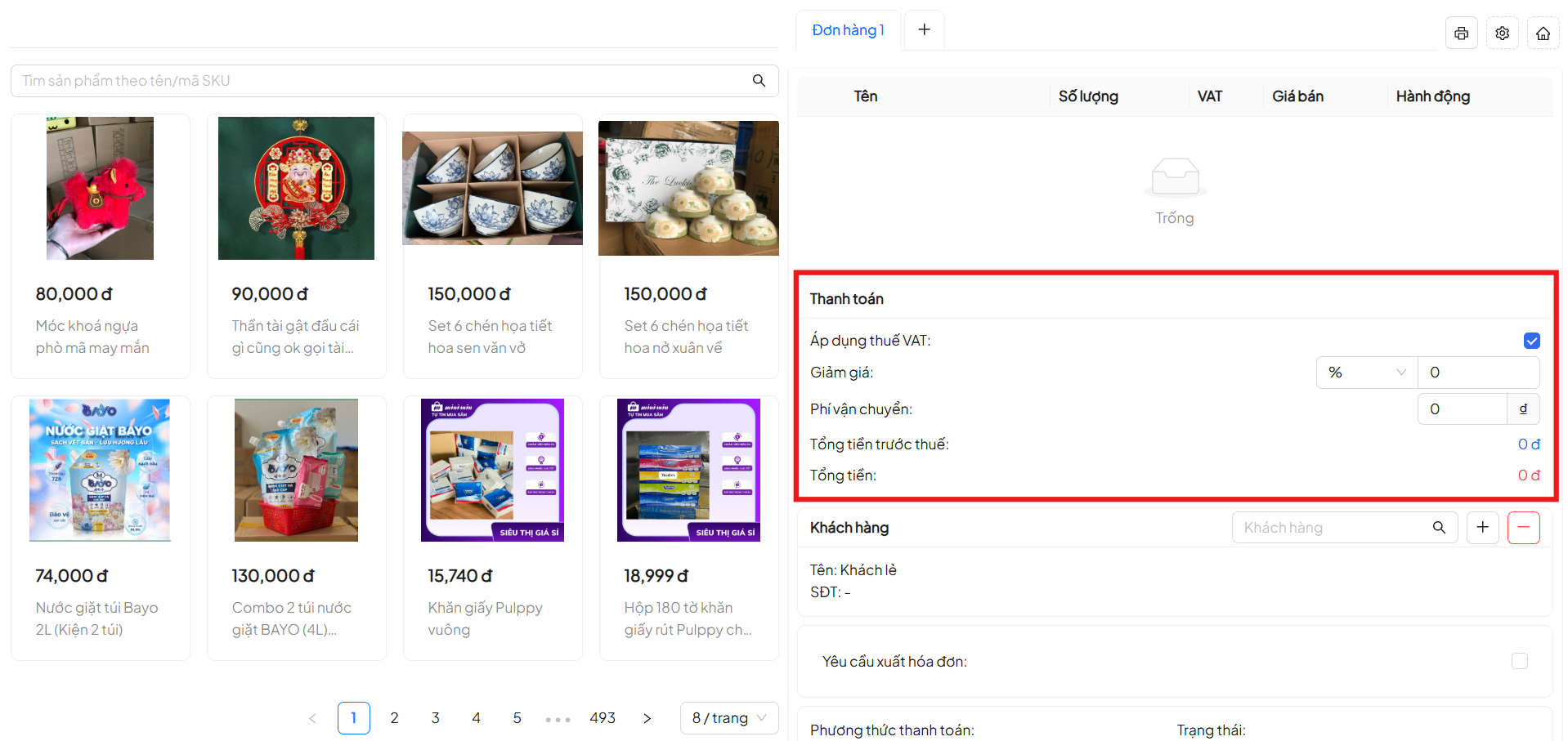
Information Includes
- Apply VAT Tax: Enable/disable VAT for the order
- Discount:
- By percentage
- Or fixed amount
- Shipping Fee
- Subtotal Before Tax
- Total Payment Amount
Any changes to tax, discount, or shipping fee will automatically update the total payment amount.
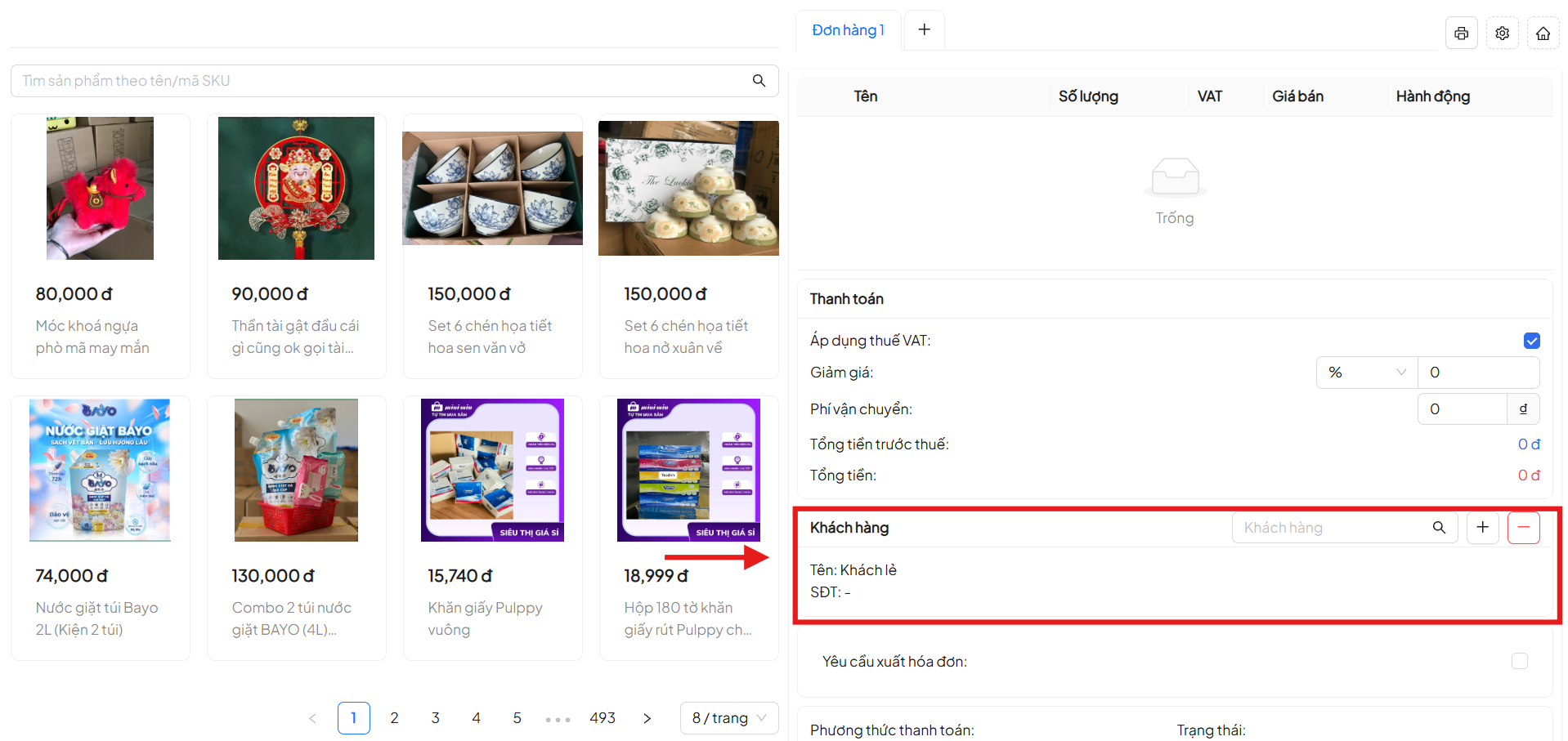
Customer Information
The Customer section allows assigning customer information to the order.
Supported Actions
- Search for customers in the system
- Quickly add new customers
- Remove customers from the order
By default, the system uses Walk-in Customer if no specific customer is selected.
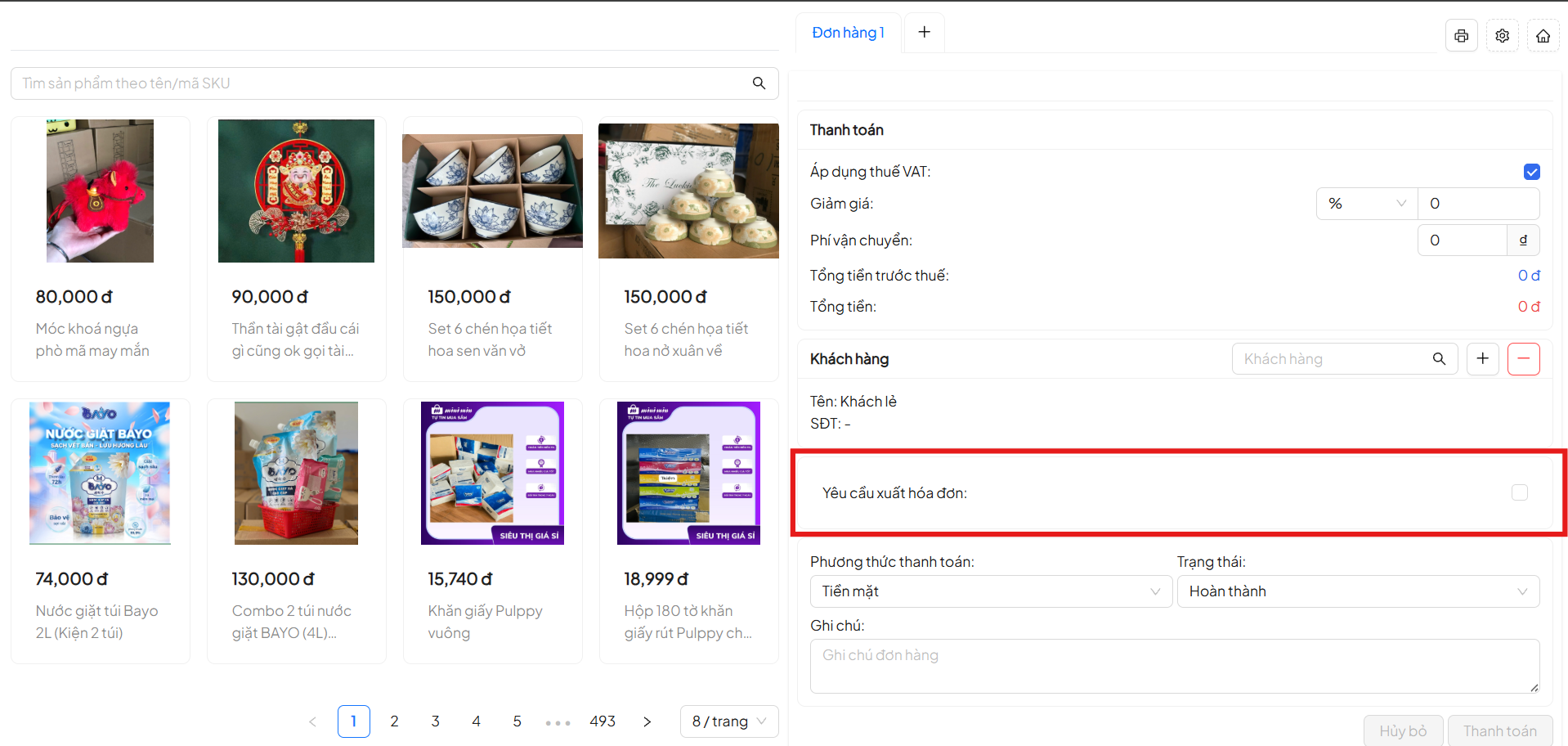
Invoice Request
- Allows checking Request Invoice
- Applies to orders that need VAT invoice issuance
Payment Method & Status
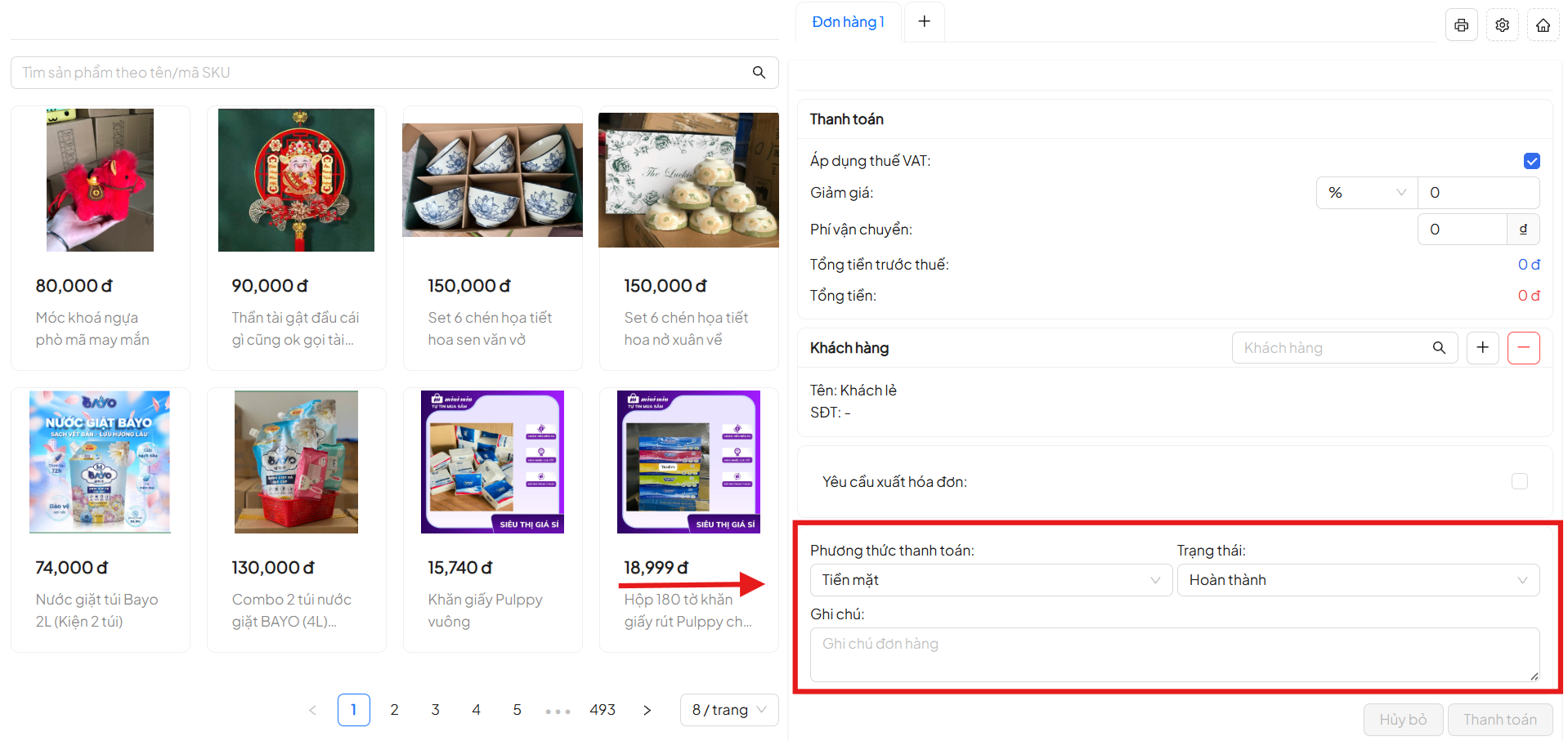
Payment Methods
- Cash
- (Additional methods can be expanded based on system configuration)
Order Status
- Completed
- Other statuses according to the business flow
Order Notes
- Enter internal notes for the order if needed
Quick Actions on POS
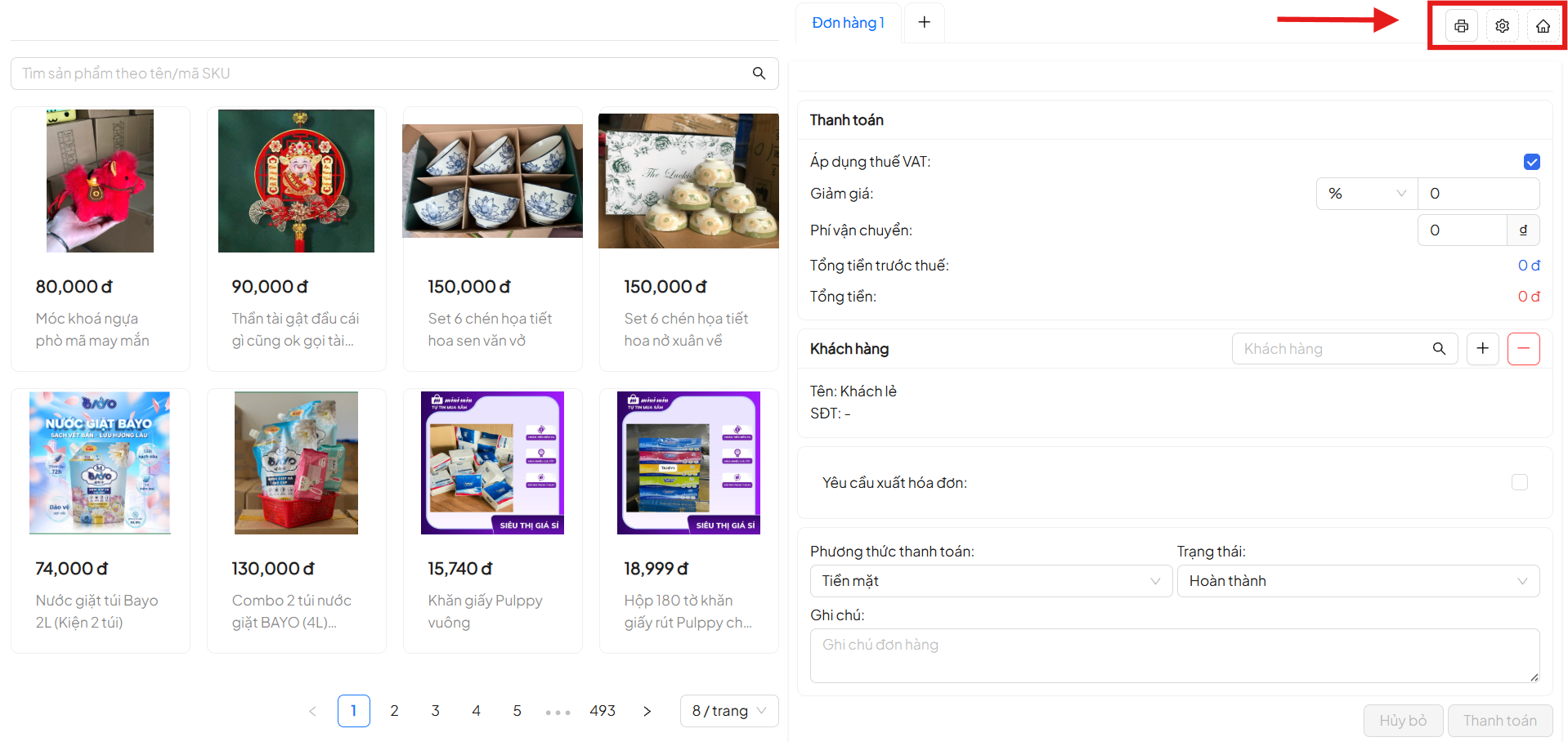
In the upper right corner of the POS screen, the system provides quick action buttons:
- Print Order
- POS Settings
- Return to Homepage
Use the quick action buttons to optimize the sales process and quickly access necessary features.
Complete Payment
After checking all order information:
- Click Payment
- The system records the order
- The order is saved and updated to the reporting system
Benefits of Using In-Store POS
- Quick order creation with simple operations
- Suitable for direct sales
- Reduced calculation errors
- Centralized order management at the point of sale
- Data synchronized with sales reports
Usage Notes
- Carefully check products and quantities before payment
- Ensure the correct payment method is selected
- For orders requiring invoices, the corresponding option must be enabled
Conclusion
In-Store POS Sales is an essential tool for direct sales operations. Using POS helps optimize the sales process, enhance customer experience, and ensure data is managed accurately and in sync.